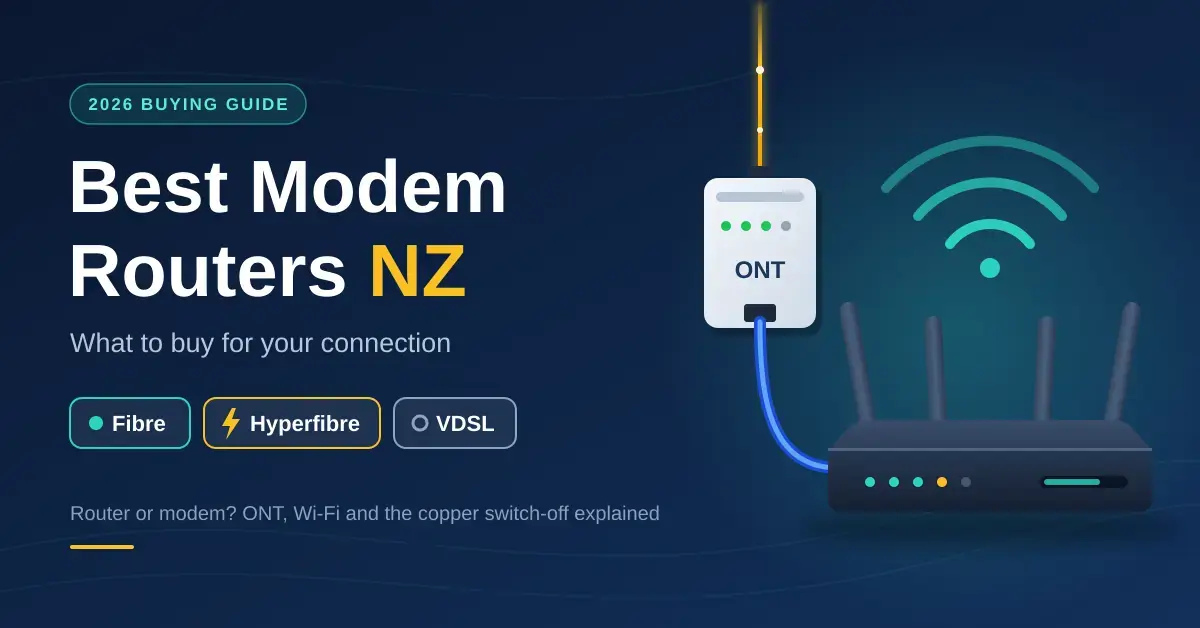
“Modem router” is the phrase New Zealand retailers still print on almost any box that has Wi-Fi, but most Kiwi homes no longer need a modem at all. On fibre, which now reaches more than three-quarters of the addresses Chorus can serve, the fibre company’s ONT already does the modem’s job and all you need is a router. Copper VDSL, the one connection that still needs a built-in modem, is being switched off nationwide by 2028. This guide explains what each New Zealand connection actually requires, how to tell when the router your internet provider posted out is holding you back, and what to buy in 2026.
If patchy coverage rather than raw speed is your real problem, the router is only half the story. Our mesh Wi-Fi guide covers spreading signal around a house, and our home network setup guide ties the whole thing together.
Key Points
- On fibre you need a router, not a modem. The ONT on the wall converts the fibre; a plain Wi-Fi router plugs into it with one Ethernet cable.
- Only VDSL and ADSL copper connections need a built-in modem, and Chorus is retiring copper nationwide by 2028 — buy a VDSL modem router only if neither fibre nor wireless is an option where you live.
- Hyperfibre 2000 needs a 2.5 Gbps WAN port; Hyperfibre 4000 and 8000 need a 10 Gbps WAN port. A gigabit router caps any of these at about 940 Mbps.
- Most NZ fibre providers use VLAN 10 with DHCP or PPPoE. Check your provider’s settings page before buying; almost every current router supports it.
- A good Wi-Fi 6 router costs NZ0–0; a Wi-Fi 7 router with 2.5G ports starts around NZ0–0. Keep the ISP router if it provides your home phone.
Modem vs router: what each NZ connection needs
A modem converts the signal on the line coming into your house into Ethernet; a router shares that one connection with all your devices, runs the firewall and broadcasts Wi-Fi. On old copper broadband those two jobs share a single box, which is where the term “modem router” comes from. On fibre the modem job is done by the optical network terminal (ONT) that Chorus or your local fibre company screwed to the wall, so a fibre “modem router” is really just a router with an unused DSL socket you are paying for and will never plug in.
Because the hardware requirement changes completely with the connection, the first thing to do is identify what actually enters your home. The table below sums up what each New Zealand connection needs and the one port specification that matters most for each.
Connection Comparison
| Connection | What you need | Typical NZ plan speeds | Port to look for |
|---|---|---|---|
| Fibre 300 / Fibre Max (UFB) | Router only, WAN port to the ONT | 300/100 Mbps; 900+/500 Mbps | Gigabit WAN, VLAN tagging |
| Hyperfibre 2000 / 4000 / 8000 | Router with a multi-gigabit WAN port | 2, 4 or 8 Gbps symmetric | 2.5G WAN (2000) or 10G WAN (4000/8000) |
| VDSL or ADSL copper | Modem router with a VDSL2 modem | Up to ~70 Mbps down on VDSL; far less on ADSL | RJ11 DSL port plus a spare Ethernet WAN port |
| 4G / 5G wireless broadband | ISP wireless modem; your own router optional | Tens to a few hundred Mbps, varies by cell | Ethernet LAN port on the wireless modem |
| Starlink | Starlink router included; your own router via bypass mode | Typically 100–300 Mbps | Built-in Ethernet (Gen 3) or Ethernet adapter (Gen 2) |
Copper matters less every quarter. In Chorus’s April 2026 announcement the company said it will finish retiring the copper network by 2028, two years earlier than the previous target. By its FY26 results, fibre uptake had reached 75.9 percent of addresses where fibre is available, with fewer than 1,000 copper connections left inside fibre areas and roughly 43,000 remaining where fibre has not been built. If you are still on VDSL in a fibre street, the sensible move is to switch rather than buy a new modem router; Chorus explains moving off copper, and the Telecommunications Forum’s copper retirement guidance covers what happens to a landline in the process. In rural areas without fibre, VDSL competes with 4G/5G wireless and satellite, so a VDSL modem router with its own separate Ethernet WAN port keeps your options open.
Which router do you need?
Match the box to the connection first, then to the house. The connection decides whether you need a modem and which WAN port speed matters; the house decides whether one router is enough or whether you should start with a mesh system. Here is how the common New Zealand situations break down.
Fibre 300 and Fibre Max
You need a router, not a modem router. Any current Wi-Fi 6 router with a gigabit WAN port and VLAN support handles these plans, so spend your money on coverage rather than a big speed rating. A typical three or four-bedroom single-storey house is well served by a NZ$150–$350 router. If you might move to Hyperfibre later, look for one that also has a 2.5 Gbps port.
Hyperfibre 2000, 4000 and 8000
Hyperfibre only shows its speed through a matching WAN port, so the port is the whole decision. Hyperfibre 2000 needs a 2.5 Gbps WAN port; Hyperfibre 4000 and 8000 need a 10 Gbps WAN port. A plain gigabit router caps any of these plans at about 940 Mbps, so it quietly wastes most of what you are paying for. Remember the computer that will actually use the speed needs a matching 2.5G or 10G network card too. Chorus’s own Hyperfibre pages list the plan speeds if you are not sure which one you are on.
VDSL or ADSL copper
This is the one connection that still needs a modem built in, so buy a VDSL2 modem router. Choose one that also has an Ethernet WAN port, so the same box works the day you move to fibre or a wireless modem. Because copper tops out around 70 Mbps on VDSL and far less on ADSL, do not overspend on Wi-Fi 7 or multi-gigabit ports you can never fill.
4G/5G wireless broadband
Keep the wireless modem your provider supplied, because it holds the SIM and the antennas tuned to the mobile network. If its Wi-Fi does not reach the whole house, add a router or mesh system in access point mode behind it rather than replacing it. Rural households comparing options can read our Wireless Nation review for how fixed wireless stacks up.
Starlink
Starlink includes its own Wi-Fi 6 router, so you do not need to buy one to get online. For a larger house, either add Starlink mesh nodes or put the Starlink router into bypass mode and run your own mesh from the Ethernet connection; the newer Gen 3 Standard kit has an Ethernet port built into its power supply, while older Gen 2 kits need the separate Starlink Ethernet Adapter. Starlink’s support pages cover bypass mode, and our guide to Starlink in New Zealand covers the plans and hardware.
What about the size of the house?
For anything over roughly 200 square metres, two storeys, or a long thin layout, a single router sitting in the corner where the ONT lives will not cover the far rooms no matter how good it is. In those homes, buy your router as the main node of a mesh system from day one so you can add nodes later, rather than buying a single router now and replacing it in six months.
Is your ISP router holding you back?
The routers Spark, One NZ, 2degrees and the smaller providers hand out are much better than they used to be; most now ship with Wi-Fi 6 and cope with a gigabit connection. They are still built down to a price, though, and the usual weak spots are Wi-Fi range in a bigger house, a small number of LAN ports, thin settings menus, and no multi-gigabit ports for Hyperfibre. The clearest signs it is time to replace or bypass yours:
- A cabled laptop next to the router hits your full plan speed on our speed test, but Wi-Fi in the next room gets a fraction of it.
- Video calls stutter whenever someone else streams, and the router has no working traffic-priority setting. Our QoS explainer covers what that setting actually does.
- You have run out of Ethernet ports for the TV, console and NAS, and there is no 2.5G port for the gear that could use it.
- You are moving to Hyperfibre, or you want features the ISP box lacks, such as a VPN server, custom DNS or proper guest networks.
One thing to check before you unplug anything: many ISP routers carry a VoIP home phone on a green phone socket, and swapping the router silently kills the landline. Either keep the ISP router as the gateway and add your own router in access point mode, or move the phone to a standalone VoIP adapter. Our VoIP phone guide explains both routes.
Router features that matter in 2026
Once you know the type of box you need, these are the specifications worth reading on the label, roughly in order of how much they affect real-world results.
- WAN port speed. Gigabit for Fibre 300 and Fibre Max, 2.5G for Hyperfibre 2000, 10G for Hyperfibre 4000 and 8000. This single spec decides whether you get what your plan is paying for.
- VLAN tagging on the WAN. Most New Zealand fibre providers tag the connection with VLAN 10, so the router must support VLAN tagging. Almost every router sold here does, but the very cheapest grey imports sometimes do not.
- Wi-Fi 6 as the floor, Wi-Fi 7 if the price is close. Wi-Fi 7 adds multi-link operation and 6 GHz. New Zealand has opened only the lower 6 GHz band under Radio Spectrum Management’s 6 GHz rules, which still gives one clean wide channel. Our Wi-Fi explainer covers what each generation changes.
- Enough LAN ports, ideally one 2.5G. Four gigabit ports is the practical minimum; a 2.5G LAN port future-proofs a NAS or gaming PC. If you need more sockets, add a network switch rather than paying for a bigger router.
- Mesh expandability. A router that can later become the main node of a mesh (TP-Link Deco or EasyMesh, Amazon eero, Netgear Orbi, ASUS AiMesh) saves you buying the whole thing twice.
- Ongoing firmware updates. Your router is your home firewall, so a brand with a track record of multi-year security updates is worth a small premium over a no-name bargain.
Best routers and modem routers in NZ
The price bands below are what New Zealand retailers were charging in 2026, GST included. Individual models come and go, so treat these as brackets rather than a shopping list and check current listings before you buy. None of these are paid placements.
Best value fibre router: Wi-Fi 6, NZ$150–$350
TP-Link’s Archer AX55 and AX72, ASUS’s RT-AX58U and TUF-AX3000, and Netgear’s RAX-series routers all handle Fibre Max with VLAN tagging, four gigabit ports and solid Wi-Fi 6. The ASUS models add AiMesh, so a second ASUS unit later becomes a mesh node; the TP-Link models support EasyMesh with matching extenders. For a typical three-bedroom house this bracket is all you need.
Best for Hyperfibre: Wi-Fi 7 with 2.5G or 10G ports
TP-Link’s Archer BE550 (with several 2.5G ports) and ASUS’s RT-BE86U or RT-BE92U class routers suit Hyperfibre 2000 at roughly NZ$350–$700. Hyperfibre 4000 and 8000 need a 10G WAN port, which pushes you into the Archer BE800/BE900 class, ASUS’s flagship BE models, or a small firewall appliance paired with separate Wi-Fi 7 access points, typically NZ$700 and up. Do not forget the matching 2.5G or 10G card in the computer that will use the speed.
Best for big homes: a mesh main node
For anything over about 200 square metres or two storeys, a single router in the corner will never cover the house. Buy a mesh system whose main node plugs straight into the ONT, such as TP-Link Deco or Amazon eero, and add nodes as needed. Our mesh Wi-Fi guide has node counts and prices for common house sizes.
Best VDSL modem router, if you must
TP-Link’s Archer VR and VX series and AVM’s FRITZ!Box 7530 and 7590 are the mainstream VDSL2 modem routers sold in New Zealand, at roughly NZ$150–$400. All of them include an Ethernet WAN port, so they carry over to fibre or a wireless modem when copper is switched off in your area. There is no point paying for Wi-Fi 7 on a copper line that tops out near 70 Mbps.
For tinkerers: Ubiquiti, MikroTik and OPNsense
If you want separate VLANs for cameras and smart-home gear, a proper firewall and wired access points, a Ubiquiti Cloud Gateway with UniFi access points is the tidy route and a mini PC running OPNsense the flexible one. Our UniFi deployment guide walks through a home build step by step.
Setting up your own router on NZ fibre
Swapping in your own router on fibre is a five-minute job once you have the settings. The key point is that fibre needs no modem configuration at all, only the right WAN settings pointed at the ONT.
- Find your provider’s “bring your own router” page. It lists the connection type (DHCP or PPPoE), the VLAN ID (usually 10) and any username and password for PPPoE.
- Cable the WAN port to the ONT. Use port 1 on the ONT, or whichever port your provider specifies, with a Cat5e or better lead; our Ethernet cable guide explains which category to use.
- Enter the WAN settings in the router’s setup wizard, including the VLAN tag. On Hyperfibre, set the 2.5G or 10G socket as the WAN port.
- Reuse your old Wi-Fi name and password so every device reconnects automatically, then update the firmware before you finish.
- Test on a cable first. If a wired laptop reaches the full plan speed, the connection is correct and anything slower is a Wi-Fi placement issue; our router settings guide covers the fixes.
Common mistakes when buying a modem router in NZ
Most wasted money on home networking comes from a handful of avoidable errors rather than buying the wrong brand. Watch for these.
- Buying a modem router for a fibre connection. The DSL modem inside is dead weight on fibre. You are paying for a part you will never plug in, and sometimes accepting weaker Wi-Fi to get it.
- Pairing a gigabit router with a Hyperfibre plan. The router silently caps the connection at about 940 Mbps, so the extra you pay the ISP each month never arrives. Match the WAN port to the plan.
- Ignoring the home phone. Unplugging the ISP router to fit your own can cut off a VoIP landline that runs through it. Sort the phone out first.
- Overspending on a single router in a big house. A NZ$500 flagship in one corner still cannot reach through three internal walls. Two cheaper mesh nodes usually beat one expensive box.
- Forgetting the computer’s network card. Multi-gigabit speed needs a matching 2.5G or 10G port at both ends; a 10G router feeding a gigabit laptop still tops out at gigabit.
- Skipping VLAN tagging. A very cheap imported router without VLAN support simply will not connect on a provider that uses VLAN 10, no matter how the rest is set up.
Who each option suits
The short version: on fibre, buy a router rather than a modem router, and choose it for coverage and ports rather than a headline speed. What the industry calls a residential gateway only needs a built-in modem on copper, and copper is nearly gone. A Wi-Fi 6 router at NZ$150–$350 covers Fibre 300 and Fibre Max for most homes; step up to Wi-Fi 7 with a 2.5G or 10G WAN only if you are on Hyperfibre; start with a mesh main node if the house is large; and buy a VDSL modem router only when fibre and wireless genuinely are not available, choosing one with an Ethernet WAN port so it survives the switch to fibre later.
Prices in this guide are New Zealand retail ranges including GST seen in 2026, and copper and fibre figures come from Chorus announcements, so both can change over time. Nicegear is independent and carries no paid placements.
Sources
Frequently asked questions
Do I need a modem for fibre in NZ?
No. The ONT that Chorus or your local fibre company installed on the wall already does the modem’s job. All you need is a router with an Ethernet WAN port that supports your provider’s VLAN tag, which is usually VLAN 10.
Can I use my own router with Spark, One NZ or 2degrees fibre?
Yes. All the major New Zealand providers allow your own router on fibre and publish the settings, typically DHCP or PPPoE with VLAN 10. The one catch is a home phone that runs through the ISP router, which means keeping that router in the chain or moving the phone to a VoIP adapter.
What router do I need for Hyperfibre?
One with a 2.5 Gbps WAN port for Hyperfibre 2000, or a 10 Gbps WAN port for Hyperfibre 4000 and 8000. A standard gigabit router limits any of these plans to about 940 Mbps, and the computer using the speed needs a matching network card as well.
Is a modem router the same as a router?
A modem router is a router with a DSL modem built in for copper connections. On fibre or wireless broadband the modem part sits unused, so a plain router does the same job, usually for less money and often with better Wi-Fi.
When is copper broadband being switched off in NZ?
Chorus announced in April 2026 that it will complete the retirement of its copper network by 2028, two years earlier than planned. Customers are moved to fibre where it is available, or to wireless or satellite broadband where it is not.