
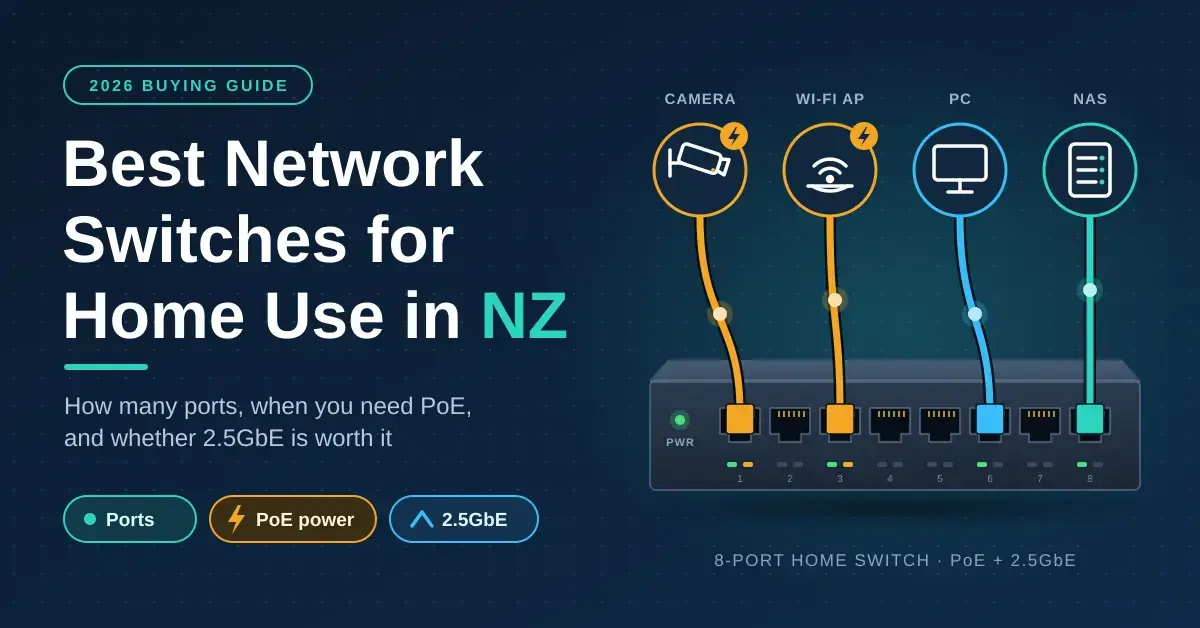
A network switch is the least glamorous box in a home network, and the one people most often buy wrong: too few ports, no Power over Ethernet when the security cameras arrive, or an expensive “managed” model whose features never get touched. The good news is that switches are cheap in New Zealand in 2026 — an eight-port gigabit switch sells for under NZ$50, an eight-port 2.5-gigabit model is around NZ$118, and a PoE switch that powers a house full of cameras and Wi-Fi access points runs about NZ$150–$300. This guide explains, in plain English, how many ports you actually need, when a managed switch is worth paying for, how to read a Power over Ethernet budget, and whether faster 2.5GbE earns its price. (A quick note for anyone who searched “switch” hoping for gaming: this is the networking kind, not the console — if you were after the best-selling Nintendo Switch games, that is a different list entirely.) If you are planning the whole setup from scratch, start with our home network setup guide, where the switch is roughly step three, and read the Ethernet cable guide for the cabling that feeds it.
Key Takeaways
- Count your wired devices, add the cables running to other rooms, add two spare ports, then round up. Most homes land on 8 or 16 ports.
- Unmanaged switches are plug-and-play and right for most homes. Buy managed (smart) only if you want VLANs to isolate cameras and smart-home gear and your router supports them.
- PoE switches power cameras and ceiling access points over the data cable. Check the total PoE budget in watts, not just the port count — about 55–65 W runs roughly three cameras and one access point.
- 2.5GbE is worth it for a NAS, a home server or Hyperfibre 2000; for TVs, consoles, laptops and printers, gigabit is plenty.
- A switch never routes. Plug it into a router LAN port and everything on it behaves as if it were plugged straight into the router.
What a Network Switch Does (and What It Doesn’t)
A network switch multiplies Ethernet ports. One cable runs from a LAN port on your router into the switch, and every device you plug into the switch then sits on the same network, with the same address range, talking to the others at full wired speed. Unlike the old “hubs” it replaced, a switch is smart about traffic: it sends each packet only to the port that needs it, so a network-attached storage drive copying files to a desktop does not slow down the smart TV two ports over.
What a switch does not do is just as important. It does not connect you to the internet, hand out IP addresses, or run a firewall — all of that stays with the router. Because a switch carries no settings of its own, you can add one anywhere on the network without reconfiguring anything, and you can even chain a second small switch off the first (for example, one behind the TV fed from the main switch in a hallway cabinet). If you want the deeper background on how wired networking moves data, our explainer on how Ethernet works covers it without the jargon.
How Many Ports Do You Need?
Count three things, then add a buffer. First, the devices that will plug in at the switch’s own location — TV, console, desktop, printer, NAS. Second, every cable that runs off to another room, because each wall socket consumes a switch port whether or not something is connected to it yet. Third, the single uplink cable back to the router. Add those up, add two spare ports for the things you will inevitably buy later, and round up to the next size the market sells.
Switches come in 5, 8, 16, 24 and 48 ports. A 5-port unit is the behind-the-TV choice; an 8-port model is the everyday home size; a 16-port switch suits a fully cabled house with sockets in most rooms plus a few cameras. The table below shows where typical New Zealand homes land.
| Home | Typical wired devices | Switch to buy | NZ price (Sept 2026) |
|---|---|---|---|
| Behind the TV | TV, streaming box, console, soundbar | 5-port gigabit unmanaged | NZ$26–$45 |
| Small home, one hub | Router uplink, TV, desktop, NAS, printer, 2 wall ports | 8-port gigabit unmanaged | NZ$45–$60 |
| Home with cameras or ceiling APs | The above, plus 2–4 cameras and 1–2 access points | 8-port PoE+ (4–8 PoE ports) | NZ$120–$300 |
| Fully cabled house | 8+ wall ports, cameras, access points, NAS, server | 16-port PoE+, or a 16-port switch plus an 8-port PoE unit | NZ$150–$600 |
| NAS, home server or Hyperfibre | The above, plus fast links between server, desktop and router | 8-port 2.5G (add PoE if needed) | NZ$118–$550 |
Managed vs Unmanaged Switches
The short answer is that most homes want an unmanaged switch. An unmanaged switch has no web page and no settings: you plug it in and it works, forever, which is exactly what a house full of TVs and laptops needs. A managed switch (TP-Link brands its budget line “Easy Smart”; Ubiquiti’s are configured through the UniFi controller) adds a management interface, and it costs a little more and asks a little more of you.
What VLANs actually do at home
The one managed feature worth paying for at home is VLAN support. A VLAN (virtual local area network) splits one physical switch into separate logical networks, so cheap smart-home gadgets and security cameras live on their own segment and cannot reach your laptops, phones or NAS. That matters because budget IoT devices are a common weak point: isolating them limits what an attacker who compromises one can touch. Managed switches also offer link aggregation, port mirroring and quality-of-service controls, but almost no household needs those — if you are chasing lower lag for gaming, router-level settings do far more, as our guide to reducing ping and lag explains.
Do you actually need one?
VLANs only work end to end if the router understands them too. A standard ISP-supplied router usually does not, whereas a Ubiquiti gateway, a Firewalla, an OPNsense box or a higher-end ASUS or TP-Link Omada router does. If your router is the one the ISP gave you, buy an unmanaged switch and put your smart-home gear on the guest Wi-Fi instead — you get much of the same isolation for nothing. Our UniFi deployment guide shows what a fully VLAN-segmented home network looks like in practice.
PoE Switches and Power Budgets
Power over Ethernet (PoE) sends electrical power down the same cable that carries the data, so a camera under the eaves or an access point on the ceiling can run with no power point nearby — one cable does both jobs. This is the single feature that turns a switch from a convenience into the backbone of a camera and Wi-Fi install.
The PoE standards, in plain English
Three IEEE standards set how much power a port can deliver. The IEEE 802.3 Ethernet standards define 802.3af (plain PoE) at up to 15.4 W per port, 802.3at (PoE+) at up to 30 W, and 802.3bt (PoE++) at up to 60 W (Type 3) or 90 W (Type 4). Because of cable losses, the device at the far end receives a little less — roughly 12.95 W, 25 W and 51 W respectively. As a rule of thumb, most fixed security cameras are happy on 802.3af, most Wi-Fi 6 access points want 802.3at, and pan-tilt-zoom cameras and Wi-Fi 6E/7 access points are where PoE+ or PoE++ becomes essential. TP-Link’s PoE switch range for New Zealand and Ubiquiti’s UniFi PoE availability and modes reference both list which standard each port supplies, so you can match the switch to the gear.
How to work out your PoE budget
The trap is the total power budget, not the port count. An “8-port PoE switch” often has only four PoE ports sharing a 55–65 W budget — enough for about three cameras and one access point, and no more. Add up the draw of every powered device, then leave headroom, because outdoor cameras pull more in winter when their heaters run and access points spike at boot. A safe working figure is roughly 7 W per fixed camera, 15 W per Wi-Fi 6 access point, and 25 W per PTZ camera or Wi-Fi 6E/7 access point, plus 25 per cent on top. So three cameras and two Wi-Fi 6 access points draw about 51 W of device load, which after headroom needs a switch rated near 65 W — a 55 W unit is already too small.
One more compatibility note: a handful of older Ubiquiti and MikroTik point-to-point radios use 24 V passive PoE, which standard 802.3-compliant switches do not supply. Those need the injector they shipped with, not a modern PoE switch.
Keep it fanless if it lives indoors
PoE switches with budgets above roughly 120 W usually have a cooling fan, and a small fan in a hall cupboard is audible at night. For a typical home, an 8-port PoE+ model is almost always fanless; if you are eyeing a 16-port unit, check the listing for “fanless” before you buy, and give any switch a little airflow rather than sealing it inside an airtight cabinet.
Gigabit, 2.5GbE or 10GbE?
Gigabit Ethernet is still the right default. It moves about 940 Mbps of real-world data, which is enough to saturate a Fibre Max plan and to feed any TV, console, laptop or printer at full speed. For the great majority of home devices, paying for anything faster changes nothing you will notice.
2.5GbE (2.5-gigabit) is the sensible step up when you have a reason for it. It runs over the same Cat5e or Cat6 cable you already have and has become genuinely cheap: TP-Link’s eight-port TL-SG108-M2 2.5G switch at PB Tech was NZ$117.99 including GST in September 2026, and most new NAS units, mini PCs, motherboards and Wi-Fi 7 routers now ship with 2.5G ports. It pays off for a NAS or home server, a gaming PC pulling large files from a local cache, and for Hyperfibre 2000, where a gigabit router-to-switch link would otherwise be the bottleneck. Chorus offers Hyperfibre in 2000, 4000 and 8000 Mbps tiers, so the wired backbone becomes the limiting factor well before the fibre does.
10GbE remains a specialist buy at home. The switches cost far more, run hot, and need Cat6a for full-length runs (Cat6 manages short ones). Unless you edit video straight off a NAS or run Hyperfibre 4000 or 8000, the money is better spent on PoE and more ports. Our NAS storage guide spells out exactly where 2.5G and 10G start to matter.
How to Size Your Switch in Five Steps
Sizing a switch is a five-minute exercise on paper. Work through these steps in order and you will land on the right port count, PoE budget and switch type without guessing.
- Count local devices and room cables. Add every device that plugs in where the switch will sit, plus every cable running to another room, plus one uplink to the router, plus two spare ports. Round up to 5, 8, 16 or 24 ports.
- Decide whether you need PoE. If any cameras or ceiling access points will run off the switch, you need PoE; if not, an unmanaged gigabit switch is the whole answer.
- Add up the PoE watts. Use 7 W per fixed camera, 15 W per Wi-Fi 6 access point and 25 W per PTZ camera or Wi-Fi 6E/7 access point, then add 25 per cent. Buy a switch whose total budget clears that figure — and check how many of its ports are actually PoE.
- Choose the speed. Pick gigabit for a normal home. Choose 2.5G only if you have a NAS, a home server or Hyperfibre 2000 and want the server, main computer and router on the fast ports.
- Decide managed or unmanaged. Buy managed only if you want VLANs and your router can route between them. Otherwise buy unmanaged and use guest Wi-Fi to separate untrusted gadgets.
If the maths lands you above about 120 W of PoE, expect a fan and site the switch in a garage or ventilated cupboard rather than a bedroom wardrobe.
Recommended Home Network Switches in NZ (2026)
The models below are the ones worth searching for in New Zealand. Prices were seen at PB Tech in September 2026, include GST and move around, so treat them as a guide rather than a quote. The comparison table that follows lays out ports, PoE budget and who each switch suits, with links to the manufacturers’ official pages.
Best basic switch: TP-Link TL-SG108
Eight gigabit ports, a metal case, no fan and no settings — the TL-SG108 at PB Tech was about NZ$47 including GST. Its five-port siblings, the TL-SG105 and the plastic-cased TL-SG1005D, are the behind-the-TV pick from around NZ$26. Netgear’s GS308 and D-Link’s DGS-108 are equivalent; buy whichever is cheapest that week.
Best 2.5G switch: TP-Link TL-SG108-M2
Eight 2.5G ports, fanless and unmanaged, at around NZ$118. Pair it with a NAS and a desktop that both have 2.5G ports and local file copies run more than twice as fast as gigabit. Ubiquiti’s USW-Flex-2.5G-8 is the managed UniFi equivalent and adds a 10G uplink for a NAS.
Best PoE switch for cameras and access points
For a couple of cameras and one access point, TP-Link’s TL-SG1008P (four PoE+ ports sharing a 64 W budget) is the budget pick. Step up to the TL-SG1008MP, which powers all eight ports from a 153 W budget for a full camera set, or Netgear’s fanless GS108LP, which drives all eight ports from a 60 W FlexPoE budget that can be expanded with add-on modules. If you already run UniFi access points, the USW-Lite-8-PoE adopts straight into the same controller. For Wi-Fi 7 access points and a fast NAS in one box, Ubiquiti’s USW-Flex-2.5G-8-PoE combines 2.5G throughput with PoE++ and a 10G uplink. Whichever route you take, this is the class of switch that most often benefits from PoE cameras — see our roundup of outdoor security cameras for NZ for the devices these switches power.
Best managed switch for VLANs
TP-Link’s Easy Smart range — the TL-SG108E, or the five-port TL-SG105E — gives you VLANs and basic port settings through a simple web page for only a few dollars more than the unmanaged versions. Ubiquiti’s UniFi switches are the choice if you already run a UniFi gateway, because VLANs are then defined once for the whole network. Either way, a managed switch only earns its keep with a router that can route between VLANs.
Switch Comparison
| Switch | Ports & speed | PoE budget | Managed? | Best for |
|---|---|---|---|---|
| TP-Link TL-SG108 | 8 × gigabit | None | No | The cheapest solid 8-port switch for a small home |
| TP-Link TL-SG108-M2 | 8 × 2.5GbE | None | No | NAS, home server or Hyperfibre 2000 |
| TP-Link TL-SG108E | 8 × gigabit | None | Yes (Easy Smart) | VLANs on a tight budget |
| TP-Link TL-SG1008P | 8 × gigabit (4 PoE+) | 64 W | No | A couple of cameras plus one access point |
| TP-Link TL-SG1008MP | 8 × gigabit (8 PoE+) | 153 W | No | A full set of cameras and access points |
| NETGEAR GS108LP | 8 × gigabit (8 PoE+) | 60 W (FlexPoE, expandable) | No | Fanless all-port PoE |
| Ubiquiti USW-Lite-8-PoE | 8 × gigabit (4 PoE+) | 52 W | Yes (UniFi) | UniFi homes wanting fanless PoE |
| Ubiquiti USW-Flex-2.5G-8-PoE | 8 × 2.5GbE PoE++ + 10G uplink | Up to ~196 W (AC adapter) | Yes (UniFi) | Wi-Fi 7 access points plus a fast NAS |
Common Mistakes When Buying a Home Switch
Most switch regrets come from a small set of avoidable errors. Knowing them saves a return trip to the retailer.
- Buying exactly the number of ports you need today. Wall sockets, a second console and a future NAS fill spare ports fast. Always round up and leave two free.
- Reading the port count instead of the PoE budget. An “8-port PoE” switch may power only four ports on a 55 W budget. Check the watt figure and how many ports are truly PoE before you buy.
- Paying for a managed switch you cannot use. Without a VLAN-capable router, the management features sit idle. Unmanaged plus guest Wi-Fi is the cheaper, simpler answer for most homes.
- Assuming a switch boosts internet speed. A switch cannot make your connection faster; it only adds ports and moves local traffic. The uplink to the router is your ceiling.
- Putting a fan-cooled switch in a bedroom. Larger PoE switches whir audibly. Site anything above roughly 120 W where the noise will not bother anyone.
- Expecting 2.5G or 10G to help ordinary devices. TVs, laptops, phones and consoles cannot use more than gigabit. Faster ports only pay off for a NAS, a server or Hyperfibre.
- Creating a network loop. Cabling two unmanaged switches together with two cables, or plugging both ends of one cable into the same switch, can flood the network. Keep it to a single link between any two switches.
Which Switch Suits You?
Match the switch to the household rather than the spec sheet. The four profiles below cover almost every New Zealand home.
- A normal connected home wants an 8-port unmanaged gigabit switch for under NZ$50. It is the whole answer for TVs, consoles, a desktop, a printer and a couple of wall sockets.
- A home with cameras or ceiling access points wants an 8-port PoE+ switch for NZ$120–$300, chosen by its total watt budget rather than its port count.
- A NAS, home-server or Hyperfibre household wants an 8-port 2.5G switch (from about NZ$118, more with PoE) so the server, the main computer and the router share the fast ports.
- A security-minded or tinkering household with a VLAN-capable router wants a managed switch — a TP-Link Easy Smart model on a budget, or a UniFi switch if the rest of the network is already Ubiquiti.
Across all four, the same three habits apply: read the PoE budget rather than the port count, round the port count up, and keep anything fan-cooled out of living spaces.
Prices in this guide are in NZ$ including GST as listed by New Zealand retailers in September 2026 and change frequently; treat them as a guide, not a quote. Power-draw figures are drawn from manufacturer datasheets and vary by model and operating conditions. Nicegear is independent and carries no paid product placements.
Sources
Frequently Asked Questions
Do I need a managed or unmanaged switch at home?
Unmanaged, for almost everyone. The only common reason to choose managed is VLAN support to isolate cameras and smart-home gadgets, and that only works if your router can route between VLANs. Managed switches otherwise add settings most homes never open.
Does a switch slow down my internet?
No. A gigabit switch passes traffic at full speed with negligible delay, and devices connected to it talk to each other without touching the router. The only limit is the single uplink cable back to the router, which is gigabit or 2.5G depending on the switch.
How much PoE budget do I need?
Allow roughly 7 W per fixed camera, 15 W per Wi-Fi 6 access point and 25 W per PTZ camera or Wi-Fi 6E/7 access point, then add 25 per cent. Three cameras and two access points come to about 65 W once headroom is included, so a 55 W switch would be too small.
Can I plug a switch into another switch?
Yes. Daisy-chaining a small switch behind the TV off your main switch is completely normal and needs no configuration. Just avoid creating a loop by cabling the same two switches together with more than one link.
What is the difference between a switch and a router?
The router connects your home to the internet, hands out IP addresses and runs the firewall. A switch only adds Ethernet ports on the home side of that router. Every home needs exactly one router and can have as many switches as it likes.