
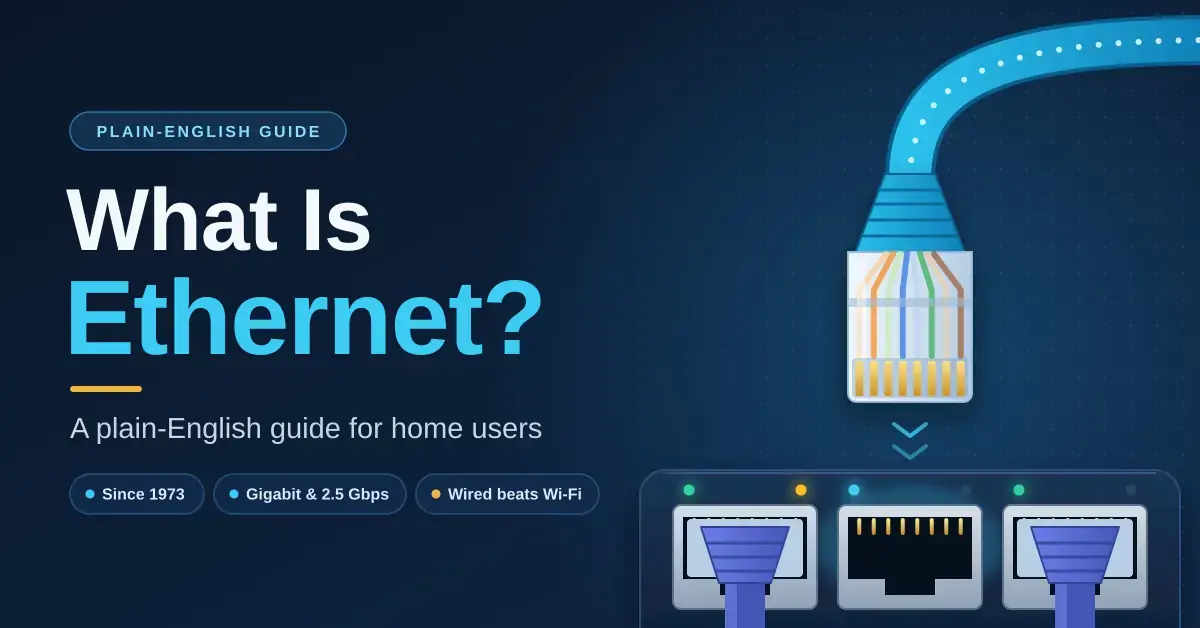
Ethernet is the technology behind every network cable in your house — the lead from the fibre box to the router, the one tucked behind the TV, and the cables inside the walls of a newer home. It was invented in 1973, it has sped up more than ten-thousand-fold since, and a 2026 laptop still plugs into it with the same RJ45 connector as a 2005 desktop. This plain-English guide explains what Ethernet is, how it moves data, the speeds and cables involved, and why a wired link still beats Wi-Fi for the devices that matter.
For the wireless half of the story, read our companion guide on what Wi-Fi is and how it works. If you are here mainly to buy cable, our Ethernet cable guide covers the categories and lengths worth paying for.
Key takeaways
- Ethernet is the IEEE 802.3 family of standards for wired local networks, invented at Xerox PARC in 1973 by Bob Metcalfe and David Boggs.
- Home Ethernet today is gigabit (about 940 Mbps of real throughput), with 2.5 Gbps ports now common on new routers, NAS units and mini PCs.
- Data travels in frames addressed by MAC address; a switch reads the address and sends each frame only to the correct port.
- A cable gives full speed in both directions at once, under a millisecond of delay and no jitter — which is why gamers, TVs and home offices should be wired.
- Every Ethernet generation is backwards compatible: the two ends negotiate the fastest speed they and the cable both support.
The origins and evolution of Ethernet
Ethernet began in 1973 at Xerox’s Palo Alto Research Center, where Bob Metcalfe and David Boggs needed a way to connect the lab’s new personal computers to a laser printer. Their experimental network ran at about 2.94 Mbps over thick coaxial cable. Metcalfe went on to found the networking company 3Com to sell it, and in 1983 the Institute of Electrical and Electronics Engineers (the global standards body, usually shortened to IEEE) published the first 802.3 standard at 10 Mbps.
Metcalfe received the 2022 ACM A.M. Turing Award — often called computing’s highest honour — for the invention, standardisation and commercialisation of Ethernet. The award was announced in 2023.
The big practical shift came in 1990, when a version called 10BASE-T moved Ethernet onto the cheap twisted-pair cable already used for telephones, arranged in a star where every device has its own lead back to a central point. Early shared hubs gave way to switches, speeds climbed to 100 Mbps in 1995 and to a full gigabit in 1999, and Ethernet quietly outlasted every rival — from Token Ring to ATM — because it stayed cheap, simple and backwards compatible at each step.
How Ethernet works
The parts: cables, ports and switches
Every Ethernet device has a network interface with a unique hardware address, the MAC address, set at the factory. Devices connect with twisted-pair cable (Cat5e, Cat6 and up) ending in RJ45 plugs, and those cables meet at a switch — which in most homes is built into the router. The switch learns which MAC address is on which port and forwards each piece of data only where it needs to go, instead of shouting it at everything. Longer runs between buildings or across a campus use fibre-optic Ethernet, but the idea is identical.
How data moves: Ethernet frames
Data travels in frames. Each frame carries the destination and source MAC addresses, a type field saying what is inside (usually an internet-protocol packet), a payload of up to 1,500 bytes, and a checksum for error-checking. If a frame arrives damaged, the checksum fails, the receiver quietly discards it, and a higher layer of software resends it. You can see the exact layout in this reference on the Ethernet frame.
Early Ethernet shared a single cable and used a scheme called CSMA/CD to cope when two devices tried to talk at once. Modern switched Ethernet is full duplex: each device has its own pair of lanes to the switch, so there are no collisions at all and both directions run at full speed simultaneously.
Autonegotiation and link speed
When you plug in a cable, both ends advertise the speeds they support and settle on the fastest they share. A 2.5 Gbps port talking to a gigabit switch runs at a gigabit; a gigabit port on a damaged cable may quietly drop to 100 Mbps, which is the classic sign of a bad plug or a crushed lead. Most routers and computers display the negotiated link speed somewhere in their settings, and checking it is the first thing to do when a wired connection feels slow.
Ethernet speeds and standards explained
Ethernet is not one speed but a family of standards maintained by the IEEE 802.3 Ethernet Working Group. Each generation added speed while keeping the same connector and staying backwards compatible, which is why decades-old gear still works on a modern switch. The table below shows the ones you are likely to meet at home.
| Standard | Common name | Year | Speed | Cable for 100 m | Where you see it |
|---|---|---|---|---|---|
| 802.3i | 10BASE-T | 1990 | 10 Mbps | Cat3 | Old printers and appliances |
| 802.3u | 100BASE-TX (Fast Ethernet) | 1995 | 100 Mbps | Cat5 | Cheap extenders, smart-home hubs, some TVs |
| 802.3ab | 1000BASE-T (Gigabit) | 1999 | 1 Gbps | Cat5e | Almost every router, PC and console |
| 802.3bz | 2.5GBASE-T / 5GBASE-T | 2016 | 2.5 / 5 Gbps | Cat5e / Cat6 | New routers, NAS, mini PCs, Wi-Fi 7 access points |
| 802.3an | 10GBASE-T | 2006 | 10 Gbps | Cat6a (Cat6 to about 55 m) | Hyperfibre routers and workstations |
Real throughput sits a little under the headline figure because of framing overhead: a gigabit link moves about 940 Mbps of actual data. A TV or console with only a 100 Mbps port is still fine for 4K streaming, which needs roughly 15–25 Mbps depending on the service, but it will cap a speed test well below a fast fibre plan. Our guide to home network switches covers when the jump to 2.5 Gbps ports is worth paying for.
Ethernet vs Wi-Fi: which should you use?
Use a cable for the devices that stay put and Wi-Fi for the ones that move. The single biggest difference is not the average speed but the consistency. Wi-Fi is a shared radio channel where devices take turns and retry when interference hits; a cable is a private, full-duplex lane that behaves the same every time.
Ethernet vs Wi-Fi
| Ethernet (gigabit) | Wi-Fi 6, good signal | Wi-Fi, far room | |
|---|---|---|---|
| Typical throughput | About 940 Mbps, both directions | 300–900 Mbps, shared | 30–150 Mbps |
| Added delay | Under 1 ms | 2–8 ms, with spikes | 10–50 ms, with spikes |
| Consistency | Identical every time | Varies with neighbours and load | Varies a lot |
| Security | Needs physical access | Depends on the WPA2/WPA3 password | Same |
| Convenience | Needs a cable run | Anywhere in range | Anywhere, just slowly |
That steadiness is why a console on a cable feels smoother than the same console on excellent Wi-Fi, a point our guide to a better gaming connection explores in detail. It is also why video calls and cloud backups behave better wired. If you want to see the gap on your own connection, run a before-and-after test with our New Zealand speed test.
How long will a transfer take?
Over the internet, your broadband plan is almost always the limit, so the kind of link inside the house only matters once your plan is faster than Wi-Fi can deliver. Copying between two devices at home is different — there the network itself is the bottleneck, and that is where a cable earns its keep. The table below shows how long a single 50 GB file (a large game or a video project) takes to copy across the house on each kind of link, at realistic throughput.
| Link | Realistic throughput | Time to copy 50 GB |
|---|---|---|
| Gigabit Ethernet | ~940 Mbps | About 7 minutes |
| 2.5G Ethernet | ~2,350 Mbps | About 3 minutes |
| Wi-Fi 6, same room | ~600 Mbps | About 11 minutes |
| Wi-Fi, far room | ~80 Mbps | About 1 hour 23 minutes |
Server speed and disk speed can slow real downloads further, but the pattern holds: for local transfers to a home network drive, a cable turns an hour into minutes.
Ethernet in a New Zealand home
Your fibre connection already relies on Ethernet. The ONT (optical network terminal) that Chorus or your local fibre company mounts on the wall converts the light on the fibre into Ethernet, and a short cable carries it to your router. From there the common setups are simple:
- Router ports: most routers have four gigabit LAN ports. Use them for the TV, console and desktop nearest the router.
- A switch adds more ports cheaply, from under NZ$50 for eight, and a PoE (Power over Ethernet) switch can power cameras and ceiling access points down the same cable.
- Wall ports: newer NZ homes often have data points in bedrooms and lounges that run back to a central cupboard; older homes can be cabled through the ceiling or under the floor.
- No cable route? Powerline adapters send Ethernet over the house wiring, at lower and less predictable speeds than a proper cable run.
A gigabit port handles every mainstream plan up to Fibre Max. Only the multi-gigabit Hyperfibre plans, sold as symmetrical 2000, 4000 and 8000 Mbps, need 2.5 Gbps or faster ports on both the router and the computer to use their full speed.
Common mistakes with home Ethernet
Most wired-network problems come from a handful of avoidable errors rather than faulty hardware.
- Blaming the port when the cable is the culprit. A gigabit device stuck at 100 Mbps almost always has a damaged or poorly terminated cable. Swap the patch lead before you replace anything expensive.
- Chasing cable categories you cannot use. Cat8 will not make a gigabit link faster. The cable can only carry a speed both devices actually support, so match the cable to the ports, not to the marketing.
- Expecting a fast port to fix a slow plan. A 2.5 Gbps port does nothing for a 300 Mbps internet plan; the extra speed only helps for local transfers or genuinely faster broadband.
- Daisy-chaining cheap switches and then wondering why traffic stutters. One decent switch beats three hop-connected ones.
- Forgetting the second half. Wiring the console but leaving the router on a congested channel wastes the effort — tuning both matters, as our router settings guide explains.
Where Ethernet is heading
Beyond the home, Ethernet now runs data centres at 400 and 800 Gbps over fibre, connects factory machinery, and increasingly runs inside cars, where single-pair automotive Ethernet replaces bundles of older wiring. Power over Ethernet has turned the humble data cable into a power cable for security cameras, access points, phones and even lighting.
At home the clear trend is 2.5 Gbps becoming the new default port, pushed along by Wi-Fi 7 access points and multi-gigabit fibre, while 10 Gbps stays a niche for enthusiasts and home servers. The industry’s long-term view is set out in The Ethernet Roadmap published by the Ethernet Alliance.
Who should wire up, and who should not bother
Cable the devices that stay in one place and move a lot of data or need steady timing: the TV, the games console, a desktop, a NAS and any ceiling access points. For those, Ethernet gives you full speed in both directions, sub-millisecond delay and no password to leak. Gigabit is plenty for every NZ plan up to Fibre Max, and 2.5 Gbps is the sensible step up if you have Hyperfibre or move large files to a home server. Leave phones, tablets and roaming laptops on Wi-Fi — that is exactly what wireless is for.
Throughput and latency figures here are typical values for home networks and vary with equipment, cabling and interference; standards dates follow the IEEE 802.3 working group. Details were checked in September 2026.
Sources
Frequently asked questions
What is Ethernet in simple terms?
Ethernet is the standard way devices connect to a network with a cable. It defines the plugs, the cables, the speeds and how data is packaged, so a laptop, router and TV from different makers can all talk to each other reliably.
Is Ethernet the same as the internet?
No. Ethernet connects devices within your home or office network. The internet is the global network that your router connects that local network to, over fibre, copper, wireless or satellite.
Is Ethernet faster than Wi-Fi?
Usually, and it is always more consistent. Gigabit Ethernet delivers about 940 Mbps in both directions with under a millisecond of delay, while Wi-Fi speed drops with distance and walls and varies with interference from neighbours and other devices.
What does an Ethernet cable look like?
It is a round or flat cable with a clear plastic RJ45 plug at each end, slightly wider than an old telephone plug, with a small clip on top. The category, such as Cat6, is usually printed along the jacket.
Do I need a special Ethernet port for fibre?
No. The ONT on your wall has standard Ethernet ports. A gigabit port handles Fibre 300 and Fibre Max; only Hyperfibre plans need 2.5 Gbps or 10 Gbps ports on the router and the computer to reach their full speed.