
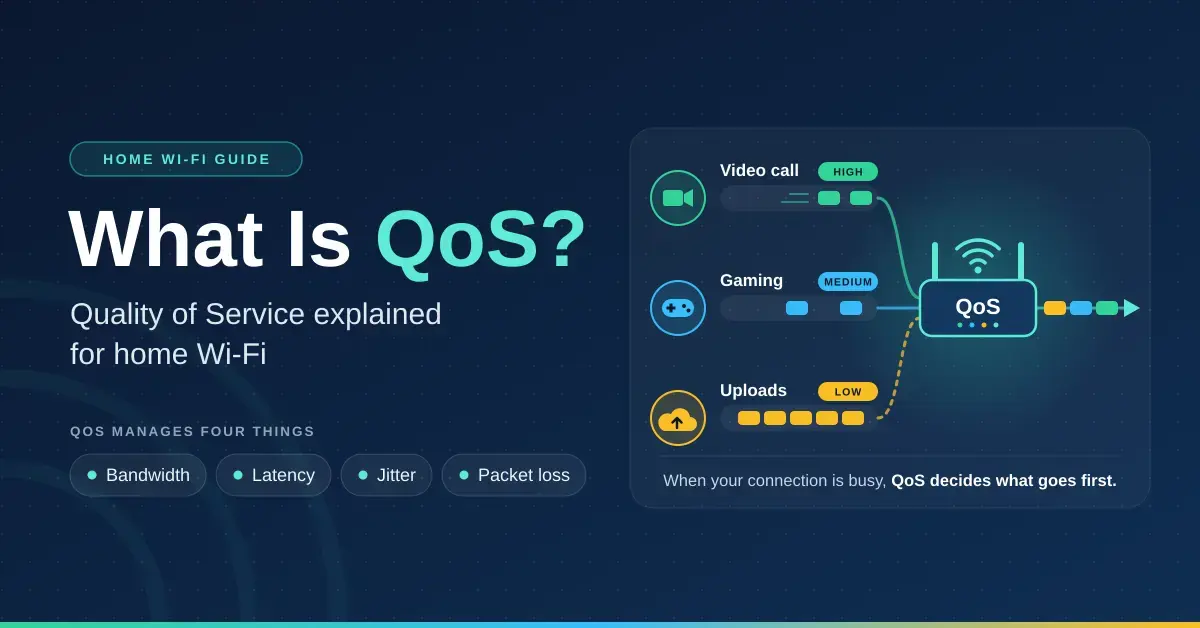
Quality of Service, or QoS, is the part of a network that decides which traffic goes first when there is not enough room for everything at once. On a home router it is the setting that keeps a video call smooth while someone else uploads photos to the cloud, and it is also one of the most misunderstood and worst-configured options in the menu. This guide explains what QoS actually is, the four things it manages, how it works inside a router and on Wi-Fi, when it genuinely helps a New Zealand home, and how to switch it on without quietly capping your speed. For the wider settings picture, see our router settings guide; if you mainly care about lag spikes, our gaming internet guide covers that side in more depth.
Key takeaways
- QoS manages four things — bandwidth, latency (delay), jitter (variation in delay) and packet loss. It cannot create extra capacity.
- It only matters when a link is full, which in most NZ homes means the upload side of Fibre 300, VDSL, 4G/5G or Starlink.
- Smart queue management (SQM, using fq_codel or CAKE) is the modern approach and fixes bufferbloat lag spikes without you ranking every app.
- Set QoS limits to about 90–95 percent of the speed you measure on a cable: too high does nothing, too low wastes your plan.
- On a very fast plan with a cheap router, QoS can cap throughput to a few hundred Mbps — test before and after.
What QoS is and why it matters
QoS is the set of tools a network uses to treat some traffic differently from other traffic, so that time-sensitive things such as voice, video calls and games keep working when the link is busy. In telecommunications the International Telecommunication Union defines quality of service broadly, as the overall set of characteristics of a service that determine how well it satisfies the user; its formal vocabulary lives in ITU-T Recommendation E.800. On a home network the meaning is narrower and more practical: which packets get to go first when the line is full.
Most of the time a home network is not busy, and QoS does nothing at all. The moment it matters is when demand exceeds the slowest link in the chain, which in a typical Kiwi home is the upload from your house to your internet provider. When that happens, packets queue. Without QoS they queue in arrival order, so a video call waits behind a flood of backup traffic. That wait is what you experience as frozen faces, robotic audio and sudden lag spikes in a game.
Two points follow from this and they are worth holding onto. First, QoS cannot create extra capacity: it only shares the capacity you already have more intelligently. Second, if your line almost never fills up, QoS will almost never do anything, and turning it on can even cost you a little speed.
The four things QoS manages
QoS works on four separate measures of a connection. They are related but not the same, and different applications care about different ones.
| Measure | What it is | What suffers when it is poor | Rough target at home |
|---|---|---|---|
| Bandwidth | How much data per second the link carries | Downloads, 4K streams, cloud backups | Enough for your busiest hour |
| Latency | Time for a packet to reach its destination and come back | Games, video calls, remote desktop | Under ~50 ms to Australian servers on NZ fibre |
| Jitter | Variation in latency from one packet to the next | Voice and video calls, game smoothness | Under ~10 ms |
| Packet loss | Share of packets that never arrive | Everything, most visibly calls and games | Under 1 percent |
Different traffic needs different things from that list. A Zoom call at 1080p uses only about 3.8 Mbps up and 3.0 Mbps down according to Zoom’s own bandwidth guidance — a modest amount — but it needs low jitter and low loss to stay clear. A cloud backup, by contrast, needs no particular latency but will happily grab every megabit it can find. QoS is essentially about protecting the first kind of traffic from the second.
How QoS works inside a router
Inside the router, QoS is a handful of techniques working together. Understanding the pieces makes the settings far less mysterious.
QoS techniques and mechanisms
- Classification and marking. The router identifies traffic by device, port or application, and may tag packets with a DSCP value in the IP header. Those tags are honoured inside your own network; providers generally ignore them out on the wider internet.
- Queueing and scheduling. Priority queues send high-priority packets first; weighted fair queuing shares the link in set proportions; flow queuing gives every conversation its own short queue and takes quick turns between them.
- Shaping and policing. Shaping smooths traffic to a set rate by briefly delaying packets; policing simply drops whatever exceeds the rate. Shaping to just below your real line speed is the trick that lets your router, rather than your provider’s equipment, control the queue.
- Active queue management (AQM). Algorithms such as CoDel, fq_codel and CAKE keep queues short by signalling senders to slow down early. This is the cure for bufferbloat, where oversized buffers let latency balloon under load.
Traditional QoS versus smart queue management
Older “traditional” QoS asks you to rank devices or application categories by hand, which is fiddly and ages badly. Smart queue management (SQM) mostly removes that chore: with the correct rate set, flow queuing keeps small, interactive flows responsive on its own, no rules required. Many current routers ship it under names like adaptive QoS or smart QoS, and open firmware such as OpenWrt offers it directly as SQM using fq_codel or CAKE. For most households, choosing an automatic or fair-queuing mode beats writing per-app priorities.
QoS approaches compared
| Approach | How it decides | Setup effort | Best for |
|---|---|---|---|
| Traditional priority QoS | You rank devices or app categories by hand | High, and ages badly | Fixed setups where one device must always win |
| Weighted fair queuing | Shares the link in set proportions | Medium | Splitting a line between known groups |
| Smart queue management (SQM: fq_codel / CAKE) | Gives each flow a short fair turn and keeps queues tiny | Low — just set the rate | Most homes; killing bufferbloat on a busy upload |
| WMM (Wi-Fi Multimedia) | Sorts wireless traffic into voice, video, best effort, background | None — on by default | Prioritising airtime between devices on one access point |
Does your home need QoS?
Whether QoS helps comes down to one question: does your line actually fill up? Work out your busiest-hour demand and compare it with the speed you really get, and the answer usually falls out on its own.
Add up what runs at the same time. Each 1080p video call needs roughly 3.8 Mbps of upload; each 4K stream needs about 15 Mbps of download as a minimum, per Netflix’s recommended speeds (allow more in practice); each online game needs only around 1 Mbps but is very sensitive to delay. Then remember that any big upload — a cloud backup or a video export — will try to swallow your whole upload link, and any large download such as a game update will do the same on the way down.
- Modest upload plus household uploading — the classic case for QoS. This describes most Fibre 300, VDSL, 4G/5G and Starlink homes, where the upload is the pinch point.
- Fast, symmetric line with light use — QoS will rarely engage. If calls stutter here, look at Wi-Fi coverage first, not QoS.
- Very fast plan, cheap router — QoS can help, but the router may not be able to shape hundreds of megabits without capping your throughput. Test before and after.
A quick way to reason about it: if your upload is 100 Mbps and two calls plus a game need under 10 Mbps, they are fine on their own — but the instant a backup starts, that same 100 Mbps is full and the calls fight for scraps. That is precisely the situation QoS is built for.
How to set up QoS on a home router
- Measure your real speed on a laptop plugged into the router with an Ethernet cable, ideally a few times at different hours, using our NZ speed test. Use the numbers you measure, never the numbers on your plan.
- Find the QoS setting. It may be called QoS, Adaptive QoS, Smart QoS, Traffic Control or SQM. Where there is a choice, pick the automatic or fair-queuing mode over manual rules.
- Enter the limits at about 90–95 percent of your measured download and upload. Setting them higher does nothing useful; setting them far too low simply wastes the plan you pay for. Routers that ask for kbps want your Mbps figure multiplied by 1,000.
- Optionally prioritise a device or two — the work laptop or the console — rather than whole application categories.
- Test under load. Start a large upload, then run a bufferbloat test or watch your ping in a game. If latency barely rises, QoS is working. If your speed-test result drops far below your limit, the router cannot keep up at that speed and QoS should stay off there.
Starlink and 4G/5G users
Wireless connections change speed through the day, so a single fixed limit is always a compromise. Set it from an evening measurement, when speeds are usually lowest, or use a router whose SQM adapts the rate automatically. On Starlink this means running your own router in bypass mode, because the standard Starlink router exposes no QoS controls of its own.
QoS on Wi-Fi: what WMM does
Wi-Fi has its own QoS layer called Wi-Fi Multimedia (WMM), which comes from the 802.11e standard and is certified by the Wi-Fi Alliance. WMM sorts traffic on the wireless link into four access categories — voice, video, best effort and background — and lets the higher-priority categories get on air sooner. It is switched on by default and should stay on; disabling it can also disable the faster Wi-Fi modes that depend on it.
The key limitation is that WMM helps devices on the same access point take sensible turns, but it cannot fix a weak signal. If a video call is poor only in one room, the answer is better coverage, covered in our mesh Wi-Fi guide, not more QoS. Our Wi-Fi explainer covers why distance and interference matter so much. Router QoS and WMM are separate layers: router QoS governs your internet connection, WMM governs the airtime between your devices and the access point.
Common QoS mistakes
- Setting the limit to the plan’s name, not the measured speed. Fibre 300 delivers roughly 300 down and 100 up in the real world; enter what you actually measure.
- Leaving old QoS limits in place after a plan upgrade. Stale limits quietly cap a new, faster plan, and it is easy to forget they are there.
- Prioritising everything. If every device is set to high priority, then in effect none of them is.
- Double NAT. QoS on a router sitting behind your provider’s router cannot see the real bottleneck. Run a single router, as our home network setup guide explains.
- Expecting QoS to shrink distance. It removes queueing delay inside your home; it does nothing about the roughly 25 ms to Sydney or 130 ms to the United States.
The bottom line on QoS
QoS is worth switching on when your upload is modest and your household uploads — which describes most Fibre 300, VDSL, 5G and Starlink homes in New Zealand. Use SQM or an adaptive QoS mode, set the limits at 90–95 percent of your measured speed, and always test with a big upload running so you can see whether latency stays flat. On a very fast plan, confirm QoS is not capping your throughput; if it is, and you rarely fill the line anyway, simply leave it off. Used this way, QoS is one of the highest-value settings in a home router — not because it makes anything faster, but because it stops your important traffic from waiting in line.
Bandwidth figures come from Zoom’s and Netflix’s published requirements as checked in September 2026; router menu names vary by brand and firmware, so treat the names above as a guide. Nicegear is independent and carries no paid placements.
Sources
- ITU-T E.800: Definitions of terms related to quality of service – ITU
- What can I do about bufferbloat? – Bufferbloat.net
- Smart Queue Management (SQM) – OpenWrt documentation
- RFC 8290: The FlowQueue-CoDel (FQ-CoDel) Packet Scheduler and AQM – IETF
- System requirements and bandwidth – Zoom
- Internet connection speed recommendations – Netflix
Frequently Asked Questions (FAQ)
What does QoS mean?
QoS stands for Quality of Service: the tools a network uses to prioritise some traffic over other traffic, so that calls, games and video keep working smoothly when the connection is busy. On a home router it decides which packets go first once the line is full.
Should I turn QoS on or off?
Turn it on if calls or games suffer whenever someone else uploads or downloads, especially on Fibre 300, VDSL, wireless broadband or Starlink. Leave it off if your line rarely fills up, or if enabling it lowers your speed-test result sharply.
Does QoS increase internet speed?
No. QoS shares the speed you already have more intelligently and reduces delay for interactive traffic. It slightly lowers your maximum throughput, because the limits are deliberately set just under your real line speed.
What is bufferbloat?
Bufferbloat is the large, variable delay that appears when network equipment holds too many packets in oversized queues while a link is full. It shows up as lag spikes during uploads, and smart queue management (fq_codel or CAKE) is the fix.
Is WMM the same as QoS?
WMM (Wi-Fi Multimedia) is QoS for the wireless link only, sorting traffic into voice, video, best effort and background. Keep it enabled. Router QoS is a separate layer that manages your internet connection rather than the airtime between devices.