
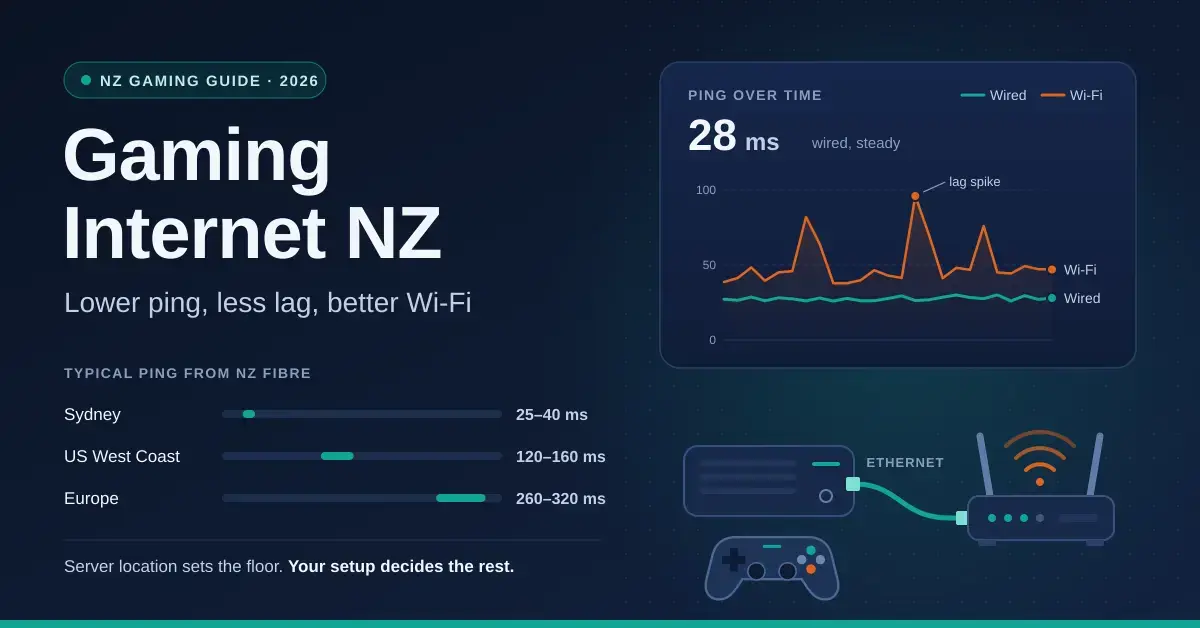
Gaming from New Zealand starts with a handicap no broadband plan can undo: most of the world’s game servers sit thousands of kilometres away, and nothing you buy changes the speed of light. What you can change is every link between your controller and the fibre on the wall, and that is where most Kiwi players quietly lose 10 to 100 milliseconds of ping and pick up the lag spikes that lose matches. This guide separates the latency you are stuck with from the latency you can fix, shows which connections and settings genuinely matter, and skips the “gaming router” marketing that does not.
Before you change a single setting, run our NZ speed test on a device plugged in with a cable, so you can see your baseline ping and whether the connection itself is healthy. For gaming, a steady low ping matters far more than a big download number.
Key takeaways
- From NZ fibre, expect about 25–40 ms to Sydney servers, 120–160 ms to the US West Coast and 260–320 ms to Europe. Server location sets the floor; nothing at home lowers it.
- Ethernet beats Wi-Fi for gaming every time — not for speed, but for jitter: a cable adds under 1 ms and never spikes.
- Bufferbloat, where other traffic fills the connection, is the most common cause of lag spikes in NZ homes. SQM-style QoS fixes it on Fibre 300, VDSL, fixed wireless and Starlink.
- Fibre 300 is plenty for gaming. Fibre Max helps uploads and downloads, not ping; Hyperfibre changes nothing in-game.
- “Gaming routers” are ordinary routers with a QoS preset and lighting. Any good Wi-Fi 6 router with SQM does the same job.
What actually causes lag when you game from New Zealand?
Lag is not one problem; it is four stacked on top of each other, and knowing which layer is hurting you is the difference between a free fix and wasted money. Ping (also called latency) is the round trip: your input travels to the server and the result comes back, measured in milliseconds. That round trip is built from these layers:
- Distance to the server — the floor set by physics. You cannot lower it; you can only choose a closer server where the game offers one.
- Your connection type — fibre, copper, fixed wireless or satellite. This adds anywhere from a couple of milliseconds to fifty.
- The link inside your home — a cable adds almost nothing, while Wi-Fi adds a little on average and the occasional big spike.
- Queueing when the line is busy — the notorious “bufferbloat” that turns 30 ms into 200 ms whenever someone else uploads.
- The game server and internet route — outside your control, though picking the right region avoids the worst of it.
The Commerce Commission’s independent testing, published as the Measuring Broadband New Zealand reports (latency by technology) – Commerce Commission, consistently shows fibre with the lowest and steadiest latency of any mainstream connection in the country. So if fibre is available at your address, almost everything below is about the last few metres inside your home.
The ping you cannot change: server distance from NZ
Distance sets a hard floor on your ping, and no plan or router beats it. Light travels through fibre at roughly 200,000 km per second, and the submarine cables from Auckland to Sydney, Los Angeles and Singapore are long, so the physics alone produce a floor of about 25 ms to Sydney, 120 ms to the US West Coast and 260 ms to Europe. A New Zealand-hosted server can sit under 10 ms.
Most large multiplayer games put Oceania players on servers in Sydney; a handful run Auckland servers, and many smaller or older titles have nothing closer than the United States. That is why some games feel razor-sharp here and others never will, no matter what you spend. A player on a cable with tidy queue management in Christchurch will have a steadier game on a Sydney server than someone in Auckland on 2.4 GHz Wi-Fi with a flatmate uploading video, despite the Aucklander’s shorter distance to the exchange.
Which NZ connection is best for gaming?
Fibre is the clear winner for gaming in New Zealand, and once you are on it the plan tier barely matters for ping. The table below sums up the realistic trade-offs.
Connection comparison
| Connection | Added latency to the ISP | Jitter | Gaming verdict |
|---|---|---|---|
| Fibre (300, Max, Hyperfibre) | 2–5 ms | Very low | Best. Fibre 300 is enough; faster tiers only speed uploads and downloads |
| VDSL copper | 10–20 ms | Low, but uploads are small | Fine with QoS, but being retired by 2028 |
| Starlink | 25–50 ms | Moderate, occasional drops | Playable for most games; competitive shooters feel it |
| 4G / 5G fixed wireless | 20–60 ms | Varies with cell load, worst at evening peak | Playable but inconsistent; QoS essential |
All fibre plans give the same in-game ping to the same server, because the pipe is not the bottleneck. What the tier changes is upload headroom for streaming your play or for busy households: Chorus Home Fibre 300 delivers roughly 309 Mbps down and 107 Mbps up, Fibre Max around 1 Gbps down and 500 Mbps up, and Hyperfibre is symmetrical at 2000, 4000 or 8000 Mbps. Current wholesale plans and speeds are listed on the Fibre plans and speeds – Chorus page; retailers resell these under their own names. Our modem router combo guide covers what each connection needs at the router.
VDSL copper still works fine for many games with queue management switched on, but it is on the way out: Chorus is retiring copper in fibre-served areas by the end of 2026 and nationwide by 2028, so it is not a connection to plan a gaming setup around. Fixed wireless on 4G or 5G is playable but its latency and jitter rise with cell load, worst in the evening peak. Starlink satellite internet adds roughly 25 to 50 ms over fibre with the occasional short drop, which is fine for most games and only a problem for the most twitch-sensitive shooters.
How to estimate your ping
Your real ping is roughly the distance floor plus whatever your home network adds on top, so you can estimate it before you touch a setting. Start with the floor for the region your game’s servers are in, then add the home penalties that apply to you.
Distance floor by server region
| Server region | Typical floor from NZ fibre |
|---|---|
| Auckland / NZ-hosted | 2–10 ms |
| Sydney (Oceania) | 25–40 ms |
| Singapore or Tokyo | 120–160 ms |
| US West Coast | 120–160 ms |
| US East Coast | 180–220 ms |
| Europe | 260–320 ms |
What your home network adds on top
| Home factor | Typical ping added |
|---|---|
| Ethernet cable | Under 1 ms, no spikes |
| 5 GHz Wi-Fi, same room | 3–8 ms plus occasional spikes |
| 5 GHz Wi-Fi, far room | 10–25 ms plus spikes |
| 2.4 GHz Wi-Fi or an extender | 25–60 ms, frequent spikes |
| Bufferbloat (busy line, no QoS) | +40–150 ms until the transfer ends |
| Bufferbloat with SQM/QoS on | +5–10 ms |
So a fibre player on a Sydney server with a cable and QoS lands near 30 ms, while the same player on 2.4 GHz Wi-Fi with a cloud backup running can see 150 ms or worse. Measure the real number in your game’s own network stats after each change, rather than trusting the estimate.
Ethernet vs Wi-Fi for gaming
A cable wins for gaming every time, not because it is faster but because it is steady. Wi-Fi is a shared radio channel: every packet waits its turn, retries when a neighbour’s network or a microwave interferes, and slows through each wall. On average that is only a few milliseconds, but games do not care about the average; they care about the occasional 80 ms stall that shows up as a rubber-band. A Cat5e or Cat6 cable from the switch to the console delivers packets in under a millisecond, every time. Any Cat5e or better cable does this equally well, as our Ethernet cable guide explains, so ignore “gaming cable” pricing.
If running a cable is genuinely impossible, the order of preference is: a powerline adapter or a mesh node with an Ethernet port beside the console, then 5 GHz Wi-Fi from an access point in the same room, then anything else. Our home network setup guide shows how to get a cable to the TV wall, which is usually an afternoon’s work and the single biggest upgrade a gamer can make.
Bufferbloat and QoS: the real lag-spike fix
Bufferbloat is the most common cause of lag spikes in New Zealand homes, and it is invisible until you look for it. When someone uploads a video, backs photos up to the cloud or downloads a big game update, the router’s queue fills and your game packets sit behind a mountain of other data; ping jumps from 30 ms to 200 ms until the transfer finishes. It bites hardest on connections with modest upload speeds, which in NZ means Fibre 300, VDSL, fixed wireless and Starlink.
The fix is Smart Queue Management (SQM), sold under names such as Adaptive QoS on ASUS, HomeShield QoS on TP-Link, and SQM with fq_codel or cake on OpenWrt, OPNsense and some Netgear and Ubiquiti gear. Set the upload and download limits to about 90–95 percent of the speeds you measured on a cable, and the router keeps a short queue that lets game packets jump ahead. On Fibre Max and Hyperfibre the pipe rarely fills, so QoS matters less, and a cheap router running QoS in software can even cap your throughput; our Quality of Service explainer covers when to leave it off. Background reading on the problem and the fix is at What can I do about bufferbloat? – Bufferbloat.net.
Test for bufferbloat in two minutes
Watch a live ping (or your in-game network stats), then start a large upload from another device. If the ping climbs by more than about 30 ms, you have bufferbloat and QoS will help; if it barely moves, your router is already handling it and any spikes are coming from Wi-Fi or the route. The quickest online check is the Bufferbloat test – Waveform, which grades your connection under load.
Router and console settings that matter
A short list of settings does almost all the work; most “optimisation” tips beyond these are noise.
- Run one router, not two. An ISP router plus your own router creates double NAT, which gives consoles a “moderate” or “strict” NAT type and blocks party chat and matchmaking. Bridge the ISP unit or run your own router in access-point mode. The fixes for a bad NAT type are set out in NAT type errors and fixes – Xbox Support.
- Open NAT the safe way. Enable UPnP only if a console needs it; otherwise forward the specific ports the game documents, or turn on IPv6 if your ISP supports it, which often removes the need entirely.
- Fix your Wi-Fi channel if you must use Wi-Fi. Use 5 GHz at 80 MHz on a clear channel, as covered in our best router settings guide, and never put a console on 2.4 GHz.
- Choose your server region in the game. Set Oceania or Sydney where the option exists rather than “auto”, which can quietly pick a US server at NZ evening peak.
- Pause downloads while playing. Console and Steam updates are the classic self-inflicted bufferbloat; schedule them for overnight.
- Do not bother changing DNS for ping. A faster DNS server speeds up finding the game server, not talking to it, so it has no effect on in-game latency.
Do you need a gaming router or a gaming VPN?
No to both, for almost everyone. Routers marketed for gaming bundle three things: a QoS preset that prioritises game traffic, a 2.5 Gbps port for the PC, and a lot of plastic and lighting. The QoS is the only useful part, and any router with SQM-style QoS does the same job. The 2.5 Gbps port only matters for local transfers to a NAS, not for gaming. Spend the difference on a cable to the console, a decent Wi-Fi 6 router if your ISP unit lacks QoS, and a network switch behind the TV so the console, TV and streaming box are all wired.
Gaming VPNs and “accelerator” services cannot beat the direct cable route from New Zealand to Sydney or the US; at best they match it, and usually they add latency. The one exception is a genuinely bad ISP route to a specific server, where a VPN can occasionally find a shorter path, but that is rare and worth confirming with before-and-after measurements rather than taking on faith.
Common mistakes NZ gamers make
Most wasted money and effort comes from a handful of predictable mistakes. Avoiding them is often more valuable than any upgrade.
- Blaming the ISP for US-server ping. If a game only hosts in the US, 120–160 ms is normal from NZ and no plan will fix it.
- Buying Hyperfibre to lower ping. It changes nothing in-game; it only speeds downloads and uploads.
- Putting a console on 2.4 GHz Wi-Fi or an extender. This is the worst case for gaming, adding both latency and spikes; even a powerline adapter beats it.
- Leaving the game on “auto” region. It can pick a distant server at peak time; set Oceania or Sydney manually.
- Running downloads while playing. This is self-inflicted bufferbloat; pause updates or set QoS.
- Stacking two routers. Double NAT breaks matchmaking and voice chat until you bridge one of them.
- Paying for “gaming” cables or gaming VPNs. A plain Cat5e cable and correct QoS deliver the same or better result for far less.
Our verdict on gaming internet in NZ
The whole recipe for the best gaming New Zealand’s geography allows is short: Fibre 300, a cable to the console and SQM-style QoS. Pick Sydney or Oceania servers in-game, because the gap between 30 ms and 140 ms is the server’s location, not your setup. Fix any double NAT and pause background downloads before you blame the ISP, and skip gaming routers, gaming cables and accelerator services, putting that money into cabling and a decent access point instead. Do those things and you are playing at the physical limit of where you live.
Related reading from around our network:
Ping figures in this guide are typical ranges for New Zealand fibre connections in 2026 and vary by ISP routing, city and time of day. Plan speeds follow Chorus wholesale products; retailers use their own names. Nicegear is independent and carries no paid placements.
Sources
Frequently asked questions (FAQ)
What is a good ping for gaming in NZ?
On fibre, 25–40 ms to Sydney servers is as good as it gets for most games, and under 10 ms is possible only on the few titles with Auckland servers. Around 120–160 ms to US servers is normal from New Zealand and cannot be improved at home, because it is set by distance rather than by your connection.
Does faster internet reduce ping?
No. Ping is about distance and queueing, not bandwidth. Fibre 300 and Hyperfibre give the same ping to the same server. What actually changes ping is moving from copper or fixed wireless to fibre, using a cable instead of Wi-Fi, and stopping other traffic from filling the connection.
Is Starlink good for gaming?
It is playable for most games, adding roughly 25–50 ms and occasional short drops compared with fibre. Competitive shooters will feel it, but strategy, co-op and casual online games are fine. Use a cable to the console and enable QoS on a router running in bypass mode for the steadiest result.
Why does my ping spike when someone else uses the internet?
That is bufferbloat: their upload or download fills the router’s queue and your game packets wait behind it. Enable SQM-style QoS with limits set just under your measured speeds, and schedule big downloads for when nobody is playing, and the spikes largely disappear.
Do gaming routers or gaming VPNs lower ping?
Gaming routers only help through their QoS, which any router with SQM-style QoS also provides, so the label is mostly marketing. Gaming VPNs and accelerators cannot beat the direct cable route from NZ to Sydney or the US; occasionally they route around a bad ISP path, but usually they add latency.