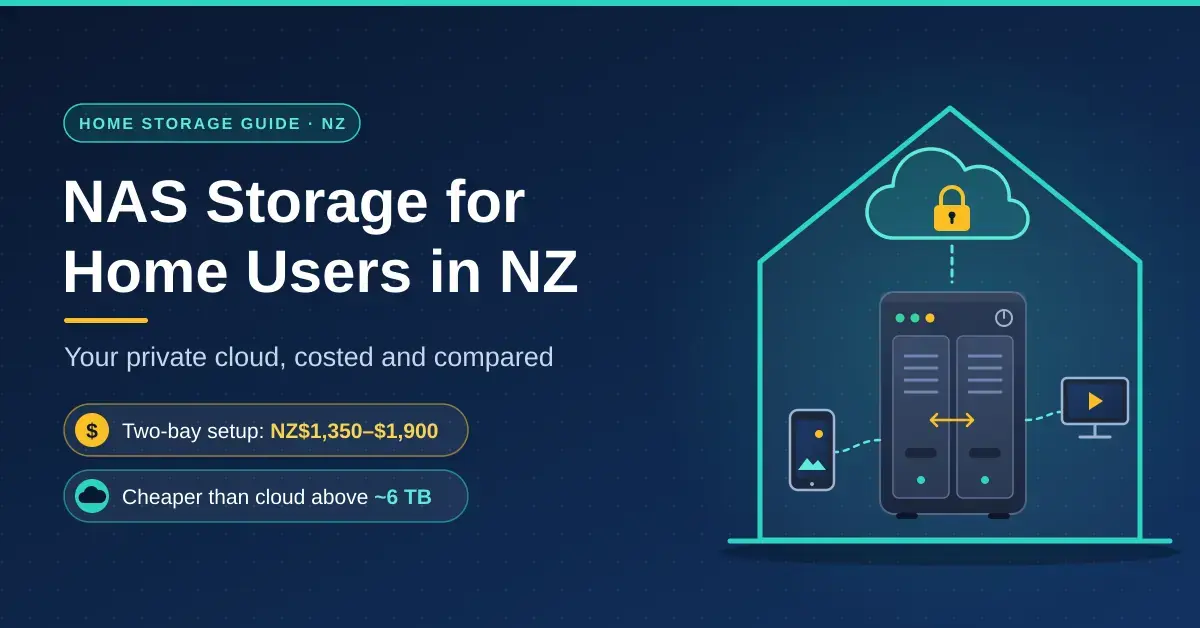
A NAS — short for network-attached storage — is an always-on box of hard drives that sits on your home network and keeps your photos, documents, backups and video in one place you own outright. In New Zealand a capable two-drive model with a pair of mirrored disks runs roughly NZ$1,350–$1,900 all up, and once you are keeping more than about 6 TB it works out cheaper than a monthly cloud plan within three to four years.
This guide is written for households with a swelling pile of phone photos, families crammed into one shared cloud plan, and anyone who fancies a Plex or Jellyfin library at home. If you would rather build a box that also runs apps and virtual machines, begin with our home server guide instead; if you just want reliable storage and backups, read on.
Key takeaways
- A two-bay NAS with two mirrored drives suits most New Zealand homes; go four-bay only if you already keep more than about 8 TB.
- Drive prices roughly doubled in 2025–26: an 8 TB NAS drive costs about NZ$570–$920 in September 2026, so buy for the next two or three years, not the next ten.
- RAID keeps the box running when a drive dies, but it is not a backup — keep snapshots and an off-site copy of anything irreplaceable.
- A NAS beats the cloud on cost once you store several terabytes: iCloud+ 6 TB is NZ$59.99 a month, while a two-bay NAS draws about NZ$4–$5 of power.
- Heads-up for media fans: Synology’s 2025 models (DS225+, DS425+) no longer hardware-transcode by default. If that matters, choose a QNAP or add a small Intel mini PC.
Why New Zealand homes are moving to a private cloud
Three forces have pushed Kiwi households towards owning their storage rather than renting it. The first is subscription creep: Apple lists iCloud+ plans and pricing at NZ$19.99 a month for 2 TB and NZ$59.99 for 6 TB in New Zealand, and those bills never stop. The second is that phones now shoot 4K video by default, so a shared plan fills far faster than it used to. The third is fibre: upload speeds of 100 Mbps or more make it genuinely practical to reach files at home from anywhere in the country.
A private cloud keeps those files on hardware in your house, with phone apps that behave much like iCloud Photos or Google Drive. You decide who gets access, and no provider can quietly change the price or the terms on you. The catch is that you become the IT department. A NAS can replace paid cloud storage, a drawer of backup USB drives and a shared family folder in one move — but it does not replace an off-site backup, because a burglary or a house fire can take the NAS and your computers together.
What a NAS actually is and how it works
A NAS is a small, low-power computer built around storage. Inside is a modest processor, 1–8 GB of memory, two to eight drive bays and at least one Ethernet port. It runs its own operating system — Synology DSM or QNAP QTS are the common ones — that you manage from a web browser, and it shares folders over the SMB protocol so Windows and macOS see it as an ordinary network drive. Add-on apps handle phone photo backup, Dropbox-style file sync, a Time Machine target for Macs, a media server and, on mid-range models, Docker containers for self-hosted software.
How fast is a home NAS?
Your network sets the speed limit more often than the drives do. Gigabit Ethernet manages about 110 MB/s in a real file copy and 2.5-gigabit Ethernet (2.5GbE) about 280 MB/s, while a modern NAS hard drive reads at roughly 200–280 MB/s. Wi-Fi is usually the bottleneck, so wire the NAS to your router with an Ethernet cable and, if several computers will hit it at once, add a 2.5GbE network switch. Our walkthrough on setting up a home network covers where everything should plug in.
RAID explained: RAID 1, RAID 5, RAID 6 and SHR
RAID spreads your data across several drives so the NAS keeps running when one of them dies. The type you choose decides two things: how much of your raw capacity you actually get to use, and how many simultaneous drive failures you can survive.
- RAID 1 (mirror): keeps two identical copies, so you get half the raw space and survive one drive failure. This is the norm for a two-bay NAS.
- RAID 5: spreads parity across three or more drives; you lose one drive’s worth of capacity and survive one failure.
- RAID 6: uses double parity across four or more drives and survives two failures at once.
- RAID 10: striped mirrors — fast and resilient, but you only keep half the space.
- SHR (Synology Hybrid RAID): Synology’s flexible layout. SHR-1 and SHR-2 protect against one or two failures respectively and, unlike classic RAID, let you mix different drive sizes. Synology’s own Synology Hybrid RAID (SHR) explainer walks through the maths.
Which RAID should you choose?
With two drives you mirror, and that is the whole decision. With three or more, RAID 5 or SHR-1 gives you far more usable space than a mirror for the same one-drive protection, which is why they are the default on four-bay boxes. Once you move past roughly 12 TB per drive it is worth stepping up to SHR-2 or RAID 6: a rebuild on a very large drive can take a day or more, and a second drive failing inside that window would take the whole volume with it.
Why RAID is not a backup
RAID protects you against a dead drive and nothing else. It does nothing about a folder you delete by accident, a ransomware infection that encrypts your files, a power surge or a fire — every one of those hits all the drives at once. Treat RAID as uptime insurance, then turn on snapshots and keep at least one separate copy somewhere else. That distinction is the single most misunderstood thing about home storage.
NAS vs cloud storage: what the numbers say
Whether a NAS saves you money comes down to how much you store. Cloud plans charge by the terabyte, every month, forever; a NAS costs a lot up front and very little afterwards. The break-even point is the whole question.
| Service | Storage | Price | Per TB / month |
|---|---|---|---|
| iCloud+ | 2 TB | NZ$19.99 / month | NZ$10.00 |
| iCloud+ | 6 TB | NZ$59.99 / month | NZ$10.00 |
| iCloud+ | 12 TB | NZ$119.99 / month | NZ$10.00 |
| Microsoft 365 Family | 1 TB each, up to 6 people | NZ$229 / year | NZ$3.18 if all 6 TB is used |
| Backblaze B2 (NAS off-site backup) | Pay as you go | US$6.95 per TB / month | US$6.95 |
Microsoft 365 Family looks cheapest per terabyte on the Compare Microsoft 365 plans page, but each person’s 1 TB is a separate bucket, so it cannot hold one shared 6 TB family library. Backblaze B2 is not a rival to a NAS at all — it is the usual off-site destination that NAS backup tools copy to, and its current B2 Cloud Storage pricing is US$6.95 per TB a month (raised on 1 May 2026).
A worked example: 6 TB of photos and video
Take a Synology DS225+ (the full DS225+ specifications are on Synology’s site) at about NZ$739 with two 8 TB NAS drives at roughly NZ$566 each: that is about NZ$1,871 for 8 TB of mirrored storage, of which 8 TB is usable. At Synology’s rated 17 W, the power bill is around NZ$4.34 a month at 35c per kWh. Set against iCloud+ 6 TB at NZ$59.99 a month, the NAS pulls ahead after roughly 34 months. Add a 2 TB iCloud+ plan purely as an off-site backup and break-even slips to about month 53 — still comfortably inside five years, and you own the hardware at the end.
The hidden costs on both sides
Cloud storage has costs that do not show on the price list: the provider can change the price or the terms whenever it likes, and leaving is slow — pulling 5 TB back down a 100 Mbps connection takes about four and a half days of solid downloading. A NAS has its own hidden costs: a replacement drive every few years, an uninterruptible power supply (UPS) if your power is unreliable, and your own time to set it up and keep it patched. Neither option is truly “set and forget”.
Choosing NAS hard drives, and why NAS-rated drives matter
NAS-rated drives such as the WD Red Plus, Seagate IronWolf, Toshiba N300 and Synology HAT range are built to run around the clock beside other spinning drives. They use conventional (CMR) recording, cope better with vibration, and deliberately limit how long they retry a bad sector so the RAID controller does not give up and drop them. Warranties run three years, or five on the Pro models. Cheap desktop drives often use shingled (SMR) recording, which makes RAID rebuilds crawl — and this is exactly why the “Plus” in WD Red Plus matters, because the plain WD Red drives in smaller sizes are SMR.
NAS hard drive prices in New Zealand (September 2026)
| Capacity | Typical NZ price | Cost per TB |
|---|---|---|
| 4 TB | NZ$460–$530 | NZ$115–$132 |
| 6 TB | NZ$540–$675 | NZ$90–$113 |
| 8 TB | NZ$570–$920 | NZ$71–$115 |
| 12 TB | NZ$1,140–$1,500 | NZ$95–$125 |
| 16 TB | NZ$1,390–$1,545 | NZ$87–$97 |
Those are the lowest listed prices for WD Red Plus, IronWolf, IronWolf Pro and Synology HAT drives on PriceSpy NZ, roughly double what the same drives cost a couple of years earlier. Because prices have been so volatile, buy for the next two or three years rather than the next ten — SHR and most RAID types let you swap in bigger drives later without starting from scratch.
HDD vs SSD in a home NAS
Solid-state drive (SSD) prices climbed sharply in 2026 too, so ordinary hard drives remain the sensible choice for bulk storage. SSDs earn their place as an M.2 read/write cache or as a small, fast volume for Docker apps rather than as your main pool. Note that on Synology’s 2025 Plus models an M.2 storage pool still needs drives from the compatibility list, even though third-party hard drives are now fine again.
Comparing the main NAS brands in New Zealand
Synology dominates New Zealand shelves and has the most polished photo, backup and sync software. QNAP gives you more hardware for the money but has a patchier security track record. Asustor covers the budget end, Ubiquiti’s UNAS suits homes already running UniFi gear, and UGREEN’s NASync range had no active New Zealand listings on PriceSpy when we checked. The table below shows how the popular models line up — and note the transcoding column carefully, because it changed in 2025.
| Model | Bays | Processor / RAM | Hardware transcoding | NZ price (Sep 2026) |
|---|---|---|---|---|
| Asustor AS1202T | 2 | Quad-core ARM / 1 GB | No (ARM chip) | NZ$419 |
| Synology DS223j | 2 | Realtek RTD1619B / 1 GB | No (ARM chip) | NZ$434 |
| Synology DS225+ | 2 | Intel Celeron J4125 / 2 GB | Blocked in DSM (see below) | NZ$729–$739 |
| Synology DS425+ | 4 | Intel Celeron J4125 / 2 GB | Blocked in DSM (see below) | NZ$1,191 |
| QNAP TS-464-8G | 4 | Intel Celeron N5095 / 8 GB | Yes (Quick Sync) | NZ$1,505 |
| Synology DS925+ | 4 | AMD Ryzen V1500B / 4 GB | No (no integrated GPU) | NZ$1,813 |
The Synology drive-compatibility U-turn
In 2025 Synology tried to limit its new Plus models to Synology-branded drives for full functionality, which caused a loud backlash. It walked the policy back: DSM 7.3, released in October 2025, restored support for third-party 3.5-inch SATA hard drives and 2.5-inch SATA SSDs on the 2025 Plus line, including the DS225+, DS425+ and DS925+. So WD Red Plus or IronWolf drives in a DS225+ are perfectly fine again. The one carve-out is M.2 NVMe SSDs, which still need to be on Synology’s validated list.
The 2025 hardware-transcoding change you need to know
Here is the correction that catches most buyers out: Synology’s 2025 models no longer hardware-transcode video out of the box, even though the Intel chip technically can. Starting with its 2025 range, Synology stopped shipping the graphics (i915) driver that lets Plex, Jellyfin or Emby tap the Intel Quick Sync engine, citing the royalty cost of HEVC/AVC licensing. The result is that a DS225+ or DS425+ falls back to slower software transcoding or to direct play, where the client device does the decoding. A community-made SSH package can put the driver back, but it is unsupported and not for the faint-hearted. QNAP’s QTS still ships the driver, so a QNAP TS-464 continues to hardware-transcode normally. If smooth Plex transcoding to phones or older TVs matters to you, the honest options are a QNAP with Quick Sync, a separate small Intel mini PC as the media server, or leaning on direct play.
Quick facts
| Manufacturer | Synology |
|---|---|
| Model / type | DS225+ — two-bay desktop NAS |
| Processor | Intel Celeron J4125 (quad-core, 2.0 GHz) |
| Memory | 2 GB DDR4 (expandable to 6 GB) |
| Network | 1 × 2.5GbE + 1 × 1GbE |
| Operating system | Synology DSM 7.3 |
| Drive support | 3.5″ SATA HDD and 2.5″ SATA SSD; third-party drives allowed on DSM 7.3 |
| Rated power | ≈17 W in use, ≈6 W with drives hibernated |
| Hardware transcoding | CPU capable, but disabled in DSM by default |
| Typical NZ price | NZ$729–$739 diskless (Sep 2026) |
Which NAS fits your household?
- Backups for one or two people: a DS223j or AS1202T with two 4 TB drives, about NZ$1,350 all up.
- Family photos, Time Machine and some direct-play Plex or Jellyfin: a DS225+ with two 8 TB drives. Most households should start here.
- A big media library or four-plus users who need transcoding: a QNAP TS-464 with three or four drives in RAID 5, so Quick Sync still works.
- Phone photos only, kept simple: a Synology BeeStation (about NZ$497 with 4 TB inside) — but it has one drive and no RAID, so it is not a backup on its own.
- Lots of apps and virtual machines: a mini PC running Proxmox VE does far more for the money than a locked-down appliance.
Setting up a NAS in a New Zealand home
- Pick a cool, dry, ventilated spot. A ventilated cupboard beats an unlined garage in a Canterbury winter or a Northland summer.
- Cable it to the router and reserve its IP address so it always answers on the same one.
- Add a small UPS if your power flickers, so the NAS can shut down cleanly instead of losing a write mid-flight.
- Create the storage pool: SHR-1 or RAID 1 for two drives, the Btrfs file system where it is offered, and a data scrub scheduled every few months.
- Lock down the accounts. Disable the default “admin” login, store the new credentials in a password manager and switch on two-factor sign-in.
- Turn on snapshots — hourly for a week, daily for a month — to undo accidental deletions and many ransomware attacks in seconds.
- Set up the off-site copy with Hyper Backup (or your brand’s equivalent) to Backblaze B2, Synology C2 or a USB drive you keep at a relative’s house.
Connecting it to your existing devices
Windows maps a NAS share as a network drive, Macs use it as a Time Machine target, and the vendor’s phone app backs up your camera roll automatically. Plex and Jellyfin have apps for most smart TVs, and an Apple TV 4K or a laptop running VLC media player will play most files straight off the share with no transcoding needed at all.
Remote access without opening ports
The worst mistake you can make with a NAS is port-forwarding its admin page to the open internet. The DeadBolt ransomware campaign of 2022 encrypted thousands of exposed QNAP and Asustor units that had been set up exactly that way. Reach your files instead through the maker’s relay service (Synology QuickConnect, myQNAPcloud) or a private VPN such as Tailscale, which also works over Starlink and other connections stuck behind carrier-grade NAT. Our VPN explainer covers the basics, and the government’s guide to backing up your data and devices is a good sanity check. For backups, follow the 3-2-1 rule: three copies, on two types of media, with one kept off-site.
Using a NAS as a home media server
A NAS makes a tidy media server because it is already on 24/7, it already holds the files, and both Plex and Jellyfin install as native packages or Docker containers. The processor only becomes the deciding factor when a playback device cannot handle a file natively and the server has to convert it on the fly — that is what transcoding means.
Why the processor matters for Plex and Jellyfin
Transcoding is far quicker on a chip with an integrated graphics engine such as Intel Quick Sync than on the main CPU alone. That used to be the reason to pick an Intel-based Synology, but as noted above, Synology’s 2025 models block that engine in software, and the AMD-based DS925+ and the ARM budget boxes never had it. For heavy 4K transcoding the strongest value today is a small Intel N100 or N150 mini PC running Plex or Jellyfin and reading the files from the NAS over the network — Jellyfin’s own hardware guidance now points at exactly those newer chips.
Plex vs Jellyfin on a NAS
Since 29 April 2025, streaming your own Plex library away from home needs a Plex Pass on the server (US$6.99 a month or US$69.99 a year), or a Remote Watch Pass for each viewer, which rose to US$2.99 a month or US$29.99 a year on 1 June 2026. Plex’s hardware transcoding also sits behind Plex Pass, whereas Jellyfin does all of it for free with no account at all — you can compare both on the Plex Pass and Remote Watch Pass plans page. Our Jellyfin vs Plex comparison weighs the trade-offs, and the Jellyfin setup guide covers installing it on a NAS.
Common NAS mistakes to avoid
- Treating a single-drive NAS as your only backup. One failure and everything is gone; a lone drive is convenience, not safety.
- Assuming any Intel NAS still transcodes. Check the current driver situation before you buy for Plex — a 2025 Synology will not do it out of the box.
- Fitting SMR or plain desktop drives. They seem fine until a rebuild takes days or fails outright.
- Running the pool nearly full. Keep 15–20% free so snapshots and the file system have room to work.
- Forgetting your consumer rights. A drive that dies unreasonably early can be covered by the Consumer Guarantees Act even after the manufacturer’s warranty has lapsed.
If you plan to run a business off the box, our guide to self-hosted software for small businesses covers the extra apps and redundancy worth adding.
Final verdict: is a home NAS worth it in NZ?
Even at 2026 drive prices, a home NAS is the cheapest way to keep several terabytes under your own roof — provided you set it up properly and back it up off-site. For a few hundred gigabytes, the cloud still wins on both cost and convenience. Here is how we would spend the money:
- Best for most homes: a Synology DS225+ with two 8 TB drives in SHR-1, about NZ$1,870 for 8 TB of mirrored space, on the understanding that Plex will rely on direct play rather than hardware transcoding.
- Under 2 TB of data: stay with iCloud+, Google One or OneDrive — a NAS will not pay for itself.
- Media library that needs transcoding: a QNAP TS-464, or a DS225+ paired with a cheap Intel mini PC doing the transcoding.
- Non-negotiable from day one: snapshots, an off-site backup, and remote access through a relay or VPN — never open ports.
Disclaimer: prices and plans change often, and drive prices have been especially volatile through 2026. All figures were checked in September 2026 and include GST unless noted. Nicegear is independent, sells nothing and takes no paid placements; nothing here is financial advice.
Sources
- Drive compatibility policies FAQ – Synology Knowledge Center
- Synology walks back its 2025 drive-compatibility policy in DSM 7.3 – Tom’s Hardware
- Synology DS225+ NAS review – NAS Compares
- Important 2025 Plex updates – Plex
- Plex Remote Watch Pass price increase (June 2026) – Android Authority
- NAS hard-drive prices in New Zealand – PriceSpy NZ
Frequently asked questions (FAQ)
Is a NAS worth it for home users in NZ?
Yes, if you have more than about 5–6 TB to store or you want a media server. At that size a two-bay NAS usually beats a cloud subscription within three to four years and gives you local speed and full control. If everything you own fits inside a 2 TB cloud plan, the cloud is cheaper and simpler.
What is the best NAS for home use in NZ?
For most households the Synology DS225+ offers the best mix of price and software, at about NZ$729–$739 without drives in September 2026. If you specifically need Plex to hardware-transcode, a QNAP TS-464 is the safer pick because QNAP’s software still enables Intel Quick Sync, which current Synology models block.
Can Synology’s 2025 models still hardware-transcode Plex or Jellyfin?
Not out of the box. Synology removed the graphics driver from its 2025 range, so a DS225+ or DS425+ falls back to software transcoding or direct play by default, even though the Intel chip is capable. An unsupported community package can restore it over SSH, or you can run the media server on a separate Intel mini PC.
Is RAID the same as a backup?
No. RAID only keeps the NAS running when a drive physically fails. It does nothing about deleted files, ransomware, power surges or fire, all of which hit every drive at once. You still need snapshots and at least one separate, off-site copy of anything you cannot bear to lose.
Can I access my NAS when I’m away from home?
Yes. A relay service such as Synology QuickConnect, or a private VPN such as Tailscale, reaches your files from anywhere — including over Starlink and other connections behind carrier-grade NAT — without opening any router ports. Avoid port-forwarding the admin page to the internet, which is how many home units get compromised.