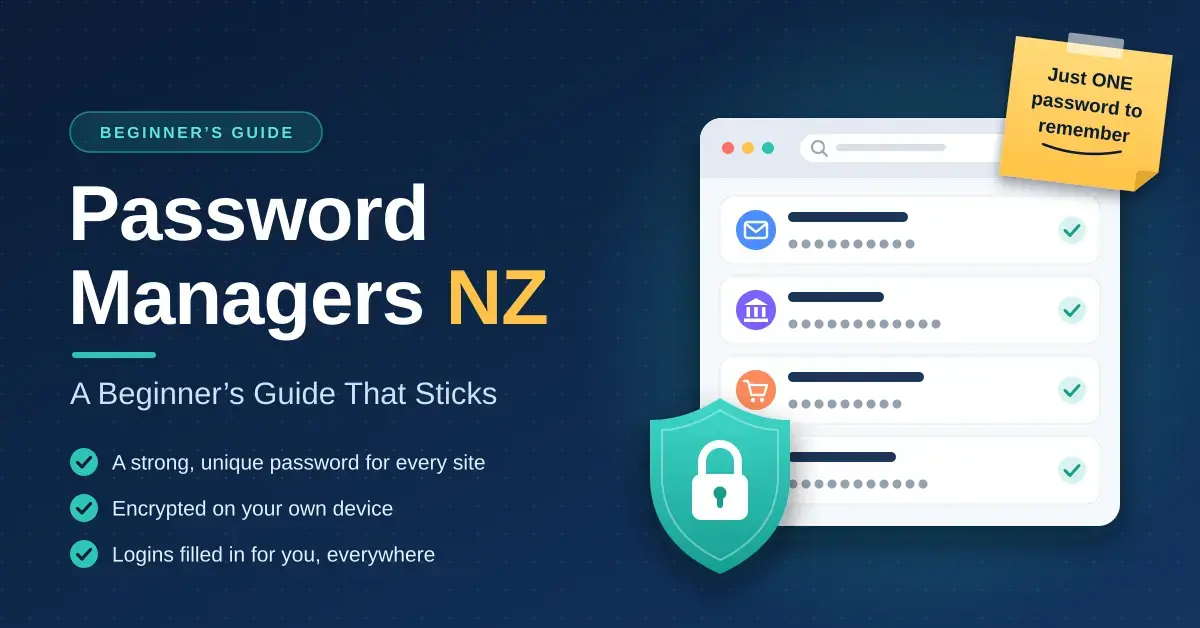
A password manager is the single most useful security habit most New Zealanders still aren’t using. It creates a different strong password for every website, remembers them all, and fills them in for you, so the only thing you ever have to memorise is one master password. This beginner-friendly guide explains what a password manager is, how it keeps your logins safe, which type suits your devices and household, and how to set one up in a single afternoon so the habit actually sticks. It sits alongside our VPN guide for NZ and our smart home security guide, because every camera, router and online account you own needs its own strong, unique password too.
Key takeaways
- Reused passwords let one breach unlock many accounts. From April to June 2026, NZ’s National Cyber Security Centre recorded about NZ$1.3 million in losses from unauthorised access — roughly half of all reported losses that quarter.
- Good password managers encrypt your vault on your own device, so the provider only ever holds data it cannot read.
- Free and easy: Apple Passwords or Google Password Manager. Free across all your devices: Bitwarden. Most polished paid option: 1Password. Privacy and email aliases: Proton Pass. Fully offline: KeePassXC.
- Protect the manager itself with a long passphrase and two-factor authentication (2FA), and store its recovery kit offline.
Why Kiwis Need a Password Manager
The core problem is password reuse: when you use the same password on several sites, a single data breach hands attackers the keys to all of them. New Zealand’s National Cyber Security Centre (NCSC) recorded 1,129 incident reports between 1 April and 30 June 2026, with about NZ$2.7 million in direct financial losses. Unauthorised access — much of it the result of stolen or reused credentials — accounted for roughly NZ$1.3 million of that, about half the quarter’s total, according to the NCSC’s quarter-two 2026 insights.
The government’s Own Your Online service gives simple advice: use a different password for every account, make each one long, and let a password manager generate and store them for you. Remembering dozens of long, random passwords is not realistic for the number of accounts most of us now have, which is exactly the gap a password manager fills.
How Password Managers Work
A password manager stores all your logins in an encrypted “vault”. That vault is locked and unlocked on your own device: reputable services scramble it before it ever leaves your phone or computer, so the company syncing it between your devices only ever holds encrypted data it cannot read. This is often called zero-knowledge or end-to-end encryption. When you land on a login page, the app recognises the site and offers to fill in the matching username and password — which also helps protect you from fake look-alike sites, because the manager won’t offer to fill a web address it doesn’t recognise.
The master password
Your master password is the one key that unlocks everything, so it needs to be long and unique. Own Your Online recommends a passphrase of four or more random words rather than a short, complex string that is hard to remember but easy for software to crack. The NCSC also warns against any service that keeps its own copy of, or a back door to, your master password. With a well-designed manager nobody — not even the provider — can reset it for you, so you must store the recovery kit or emergency sheet somewhere safe and offline.
Two-factor authentication and passkeys
Turn on two-factor authentication (2FA) for the password manager and your main email account first. Set up 2FA using an authenticator app or a physical security key rather than text-message codes where you can, because SMS codes can be intercepted or SIM-swapped. 2FA is a form of multi-factor authentication, which simply means proving who you are with more than one thing. Passkeys go a step further: they replace the password entirely with a cryptographic key stored on your device, so there is nothing for a phishing site to steal. Every manager compared below can create and store passkeys, and a growing list of banks, retailers and social networks now support them.
Types of Password Manager Compared
There are three broad types. Built-in managers come free with your phone or browser. Cloud managers sync an encrypted vault across every device you own. Local managers keep an encrypted file only on hardware you control and leave syncing up to you. The table below compares six well-known options New Zealanders can use, with prices taken from each provider in September 2026.
Comparison
| Manager | Type | Price (Sep 2026) | Works on | Good to know |
|---|---|---|---|---|
| Apple Passwords | Built in | Free | iPhone, iPad, Mac; Windows via iCloud for Windows | Shared groups for family; awkward on Android |
| Google Password Manager | Built in | Free | Chrome on any computer, plus Android | Easy family sharing; tied to your Google account |
| Bitwarden | Cloud, open source | Free; Premium US$19.80/yr; Families US$47.88/yr (6 people) | All major platforms and browsers | Free plan covers unlimited passwords and devices |
| 1Password | Cloud | Individual US$3.99/mo; Families US$5.99/mo (5 people), billed yearly | All major platforms and browsers | Family organisers can help members recover access |
| Proton Pass | Cloud, open-source apps | Free; paid Plus and Family plans | All major platforms | Free plan includes 10 hide-my-email aliases |
| KeePassXC | Local file, open source | Free | Windows, macOS, Linux (mobile via compatible apps) | You handle syncing and backups yourself |
Prices are charged in US dollars and were current in September 2026. Bitwarden raised its Premium and Families prices in early 2026; 1Password lists standard rates of US$3.99 a month for individuals and US$5.99 a month for families of up to five (often discounted in the first year for new customers); and Proton Pass keeps a genuinely useful free tier alongside its paid Plus and Family plans.
Should you use your browser’s built-in manager?
For an individual, yes — the managers built into Chrome, Safari and Edge are free, encrypted and far better than reusing passwords. The NCSC notes, though, that in-browser managers are unlikely to be fit for purpose for organisations. If you run a small business, choose a dedicated manager with shared vaults, admin controls and activity logs so you can grant and revoke access to staff cleanly.
Which Password Manager Suits You?
The best choice depends on three things: which devices you use, who needs access, and what matters most to you. Here are the common situations and a sensible starting point for each.
All your devices are from one company
If everything you own is Apple, the built-in Apple Passwords app is already there, syncs through iCloud and lets you share groups of passwords with family — setup takes about twenty minutes. If you live in Chrome and Android, Google Password Manager does the same job across those platforms. Both are free.
You mix Apple and Android
Cross-platform is where a dedicated manager earns its keep. Bitwarden’s free plan covers unlimited passwords and devices across Apple, Android, Windows and Linux at no cost. If you want the most polished apps and browser extensions and don’t mind paying, 1Password is the smoothest option for non-technical users.
Privacy or email aliases matter most
Proton Pass creates hide-my-email aliases — ten on the free plan — so shops and newsletters never see your real address, which cuts spam and limits the damage of a breach. Bitwarden and Proton Pass are both open source, so independent experts can inspect how they protect your data.
You want everything to stay offline
KeePassXC keeps an encrypted database file on your own device and never touches a company’s servers. You handle syncing and backups yourself — for example through your own cloud storage or a home NAS — and use a compatible app on your phone. It is free and favoured by people who want maximum control.
It’s for a family or a small team
For a household, Bitwarden Families (US$47.88 a year for up to six) or 1Password Families (US$5.99 a month for five) add shared vaults and let an organiser help members who get locked out. For a business, pick a paid Bitwarden or 1Password team plan with admin controls and event logs, as the NCSC recommends for organisations — a free personal plan is not built for that.
How to Set One Up in an Afternoon
- Create your account and passphrase. Write the passphrase and recovery kit on paper and store them somewhere safe at home.
- Turn on 2FA for the password manager and your main email account before anything else.
- Import your saved passwords from Chrome, Safari, Edge or Firefox. If you export a CSV file to do it, delete the file and empty the recycle bin straight away — it holds every password in plain text.
- Install the browser extension and phone app, then switch on autofill.
- Fix your most important accounts first: email, banking, Inland Revenue (myIR), RealMe, your mobile provider and social media. Change each to a freshly generated password.
- Turn off your browser’s own password saving if you moved to a separate manager, so your logins aren’t split across two places.
- Use the built-in health report each month to replace weak, reused or breached passwords a few at a time.
Common Beginner Mistakes
- A short master password. It protects everything else, so make it a long passphrase, not a clever eight-character string.
- No recovery plan. Set up emergency access or a family organiser, and keep the recovery kit offline — most secure managers cannot reset it for you.
- Leaving an exported CSV lying around. That file holds all your passwords in readable text; delete it the moment the import is done.
- Typing passwords into links from emails. If autofill refuses to fill a login, treat it as a warning that the site may be fake.
- Forgetting shared devices. Set the vault to lock automatically after a few minutes and never leave it signed in on a shared or public computer.
Running your own services at home? Self-hosters often pair the Bitwarden apps with a private server. Our home server guide and self-hosted software guide cover that route, and a home NAS is a good place for encrypted backups. For more free security tools, see our open-source software guide.
The Bottom Line
Any password manager beats reusing passwords, so the best one is the one you’ll actually use — start today with the tool built into your devices if that’s the quickest path. For mixed Apple-and-Android households, Bitwarden’s free plan is the easy default, or 1Password if you want the smoothest experience and are happy to pay. Privacy-minded readers are well served by Bitwarden or Proton Pass, and offline purists by KeePassXC. Whatever you choose, use a long passphrase, turn on 2FA and keep a recovery kit on paper.
Checked in September 2026. Prices are as listed by each provider, in US dollars where shown, and can change. NCSC figures are from its quarter-two 2026 report. This guide is general information for New Zealand readers, not a security assessment of your own devices. Nicegear is independent and has no paid placements or affiliate links with the products named here.
Sources
- Password managers – National Cyber Security Centre NZ
- Quarter two 2026 cyber security insights – NCSC NZ
- How to create good passwords – Own Your Online
- Set up two-factor authentication – Own Your Online
- 1Password pricing – 1Password
- Bitwarden pricing and plans – Bitwarden
- Proton Pass plans and pricing – Proton
- Bitwarden raises Premium and Families prices – AlternativeTo
Frequently Asked Questions
What is a password manager?
It is an app that creates, stores and fills in strong, unique passwords for all your accounts. You only need to remember one master password, or unlock the app with your fingerprint or face, and it takes care of the rest.
Are password managers safe to use?
Reputable ones encrypt your vault on your own device, so the provider stores only scrambled data it cannot read. Combined with a strong master password and two-factor authentication, they are far safer than reusing passwords, which is why New Zealand’s NCSC recommends them.
What happens if I lose my master password?
With most secure managers the provider cannot reset it for you, by design. Set up a recovery kit, emergency access or a family organiser before you need them, and store the recovery details on paper somewhere safe.
Is it safe to use a free password manager?
Yes, if it comes from a reputable provider. Bitwarden’s free plan, Proton Pass Free, KeePassXC and the built-in Apple and Google managers all encrypt your data. Paid plans mainly add extras such as family sharing, security reports and email aliases.
Can I securely share passwords with family members?
Yes. Apple Passwords has shared groups, Google Password Manager shares with your family group, and Bitwarden and 1Password offer family plans with shared vaults so you can share selected logins without revealing your whole account.