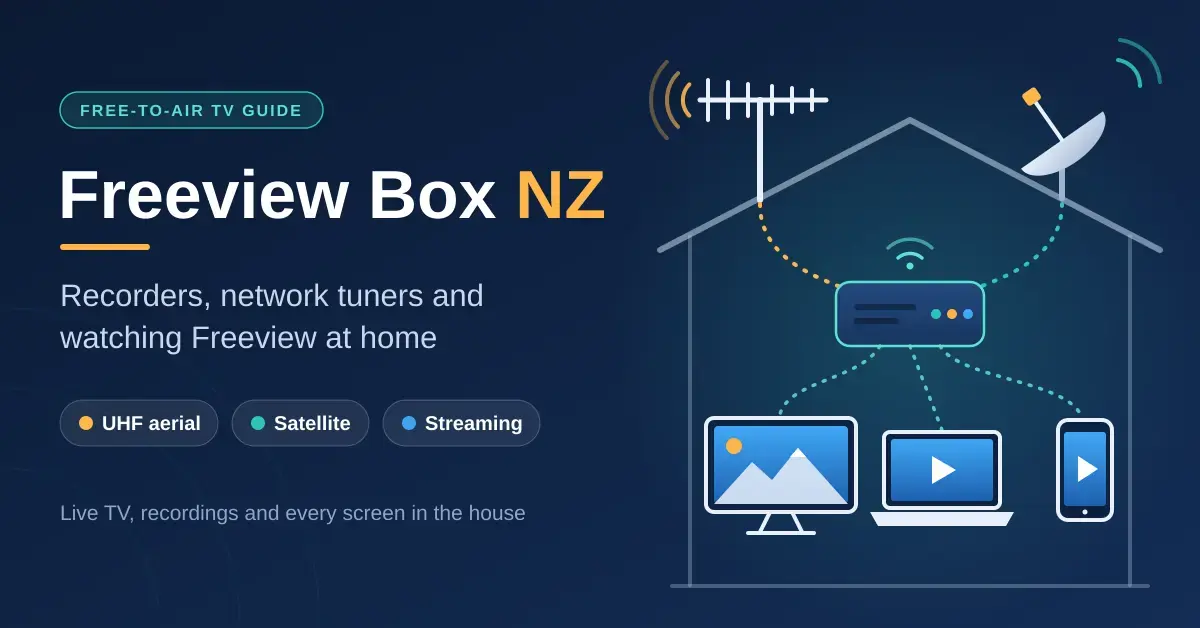
A “Freeview box” in New Zealand is really any device that gets free-to-air TV onto a screen: the tuner already built into most TVs, a Freeview-approved recorder or satellite receiver, the free Freeview Streaming TV app, or a network tuner that shares one aerial with every device in the house. Freeview itself costs nothing to watch – what you pay for is the right hardware for how the signal reaches you. This guide helps you match a setup to your aerial, dish or broadband, whether you want live TV on one screen, recordings, or live TV on every TV, phone and laptop at home.
The starting point is how you receive Freeview. According to Freeview, a rooftop UHF aerial covers about 86% of homes, while satellite reaches the rest of the mainland, and broadband streaming works anywhere with a steady connection. If you already run a Jellyfin media server or a NAS, a network tuner can turn Freeview into a whole-home system rather than a single box tied to one TV.
Key points
- Most TVs sold in NZ already have a Freeview UHF tuner built in – you only need a box to record, to use satellite on a TV without a satellite tuner, or to watch on other screens.
- Satellite viewers need DVB-S2 equipment: Freeview moved to the Koreasat 6 satellite on 15 April 2025, and older DVB-S-only boxes no longer receive every channel.
- No aerial or dish? The free Freeview Streaming TV app streams the live channels over broadband on most smart TVs (it cannot record).
- An HDHomeRun network tuner (UHF only) plus Jellyfin or Plex sends Freeview to every TV, phone and laptop and records to your own server.
- For any recorder, twin tuners are the minimum – they let you record one channel while watching another.
Do you actually need a Freeview box?
Most people in NZ do not need a separate box for live UHF viewing, because nearly every TV sold here already includes a Freeview UHF tuner. You only need extra hardware in three situations: to record shows, to receive satellite on a TV that has no satellite tuner, or to watch Freeview on other screens such as phones, laptops or a second TV without its own aerial socket. If none of those apply, plug the aerial into the TV, run a channel scan, and you are done.
The rest of this guide covers the exceptions. The table below sums up the main routes and roughly what each one costs, and the sections that follow explain each in plain language. You can also read Freeview’s own overview on the official Get Freeview page if you are starting from scratch.
Comparison
| Setup | Best for | Signal | Records? | Indicative cost (NZD, approx.) |
|---|---|---|---|---|
| TV’s built-in tuner | Live UHF on one TV | UHF aerial | No | Free (already in the TV) |
| UHF set-top box | Older TV without a tuner | UHF aerial | No | $60-$120 |
| Freeview recorder (PVR) | Recording for one room | UHF or DVB-S2 | Yes (twin tuner) | $300-$550 |
| DVB-S2 satellite box | Satellite homes | Satellite dish | No (unless a satellite PVR) | $130-$260 (e.g. SAT1, A7080) |
| Streaming TV app / SmartVU | No aerial or dish | Broadband | No | Free app; SmartVU dongle ~$100 |
| HDHomeRun + media server | Every screen, whole-home DVR | UHF aerial | Yes (on your server) | ~US$200 tuner + a server/NAS |
Freeview satellite vs UHF: which do you have?
Your aerial or dish decides which boxes will work, so identify your reception type first. Freeview delivers TV three ways, and each one needs different equipment.
- UHF (terrestrial): a rooftop aerial picks up a DVB-T signal from a nearby transmitter. This is the most common setup and covers about 86% of homes. HD channels use the MPEG-4 (H.264) format, which any modern Freeview device handles.
- Satellite: a dish receives the signal from the Koreasat 6 satellite. This covers the whole mainland, including many rural and hilly areas UHF cannot reach, and it now requires a DVB-S2 tuner.
- Streaming: the Freeview Streaming TV app plays the live channels over your broadband, with no aerial or dish at all.
For a UHF aerial, Freeview recommends a rooftop Yagi aerial aimed at your nearest transmitter, or a phased-array aerial for distant or tree-lined sites; an indoor aerial only really works within a few kilometres of a transmitter with a clear line of sight. Freeview’s guide to TV antennas explains the differences. For satellite, a 60 cm dish with a standard LNB suits most of the mainland (a larger dish is advised in the Far North, East Cape and far south), and an existing Sky dish can usually be reused with Freeview equipment.
Not sure which you have? Freeview’s own quick test settles it: if channel 70 is George FM, you are on satellite; if channel 200 is CH200, you are on UHF. The channel line-ups differ slightly between the two platforms, which is exactly why that test works.
The 2025 satellite changes explained
Satellite viewers were affected by two 2025 changes, and older boxes are the ones that suffer. On 22 January 2025, Sky Open, eden+1 and Bravo+1 switched from the older MPEG-2 method to the more efficient MPEG-4, and Al Jazeera moved to a DVB-S2 transponder. Then, on 15 April 2025, Freeview’s satellite service moved to the Koreasat 6 satellite because the previous Optus D2 satellite was being retired. Together these mean every satellite box must now support DVB-S2.
If your satellite box lost channels through 2025, it is almost certainly a DVB-S-only model (for example the older Dish TV S7070r) that cannot decode the new broadcasts. Freeview-approved satellite receivers sold since around 2017, and Freeview-approved dual-tuner TVs, are compatible. Replacements Freeview points to include DVB-S2 boxes such as Dish TV’s SAT1 (satellite only) or the A7080 (which works on a UHF aerial or a dish and adds streaming apps), selected dual-tuner TVs from Samsung, Panasonic and LG (plus some Veon and JVC sets), or simply the Streaming TV app. Freeview keeps a running list on its 2025 satellite update page.
Freeview channels and the Streaming TV app
Freeview carries the main free-to-air channels – TVNZ 1, TVNZ 2, Three, Whakaata Maori and Sky Open among them – plus channels such as eden, Bravo and Al Jazeera, and a set of radio stations. It is the same broadcast service whether you receive it by aerial, dish or app; only the exact channel numbering varies a little by platform.
How to watch Freeview without an aerial or dish
If you have no aerial and no dish, the free Freeview Streaming TV app is the answer. Developed by Dish TV, it streams the live channels over your internet connection and is genuinely free and subscription-free. It runs on most current smart TVs (Android TV and Google TV sets, plus selected LG, Samsung and Panasonic models), and for TVs without it, Freeview sells the SmartVU dongle and the SmartVU+ box that plug into an HDMI port. The trade-offs are simple: the app needs a stable connection and it plays live TV only – it cannot record. If the picture stutters, run a quick broadband speed test before blaming the app, since live streaming is sensitive to a weak or congested connection.
What is Freeview Plus?
“Freeview Plus” (sometimes written FreeviewPlus) is not a box you buy – it is a feature. It refers to Freeview’s on-demand and catch-up functions on HbbTV-compatible TVs and boxes, which link the programme guide to broadcasters’ online players so you can jump from the guide to catch-up content. What you actually get depends on the TV or box, and it needs an internet connection. If you see the term in a menu or an old listing, it simply means your device supports those connected features.
Freeview recorder NZ: what to look for
A recorder (PVR) is still the simplest way to record Freeview for a single TV. The approved models come from Dish TV and Panasonic – you can confirm any device on Freeview’s own approved products list – and they are stocked by the usual NZ chains such as Noel Leeming, Harvey Norman and JB Hi-Fi. The right recorder for you ticks these boxes:
- Freeview approval for your platform – UHF, satellite (DVB-S2) or both. Approval means the box handles NZ’s programme guide and broadcast formats correctly.
- Twin tuners or more, so you can watch one channel while recording another, or record two channels at once. This is the single most important feature; single-tuner recorders cause constant clashes.
- Series link, which records every episode of a show automatically from the guide.
- Enough storage for how much you keep, remembering that HD recordings eat space quickly.
- Streaming apps, if you want the box to double as your smart-TV platform, as some Dish TV models do.
How much recording storage do you need?
As a rough rule, an hour of Freeview HD uses somewhere around 3-4 GB, so a 500 GB recorder holds well over 100 hours and a 1 TB model roughly double that. Standard-definition channels use much less. If you series-link several shows and let them build up, storage fills faster than you expect, so favour a larger drive if you tend to hoard episodes. Recordings live on the box itself and generally cannot be copied to another device, which is one reason people who want portable, whole-home recordings look at a network tuner and media server instead.
A recorder serves one TV. If you want recordings available in every room, or on phones and laptops, a network tuner paired with a media server scales far better – which is the next section.
HDHomeRun NZ: a network tuner for every screen
An HDHomeRun turns one aerial into live TV for the whole house. Made by SiliconDust, it is a TV tuner that lives on your network instead of inside a TV: the aerial cable goes in one end and an Ethernet cable to your router comes out the other. Any device on the network can then watch Freeview – through the free HDHomeRun app, a media server, or even by opening a channel’s stream in VLC.
For NZ you need a DVB-T/T2/C model. On SiliconDust’s own store the four-tuner HDHomeRun FLEX QUATRO (HDFX-4DT) is listed at US$199.99, with a refurbished unit at US$174.99 (checked September 2026); local stock varies and GST applies to imports, so budget accordingly. Each tuner handles one channel at a time, so four tuners means any mix of four live streams or recordings running at once. There is no satellite HDHomeRun, so this route is for UHF homes only.
Jellyfin and Plex with Freeview
A media server adds the parts a bare tuner lacks: a proper programme guide, recordings and apps you can use around the house.
- Jellyfin is free and open source. It detects HDHomeRun tuners automatically and records to your own storage. You supply NZ guide data through an XMLTV file, because its other built-in guide provider, Schedules Direct, is a paid service aimed at North America. Jellyfin’s Live TV documentation walks through the setup.
- Plex also supports HDHomeRun, but its Live TV and DVR recording is a premium feature that needs an active Plex Pass, as explained in Plex’s Live TV & DVR support article.
Our Jellyfin vs Plex comparison covers the wider trade-offs. Either server runs happily on a NAS or a small always-on PC; see our NAS storage guide for hardware. On the TV end, an Apple TV or a Google TV box running the Plex or Jellyfin app makes a tidy player in any room, with no aerial socket needed.
Record Freeview on a PC
If you only want to record on a computer, a USB or PCIe DVB-T tuner is the cheapest route. It works with free software such as TVHeadend on Linux or NextPVR on Windows, both of which can also feed Kodi or Jellyfin. Satellite homes can do the same with a DVB-S2 tuner card and TVHeadend – and that is in fact the usual way to get satellite TV into Jellyfin, since HDHomeRun cannot help on satellite at all. Expect some hands-on setup with channel scans and guide data; this route rewards patience rather than plug-and-play convenience.
How to set up and tune a Freeview box
Setting up almost any Freeview device follows the same short sequence, whichever platform you are on. Getting the order right avoids the most common “no channels found” frustration.
- Connect the signal first. Plug the UHF aerial or the satellite dish cable into the correct input, then connect the box to your TV with an HDMI cable. For a network tuner or the app, connect it to your router or Wi-Fi instead.
- Select the right input. On the TV, switch to the HDMI input the box is plugged into, or to the built-in tuner if you are using the TV’s own tuner.
- Run a channel scan. Choose auto-tune or channel scan in the menu and let it find the channels. On satellite, make sure the box is set to DVB-S2 and, if prompted, the correct satellite.
- Check the guide and picture. Open the programme guide to confirm it has populated, and spot-check a few channels. Weak or missing channels usually point to an aerial, dish alignment or cable fault rather than the box.
- Update the firmware. If the box offers a software update, run it – this is what keeps approved boxes compatible with changes like the 2025 satellite move.
If a scan finds nothing, re-check the cable at both ends and confirm the input selection before assuming the box is faulty. On UHF, a quick way to sanity-check reception is whether other TVs in the house tune in from the same aerial.
What a Freeview setup costs
Freeview costs nothing to watch, so your only outlay is hardware, and it ranges from zero to a few hundred dollars. Using the tuner already in your TV is free. A simple UHF set-top box for an older TV is inexpensive, and the Streaming TV app is free (a SmartVU dongle or box costs extra if your TV cannot run the app). A twin-tuner recorder is the biggest single-box spend for most homes, while a DVB-S2 satellite box such as the SAT1 or A7080 sits in the middle. A whole-home HDHomeRun setup costs more up front once you add a server, but it replaces several boxes and gives every screen live TV and recordings. Prices move around, so treat the ranges in the comparison table as a guide and check current retail before you buy.
Common mistakes when buying a Freeview box
Most Freeview buying regrets come down to a handful of avoidable errors:
- Buying an old or cheap satellite box. Since the 2025 changes you need DVB-S2; a DVB-S-only bargain will be missing channels from day one.
- Choosing a single-tuner recorder. You cannot watch one channel while recording another, and scheduling clashes quickly become annoying.
- Relying on an indoor aerial. Freeview only suggests indoor aerials within a few kilometres of a transmitter with clear line of sight; most homes need a rooftop aerial.
- Expecting an HDHomeRun to work with a dish. HDHomeRun tuners are UHF only – there is no satellite model.
- Streaming live TV over weak Wi-Fi. The app and network tuners need a steady connection, so wire the tuner and your main TV where you can.
- Buying a grey-imported box. A tuner built for another country may not handle NZ’s MPEG-4 broadcasts or the local programme guide – always look for Freeview approval.
Channel line-ups, approved products and prices change over time; the details here were checked against Freeview, SiliconDust, Dish TV, Jellyfin and Plex sources in September 2026. Nicegear is independent, sells nothing and carries no paid placements.
Sources
- How do I know if I’m getting Freeview via satellite, UHF or streaming? – Freeview NZ
- Satellite box models compatible with the new satellite – Freeview NZ
- Can I use both a UHF aerial and a satellite dish? – Freeview NZ
- Freeview New Zealand to transition to Koreasat 6 satellite – Telecompaper
- DishTV SAT1 Satellite Freeview Receiver – Dish TV NZ
Frequently Asked Questions
Do I need a Freeview box if I have a smart TV?
Usually not for UHF, because most TVs sold in NZ already have a Freeview UHF tuner built in – just connect the aerial and scan for channels. You only need a box to record shows, or to receive satellite if your TV has no satellite tuner.
Can I watch Freeview without an aerial or dish?
Yes. The free Freeview Streaming TV app streams the live channels over your broadband on most current smart TVs, or through a SmartVU dongle or SmartVU+ box on older sets. It plays live TV only and cannot record, and it needs a steady internet connection.
Why did my Freeview satellite box lose channels?
Freeview changed its satellite service in 2025: some channels moved to the MPEG-4 method in January and the whole service moved to the Koreasat 6 satellite on 15 April. Boxes that only support the older DVB-S standard cannot decode the new broadcasts, so they need replacing with a Freeview-approved DVB-S2 model.
Does HDHomeRun work in New Zealand?
Yes, the DVB-T/T2/C models such as the HDHomeRun FLEX QUATRO (HDFX-4DT) work with Freeview’s UHF broadcasts and share one aerial with every device on your network. There is no HDHomeRun for Freeview satellite, so it suits UHF homes only.
Can Jellyfin or Plex record Freeview?
Yes. With an HDHomeRun tuner, Jellyfin’s free Live TV and DVR features record to your own storage once you add NZ programme guide data from an XMLTV source. Plex records too, but its DVR is a premium feature that needs an active Plex Pass.