
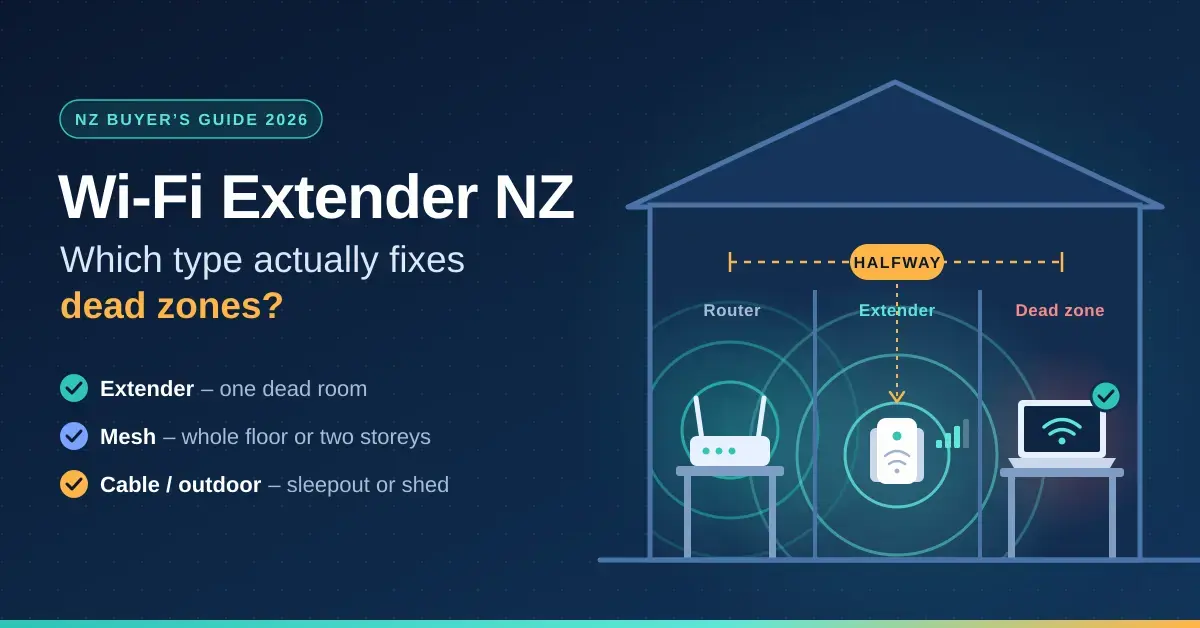
A Wi-Fi extender is the cheapest way to push a signal into one room your router cannot reach, and it is also the most misunderstood piece of home networking gear sold in New Zealand. Plugged into the wrong power point it can make a dead zone worse, and for a whole floor or a sleepout it is usually the wrong product altogether. This guide sorts out the different types, explains when an extender is the right buy and when to skip straight to mesh or a cable, and gives realistic New Zealand prices for 2026.
If you have more than one weak area, or a two-storey home, start with our mesh Wi-Fi guide instead. If the dead spot is a shed, garage or sleepout, our outdoor Wi-Fi guide covers the gear that actually survives outside.
Key points
- An extender fixes one dead room for about NZ$60–$210. Two or more weak areas, or a two-storey home, call for mesh instead.
- Placement decides everything: plug it in roughly halfway between the router and the dead zone, where your phone still shows two or three bars.
- Expect the extended network to deliver about half of the speed the extender receives — still ample for streaming and video calls on a fibre plan.
- Choose a Wi-Fi 6 extender that supports EasyMesh or your router’s own mesh mode (TP-Link OneMesh, Netgear Nighthawk Mesh, ASUS AiMesh) so it shares one network name and hands devices over cleanly.
- A wired access point beats any extender. If a network point or spare Ethernet run reaches the dead zone, use it.
What a Wi-Fi extender actually does
A Wi-Fi extender is a small radio that connects to your router over Wi-Fi and rebroadcasts the network further along the house. “Booster” and “repeater” are just other names for the same device — there is no meaningful difference between them. An extender does not make the router stronger, and it cannot invent signal it is not receiving. It simply takes whatever it can hear from the router and repeats it into the room where it sits.
That single word — repeats — is the catch. A classic single-radio extender has to receive from the router and transmit to your phone in turn, on the same radio, so it can only do one job at a time. In practice a dual-band extender delivers roughly half of the speed it receives. Wi-Fi 6 models and units with a dedicated backhaul band do better, but the halving rule is the safe assumption when you are planning a fix.
A “dead zone” is simply a spot where that received signal has already dropped too far to be useful — usually the far bedroom, a sunroom on the other side of a brick chimney, or a converted garage. Solve the received-signal problem and the extender does its job well; ignore it and no extender on the shelf will help.
How much speed will you really get?
Expect about half of what the extender receives, then judge that against what the room actually needs rather than the big number on the box. On a Fibre 300 plan a router hands out around 300 Mbps; even a third of that at the far end of the house is more than a bedroom TV will ever use.
Real-world demands are smaller than most people assume. Netflix recommends about 15 Mbps for a single 4K stream (see Netflix’s connection-speed recommendations), a video call runs under 5 Mbps, and general browsing barely registers. Where extenders fall down is the demanding stuff: large file transfers, backing up to a home server, gaming with a tight ping budget, and houses with several weak areas at once. If that describes your space, read the “wrong answer” section further down before you buy.
Extender, booster, mesh or powerline?
Retailers use these words loosely, so it helps to know which products genuinely behave differently. An extender, a booster and a repeater are the same plug-in device. The products that work in a fundamentally different way are mesh systems, powerline kits and wired access points — and each suits a different house.
One feature is worth seeking out on any extender: mesh support. If it supports EasyMesh (the Wi-Fi Alliance’s cross-brand mesh standard) or your router brand’s own mesh mode — TP-Link OneMesh, Netgear Nighthawk Mesh or ASUS AiMesh — the extender shares one network name with the router and hands your devices over as you move, instead of leaving you to switch networks manually.
Comparison
| Option | Typical NZ price (2026) | Best for | Main drawback |
|---|---|---|---|
| Plug-in Wi-Fi extender | NZ$60–$210 | One dead room, renters, a quick fix | Roughly halves speed; very placement-sensitive |
| Mesh-compatible extender (EasyMesh, OneMesh, AiMesh) | NZ$120–$280 | One weak area while keeping a single network name | Needs a compatible router for the mesh features |
| Mesh Wi-Fi system (2–3 nodes) | NZ$300–$1,200 | Whole-house coverage, two storeys, large homes | Replaces or bridges your ISP router; costs more |
| Powerline kit with Wi-Fi | NZ$150–$300 per kit | Rooms Wi-Fi cannot reach through concrete or steel | Speed depends on house wiring; plugs must share a circuit |
| Wired access point | NZ$120–$300 plus cabling | Any room with a network point; sleepouts with an Ethernet run | Needs a cable, which may mean an electrician |
Which fix suits your dead zone?
The right product depends on how much of the house is weak, how strong the signal is halfway there, and whether a cable is even possible. Work through the scenario that matches yours.
One room or one corner
A single extender is the right call. Plug it in at the halfway point where the router signal is still good, and pick a Wi-Fi 6 model that supports EasyMesh or your router’s mesh mode so your devices roam without dropping. Budget NZ$60–$210 depending on speed class.
A whole floor or a long wing
This is not an extender job — it needs a second full access point. A two-node mesh system covers a floor evenly, and if you can run even one Ethernet cable to the far node the result is dramatically better. Our home network setup guide walks through planning the cabling before you spend anything.
Most of the house
Reach for a two- or three-node mesh system that replaces the single router and hands devices between nodes automatically. A budget Wi-Fi 6 mesh kit is plenty for most homes; spend up only if you have gigabit or Hyperfibre and many devices.
Heavy walls with no usable signal halfway
If there is no good halfway point — double brick, concrete block, foil-backed insulation or a steel-framed extension — an extender has nothing to repeat. A powerline kit sends the connection through your house wiring to a second unit that broadcasts Wi-Fi in the far room. Results vary with the wiring, so buy from a retailer with easy returns.
A shed, garage or sleepout
Indoor extenders die at the first window. Either run outdoor-rated Cat6 to the building and put an access point at the far end, or use a pair of outdoor point-to-point units aimed at each other. The outdoor Wi-Fi guide linked at the top covers distances, speeds and prices for each approach.
Where to put a Wi-Fi extender
Placement decides whether an extender helps or disappoints, and the single most common mistake is plugging it in inside the dead zone. The extender then receives a poor signal and faithfully repeats a poor signal. The fix is the halfway rule: walk from the router towards the problem room with your phone, watch the Wi-Fi bars, and use the power point closest to where the signal drops from three bars to two. That is usually a hallway or the room next to the dead zone.
- Use the signal LED or app. Every current TP-Link, Netgear and D-Link extender shows whether the link back to the router is strong; move it until the indicator is green.
- Keep it in the open. Not behind a couch, not under a desk, not on the floor. A power point at about waist height in a hallway is ideal.
- Avoid the kitchen and laundry. Fridges, microwaves and washing machines are large metal boxes that block and interfere with Wi-Fi.
- Prefer 5 GHz for the link to the router when the extender is only a wall or two away, and 2.4 GHz when it is further. Dual-band extenders usually choose automatically, but you can force it in the app.
Move the router first — it is free. Many NZ homes leave the router where the fibre ONT was installed: a garage wall or the far end of the house. A longer Ethernet cable from the ONT to a more central spot often removes the dead zone entirely. Our router settings guide covers the channel and band changes worth trying before you spend a cent.
Best Wi-Fi extenders in New Zealand (2026)
These are the models worth considering at New Zealand retailers in 2026. Prices move constantly — the range extenders below were checked against listings such as the Wi-Fi 6 range extenders at PB Tech — so confirm the current price before you buy.
| Model | Wi-Fi standard | Speed class | Mesh support | Approx. NZ price | Best for |
|---|---|---|---|---|---|
| TP-Link RE315 | Wi-Fi 5 | AC1200 | OneMesh (TP-Link routers) | Under NZ$100 | A bedroom that only streams and browses |
| TP-Link RE500X | Wi-Fi 6 | AX1500 | OneMesh (TP-Link routers) | NZ$120–$150 | A small step up with Wi-Fi 6 |
| TP-Link RE705X | Wi-Fi 6 | AX3000 | OneMesh + EasyMesh | NZ$199–$209 | The all-round single-room fix |
| Netgear EAX12 | Wi-Fi 6 | AX1600 | Nighthawk Mesh (one SSID) | NZ$150–$210 | A smaller area on a Netgear router |
| Netgear EAX15 | Wi-Fi 6 | AX1800 | Nighthawk Mesh (one SSID) | NZ$200–$270 | Larger rooms and more devices |
| ASUS router as AiMesh node | Wi-Fi 6 / 6E | Varies | AiMesh (ASUS routers) | Varies | Best performance if you already run ASUS |
Best overall: TP-Link RE705X (AX3000)
The RE705X is a dual-band Wi-Fi 6 extender (2402 Mbps on 5 GHz plus 574 Mbps on 2.4 GHz) with a gigabit Ethernet port and support for both EasyMesh and TP-Link’s OneMesh, so it joins a compatible router as a proper mesh node under one network name. At roughly NZ$199–$209 including GST in 2026 it is the sensible default for a single dead room on a fibre connection, and the Ethernet port lets it double as a wired bridge for a TV or console. TP-Link’s full line-up is listed on the TP-Link New Zealand range-extender page.
Budget picks: TP-Link RE315 and RE500X
The RE315 is a Wi-Fi 5 (AC1200) extender that sells for well under NZ$100 and is perfectly fine for a bedroom that only streams and browses. The RE500X (AX1500) adds Wi-Fi 6 for a little more. Both support OneMesh with TP-Link Archer routers; with other brands they simply run as standard extenders. Our TP-Link extender guide compares the whole RE range in more detail.
For Netgear and ASUS routers
Netgear’s EAX12 (AX1600) and EAX15 (AX1800) are Wi-Fi 6 extenders that use Nighthawk Mesh to keep a single network name with most routers, and they work as ordinary extenders with any brand — see the Netgear range-extender range. ASUS owners have the neatest option of all: add almost any second ASUS router as an AiMesh node, which often performs best because it brings a full router’s radio set rather than a cut-down extender.
For thick walls: powerline with Wi-Fi
If the halfway point has no usable signal, a powerline kit such as the TP-Link TL-WPA series sends the connection through the house wiring to a second unit that broadcasts Wi-Fi. Performance ranges from excellent to unusable depending on the wiring, so buy where returns are easy. Our powerline adapters guide explains what to expect in Kiwi homes.
How to set up an extender properly
- Set it up next to the router first, using the app or the WPS button, then move it to the halfway point. Trying to pair it at a distance is where most setups fail.
- Match the router’s network name and password if the extender is in mesh mode. If it is not, give it a slightly different name so you can tell which network your phone is actually on.
- Update the firmware from the app before you rely on it. Extenders often ship with old software, and the mesh features frequently arrived in later updates.
- Check the link speed in the app, then run our NZ speed test from inside the dead zone. If you see less than a third of your plan speed, move the extender one power point closer to the router.
- Plug fixed devices into its Ethernet port. A TV or console wired to the extender’s LAN port gets the whole extended link to itself, with steadier latency than Wi-Fi.
When an extender is the wrong answer
An extender is a one-room tool. Push it beyond that and you are better off spending the same money on the right product.
- Two-storey homes and long houses. You need a second full access point, which means mesh or a cable rather than a plug-in repeater.
- Chaining extenders. An extender feeding another extender delivers a quarter of the original speed at best. Stop at one, and switch to mesh if one is not enough.
- Sleepouts and garages. Glass, distance and cladding beat plug-in units; use outdoor gear or a cable instead.
- Hyperfibre and big transfers. A gigabit-port extender on a wireless link cannot pass more than a fraction of a 2 Gbps plan; wire the room instead, and see our Ethernet cable guide for what to run.
- Starlink households. Starlink’s own router already broadcasts Wi-Fi 6, so its own mesh nodes or a bypass-mode mesh system fit better than a third-party extender, as our Starlink Wi-Fi guide explains.
Will a Wi-Fi extender work with my NZ ISP router?
Yes — any extender works as a standard repeater with any router, including the models supplied by Spark, One NZ and 2degrees. You do not need a matching brand for the basic job of repeating the signal. The catch is the one-network-name mesh behaviour: features such as EasyMesh, OneMesh, Nighthawk Mesh and AiMesh only work when the router supports the same standard. If your ISP router does not, the extender still extends coverage; you will just have a second network name to connect to in the far room, which is a minor inconvenience rather than a dealbreaker.
Prices in this guide are NZ$ incl. GST as listed by New Zealand retailers in 2026 and change frequently; treat them as a guide, not a quote. Speed figures describe typical behaviour, not test results, and depend on your house, wiring and plan. Nicegear is independent and has no paid placements.
Sources
Frequently asked questions
Do Wi-Fi extenders really work?
Yes, for one dead room, as long as they are placed where the router signal is still good. They deliver roughly half of the speed they receive, which is more than enough for streaming and video calls on a fibre plan. They are not the right fix for a whole floor or a two-storey house.
What is the difference between a Wi-Fi extender and a booster?
There is none. Extender, repeater and booster are marketing names for the same plug-in device that receives your router’s Wi-Fi and rebroadcasts it. Mesh systems and powerline kits are the genuinely different products.
Where should I put my Wi-Fi extender?
About halfway between the router and the dead zone, at a power point where your phone still shows two or three bars, in the open and away from the kitchen. Check the extender’s signal light and move it closer to the router if it shows orange or red.
Does a Wi-Fi extender slow down the internet?
It slows the devices connected through it, typically to about half of the signal it receives, because a single radio handles both directions. It does not slow devices connected directly to the router.
Is mesh Wi-Fi better than an extender?
For more than one weak area, or a two-storey home, yes. Mesh keeps one network name with automatic handover and manages the backhaul properly. For a single dead room, an extender is cheaper and good enough.