
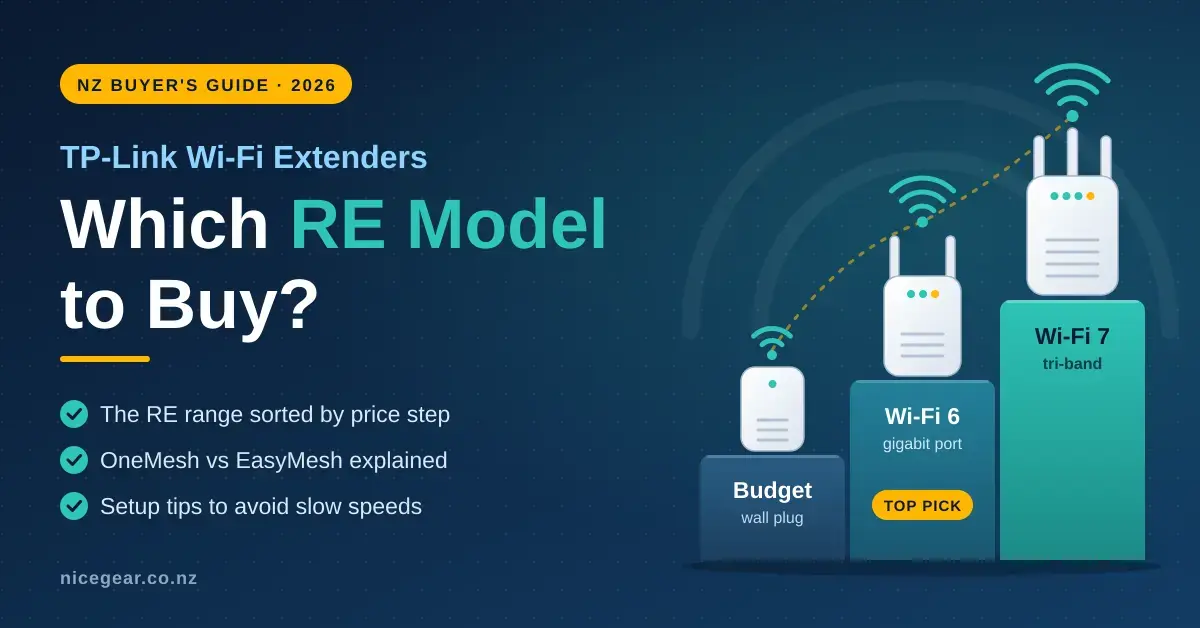
TP-Link is one of the most widely stocked Wi-Fi extender brands in New Zealand, and its RE range runs from a sub-NZ$55 wall plug up to a tri-band Wi-Fi 7 unit over NZ$400. The model numbers do not make the choice obvious, and the difference between OneMesh and EasyMesh confuses even shop staff. This guide sorts the current RE line-up by what each price step actually buys, tells you which models turn into a proper mesh node with your router, and walks through the setup that avoids the usual “it paired but it is slow” outcome.
Not sure an extender is the right product at all? Our Wi-Fi extender guide compares extenders with mesh and powerline, and if you already own a Deco system, add a Deco node rather than an RE unit — our mesh Wi-Fi guide explains why. Prices below are indicative PB Tech figures for late September 2026, incl. GST, and change most weeks.
Key Points
- The RE705X (AX3000, about NZ$209) is the model to buy for most homes: Wi-Fi 6, a gigabit port and both OneMesh and EasyMesh.
- The RE315 (about NZ$89) is the budget pick for a bedroom that streams and browses. Skip the sub-NZ$55, 2.4 GHz-only N300 units unless it is for a printer.
- Mesh features — one network name, roaming and one app — need a compatible TP-Link Archer router. With an ISP router the extender still works, but as a separate network.
- Among the Wi-Fi 7 units, only the RE655BE has a 6 GHz band for dedicated backhaul, and at about NZ$410 it currently costs less than the dual-band RE405BE.
- Placement beats model: set it up next to the router, then move it to where your phone still shows two or three bars.
The TP-Link RE range in New Zealand (2026)
Every RE model plugs straight into a power point, carries at least one Ethernet port so it can also feed a TV or console by cable, and pairs with any brand of router as a standard extender. The letters tell you the generation: plain numbers (RE205, RE315, RE450, RE650) are Wi-Fi 5, an X suffix (RE605X, RE705X) means Wi-Fi 6, and BE (RE225BE, RE405BE, RE655BE) means Wi-Fi 7. You can see the full current list on TP-Link New Zealand’s range extender page, and live local pricing for TP-Link range extenders at PB Tech.
| Model | Wi-Fi | Rated class | Ethernet port | Mesh | NZ$ (approx, Sept 2026) |
|---|---|---|---|---|---|
| WA850RE / WA855RE | Wi-Fi 4 | N300, 2.4 GHz only | 100 Mbps | No | $40–$55 |
| RE205 | Wi-Fi 5 | AC750 | 100 Mbps | OneMesh | $55 |
| RE315 | Wi-Fi 5 | AC1200 | 100 Mbps | OneMesh | $89 |
| RE450 | Wi-Fi 5 | AC1750 | Gigabit | OneMesh | $114 |
| RE605X | Wi-Fi 6 | AX1800 | Gigabit | OneMesh + EasyMesh | $145 |
| RE650 | Wi-Fi 5 | AC2600 | Gigabit | OneMesh | $159 |
| RE705X | Wi-Fi 6 | AX3000 | Gigabit | OneMesh + EasyMesh | $209 |
| RE225BE | Wi-Fi 7 | BE3600 dual-band | Gigabit | EasyMesh | $238 |
| RE655BE | Wi-Fi 7 | BE9300 tri-band (has 6 GHz) | 2.5 Gbps | EasyMesh | $410 |
| RE405BE | Wi-Fi 7 | BE6500 dual-band | 2.5 Gbps | EasyMesh | $419 |
Two things stand out in that table. First, the RE605X sits below the RE705X on both speed and price because it is the lesser AX1800 unit, not because of odd stock — the AX3000 RE705X is the one most buyers should compare against. Second, the tri-band RE655BE is currently listed a little cheaper than the dual-band RE405BE, which flips the usual “more expensive means better” logic: among the Wi-Fi 7 units, the RE655BE is the one to look at, not the RE405BE.
Is the RE405BE really tri-band?
No. TP-Link’s own specifications list the RE405BE as a dual-band BE6500 unit with a fast 5 GHz radio (up to 5,764 Mbps) and a 2.4 GHz radio, and no 6 GHz band at all. Some New Zealand retailer listings label it “tri-band”, which is a listing error rather than a different product. The only RE extender with a 6 GHz radio — the band that lets an extender talk back to the router on a clear channel — is the RE655BE. That distinction matters because a 6 GHz backhaul is the single feature that stops an extender from halving your speed, so if that is what you are paying Wi-Fi 7 money for, the RE655BE is the model that delivers it.
OneMesh vs EasyMesh: which routers work
Plugged into any router, an RE extender creates its own network (usually your network name with “_EXT” on the end), and your phone has to decide when to switch between the two — which it does badly, often clinging to the weaker signal well into the next room. Mesh mode fixes that: the extender joins the router’s network under the same name, hands devices over as you move, and appears in the TP-Link Tether app alongside the router. TP-Link has used two mesh systems over the years, and knowing which one your router speaks is the whole game.
What is OneMesh?
OneMesh is TP-Link’s original, proprietary scheme. It links OneMesh-marked Archer routers with RE extenders and a few powerline units, and it works only between TP-Link devices. If you own an older Archer AC or AX router, OneMesh is usually how you get one network name and roaming. Check your exact model on TP-Link’s OneMesh compatibility list before buying, because support depends on the specific model and firmware.
What is EasyMesh?
EasyMesh is the Wi-Fi Alliance’s open standard, published as Wi-Fi EasyMesh. TP-Link’s current Archer routers and the X and BE extenders support it, and in principle an EasyMesh extender can join an EasyMesh router from another brand. In practice results vary, cross-brand pairing often needs a firmware update on both devices, and the safest bet is to keep the router and extender in the same brand. TP-Link’s EasyMesh pages list which of its products are certified.
What about Deco, Omada and ISP routers?
Deco and Omada are separate systems, and an RE extender cannot join either as a mesh node — a Deco network only accepts another Deco unit. Router-and-modem combos handed out by Spark, One NZ, 2degrees and other ISPs do not support OneMesh or EasyMesh at all, so behind an ISP router an RE extender runs as a plain repeater with its own network name. That still works, but if you want true roaming across the house, a two-node mesh is the honest answer rather than an extender.
Which RE model should you buy?
The right model depends on three things: what router you already own, how fast your connection is, and what the far room actually needs. Work through the scenarios below in order — the first one that matches your router is your answer.
You have an ISP router (Spark, One NZ, 2degrees)
Buy for a single room and expect a separate network name. For streaming and browsing on a Fibre 300 plan, the RE315 (about NZ$89) is enough. If the far room runs a home office, video calls or a wired TV, step up to the RE705X (about NZ$209) for Wi-Fi 6 speed and a gigabit Ethernet port. Give the extended network a clearly different name so you can see which one your phone is on, or check whether your router quietly supports EasyMesh — a few newer ISP units do, and that would let the RE705X join it properly.
You have a TP-Link Archer Wi-Fi 6 (AX) router
The RE705X is the match. It joins your Archer router as a mesh node with the same network name and roaming, over OneMesh or EasyMesh depending on the model, and its gigabit port covers a wired TV or console. If the far room is for gaming, plug the console into the extender’s Ethernet port rather than using its Wi-Fi — you get the full extended link and steadier latency.
You have a TP-Link Archer Wi-Fi 7 (BE) router
For one room, the dual-band RE225BE (about NZ$238) joins via EasyMesh and is plenty for streaming. If you want the far room to keep close to your full plan speed, the tri-band RE655BE (about NZ$410) is the pick: its 6 GHz radio can act as a dedicated backhaul to the router, so your devices are not fighting the router link for airtime. Skip the RE405BE unless it is genuinely cheaper on the day — it is a dual-band unit priced above the tri-band RE655BE, which is poor value.
You already run a Deco mesh, or more than one room is weak
Do not buy an RE extender. A Deco network will not adopt an RE unit as a node, so the fix is another matching Deco. And if two or more areas are weak, or a whole floor drops out, a single extender is the wrong tool no matter how good — a Deco X50 two-pack (about NZ$399, or NZ$407 for the X50 Pro with 2.5G ports) replaces the router or runs behind it in access-point mode and covers the house properly. A sleepout or a detached room is its own case; see our outdoor Wi-Fi extender guide.
Quick Facts
| Top pick for most homes | TP-Link RE705X |
|---|---|
| Wi-Fi standard | Wi-Fi 6 (802.11ax), dual-band |
| Rated class | AX3000 (2402 Mbps on 5 GHz + 574 Mbps on 2.4 GHz) |
| Ethernet port | 1 × Gigabit |
| Mesh support | OneMesh and EasyMesh (with a compatible Archer router) |
| Security | WPA3 |
| Approx. NZ price (Sept 2026) | NZ$209 incl. GST |
| Where to buy in NZ | PB Tech, Noel Leeming and other networking retailers |
TP-Link extender setup, step by step
Setup takes about ten minutes with the Tether app, and getting the placement right at this stage is what separates a fast extender from a slow one.
- Plug it in next to the router and wait for the power light to settle. Setting up from the far room is the most common failure — the extender never gets a clean signal to copy.
- Use the Tether app (or press WPS on the router, then on the extender within two minutes). The app finds the extender, asks for your Wi-Fi password, and offers mesh mode if your router supports it.
- Name the network. In mesh mode, keep the router’s name so devices roam. Otherwise, give the extended network a clearly different name so you can tell which one your phone is on.
- Update the firmware from the app before you move it. Mesh support and stability fixes often arrive as updates, and a stale extender can drop the connection under load.
- Move it to the halfway point between the router and the dead zone, and read the signal LED: blue or green is right, red or orange means move it one socket closer to the router.
- Test from the dead zone with our NZ speed test. Expect roughly half of what the extender itself receives on a single-band hop; if you are getting under a third of your plan speed, move it one socket closer and test again.
Getting the most from an RE extender
A few settings and habits make a bigger difference than the model number, especially on dual-band units where the wireless hop back to the router is the bottleneck.
- Use the Ethernet port. A TV, console or desktop cabled to the extender gets the whole extended link and far steadier latency than Wi-Fi.
- Turn on high-speed mode (in the Tether app on dual-band models). It dedicates one band to the link back to the router and the other to your devices, which avoids the speed halving. It works best when the extender is only a wall or two from the router.
- Consider access-point mode. If there is a network wall socket in the room, any RE unit can run as a wired access point, delivering full speed with no wireless hop at all.
- Leave adaptive path selection on. The X and BE models pick the faster band for backhaul automatically; there is no reason to override it.
- Never chain two extenders. Each wireless hop roughly halves throughput, so a second extender feeding off the first drops you to a quarter of the speed or worse. Two weak areas means mesh, not two extenders.
- Fix the router’s channels first. An extender repeats whatever it receives, interference included. Setting the 2.4 GHz band to channel 1, 6 or 11 at 20 MHz and the 5 GHz band to 80 MHz — as covered in our router settings guide — often helps the extended network more than moving the extender.
Common mistakes to avoid
Most disappointing extender results come down to a handful of avoidable mistakes rather than a bad product.
- Plugging it into the dead zone itself. An extender in a spot with one bar simply rebroadcasts one bar. It belongs halfway between the router and the problem area.
- Buying Wi-Fi 7 for a Wi-Fi 5 or 6 router. A BE extender cannot invent bands your router does not have; behind an AX router it behaves like an AX extender, so the extra money is wasted.
- Expecting mesh from an ISP router. One network name and roaming need a compatible TP-Link Archer router. With an ISP unit you get a separate network, full stop.
- Leaving two identical or confusing network names. Outside mesh mode, phones cling to the weaker signal. A distinct extended name lets you switch on purpose.
- Skipping the firmware update. Early firmware is where the dropouts live; update before you judge the extender.
- Using an extender when the house needs mesh. More than one weak area is a whole-home problem, and stacking extenders makes it worse. Powerline is another option worth weighing — see our powerline adapters guide.
RE extender vs Deco mesh
The honest split is simple: an extender fixes one weak room cheaply, and a mesh fixes a whole house properly. The table below compares the two most relevant options head to head.
| RE extender (RE705X) | Deco mesh (X50 2-pack) | |
|---|---|---|
| Price (approx, Sept 2026) | NZ$209 | NZ$399 |
| Coverage | One room or corner | A single-storey home, or two floors |
| One network name and roaming | Only with a compatible Archer router | Always |
| Works with an ISP router | Yes, as a separate network | Yes, in access-point mode, or replaces it |
| Backhaul options | Wireless, or wired in AP mode | Wireless, Ethernet, or powerline on PX models |
| Best for | Renters, one dead room, a wired TV | Anyone with more than one weak area |
If you are buying an Archer router anyway, an Archer plus an RE705X is a tidy single-room fix. If you are kitting out a whole house from scratch, a Deco pair costs about the same as a router plus two extenders and works far better; our modem router guide explains how each option plugs into New Zealand fibre.
Who each TP-Link extender suits
- Most single-room jobs: the RE705X. Wi-Fi 6, AX3000, a gigabit port and both mesh systems make it the safe default at around NZ$209.
- Tight budget, streaming only: the RE315. At about NZ$89 it covers a bedroom that browses and streams. Skip the sub-NZ$55 N300 units unless it is only for a printer.
- Wi-Fi 7 router owners: the RE655BE. It is the only RE unit with a 6 GHz band for dedicated backhaul, and it is currently priced below the dual-band RE405BE.
- Already on Deco, or more than one weak room: buy Deco, not RE. An extender is the wrong tool for a whole-home problem.
Prices are NZ$ incl. GST as listed by New Zealand retailers in late September 2026 and change week to week; treat them as a guide and confirm before buying. Mesh compatibility depends on the exact router model and firmware, so check TP-Link’s current lists for your device. Nicegear is independent and has no paid placements.
Sources
Frequently asked questions
Which TP-Link extender is best?
For most New Zealand homes it is the RE705X: Wi-Fi 6, AX3000, a gigabit port and support for both OneMesh and EasyMesh, at roughly NZ$209 in September 2026. The RE315 is the budget choice at about NZ$89, and the tri-band RE655BE is the pick for a Wi-Fi 7 Archer router because it has the 6 GHz band that others in the range lack.
Does a TP-Link extender work with a Spark or One NZ router?
Yes, as a standard extender with its own network name. It boosts coverage into a dead room, but the mesh features that give one network name and seamless roaming only work with a compatible TP-Link Archer router, not with an ISP-supplied unit.
What is the difference between OneMesh and EasyMesh?
OneMesh is TP-Link’s own system that links its routers and extenders and works only between TP-Link devices. EasyMesh is the Wi-Fi Alliance standard that current TP-Link products use and that can, in principle, work across brands. Both give one network name with roaming. Deco uses neither and only accepts other Deco units.
Can I use a TP-Link extender with a Deco mesh?
Only as a separate repeater network, which defeats the point of having a mesh. A Deco system will not adopt an RE extender as a node. To extend a Deco network, add another Deco unit — any Deco model can join an existing Deco system as a node.
Is a Wi-Fi 7 TP-Link extender worth it?
Only if you already run a Wi-Fi 7 Archer router. The tri-band RE655BE is the one that earns its price, because its 6 GHz band can act as a dedicated backhaul and avoid the usual speed halving. The dual-band RE405BE has no 6 GHz radio yet costs more, and for a single room the cheaper RE225BE is enough.