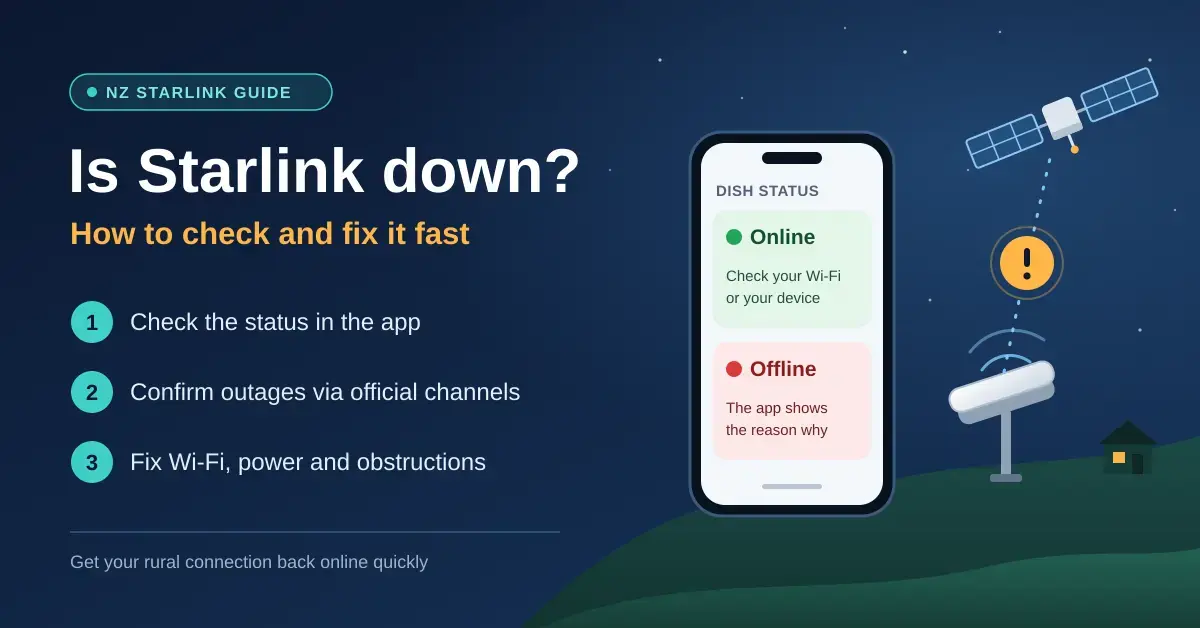
If you think there is a Starlink outage in New Zealand, open the Starlink app first. If it says Online, the fault is almost certainly your Wi-Fi or the device in your hand; if it says Offline, the app usually shows a reason, such as an obstruction, a software update or a network problem. For a genuine network-wide outage, the fastest confirmation is Starlink’s official account on X.
This guide is for Starlink households that have just lost the internet and want it back quickly, and for anyone who wants a rural connection that rides out storms and power cuts. It walks through the checks in the order that finds the fault fastest, explains what each app status actually means, and covers the fixes that make the biggest difference. For how the service works in the first place, see our Starlink NZ guide.
Key points
- The Starlink app is your first stop: Online means look at your Wi-Fi or device, Offline comes with a reason.
- For network-wide problems, rely on official channels — the app and Starlink’s X account (@Starlink) — not crowd-report sites.
- Global outages are rare but real: on 24 July 2025 Starlink was down worldwide for about two and a half hours after a core-network software failure.
- Short, repeated dropouts are usually obstructions; the app’s statistics and obstruction check reveal them.
- Starlink goes down with the power. A UPS or 12 V battery keeps it running through short cuts.
Is Starlink down right now? Where to check
No third-party website can see inside Starlink’s network, and nicegear does not track outages in real time. When you want to know whether the problem is Starlink or your own setup, these are the sources worth checking, in order.
- The Starlink app. It shows your dish’s live status and any alerts, and its statistics screen lists recent outages alongside their likely cause. This is the single most useful screen you have.
- Starlink on X (@Starlink). Starlink uses its official account to acknowledge major outages and to confirm when service is restored, as it did during the worldwide outage in July 2025.
- Your Starlink account. If a problem is affecting only you, open a support ticket from the app or from starlink.com.
Crowd-sourced outage-report sites and local community Facebook pages help answer the “is it just me?” question, but treat them as a hint rather than proof. A spike in reports during a storm often reflects local power cuts, not a Starlink fault — the satellites are usually fine while the power lines are down.
Is it Starlink, your Wi-Fi or your device?
Most “outages” are not outages at all: the dish is working and the break is somewhere between it and your screen. You can narrow it down in under a minute by asking four questions in this order.
- Can you see and join the Starlink Wi-Fi? If the network has vanished completely, suspect power or the router — check the power point and the cable, then power-cycle the router.
- What does the app say once you are connected to that Wi-Fi? Online points you at your own network or one device; Offline comes with a reason; “can’t find my Starlink” usually means your phone is on mobile data or a neighbour’s network, not the dish.
- Does the internet work on a second device? If another phone, laptop or TV is fine, the first device is the problem, not Starlink. Plugging a laptop straight into the router with an Ethernet cable takes Wi-Fi out of the picture entirely.
- If the app is Offline, what reason does it give? Obstructions point to the sky view, an update means waiting a few minutes, a network issue points to Starlink’s side, and “can’t detect the dish” points to the cable or hardware.
Working through those four questions tells you which section below to jump to. If everything is connected but the connection is merely slow rather than dead, that is a coverage or congestion issue, not an outage — skip to the Wi-Fi and bad-weather sections.
Starlink not working? Troubleshoot in this order
When Starlink stops working, the fault is far more often in the house than in orbit. Checking in this order saves time and avoids unplugging the dish mid-update.
- Power and cables. Is the router lit? Is the Starlink cable firmly seated at both the router and the dish? A power-cycle — unplug for a minute, plug back in — clears a surprising number of faults.
- The Starlink Wi-Fi. Connect directly to the Starlink network, not a mesh node, extender or guest network. If the Starlink Wi-Fi has disappeared entirely, go back to power and the router’s power supply.
- The app status. Online or Offline, and if Offline, why? The reason tells you whether to look at the sky, the cable or Starlink’s network.
- Another device. If a second phone or a wired laptop works, the problem is the first device — restart it, rejoin the Wi-Fi and switch off any VPN.
- A wider outage. Check Starlink’s X account and ask the neighbours. If nothing is reported after an hour, reboot from the app and open a support ticket.
If everything checks out but pages still load slowly, run our speed test next to the router and again where you normally use the internet. A big gap between the two points to Wi-Fi coverage rather than Starlink.
Starlink status in the app: what it tells you
The app status is the quickest way to tell an outage from an in-house fault. Here is how to read the three states you will see most often.
Online, but nothing loads
The dish has a working link to the satellites, so start with your own network. Restart the device, forget and rejoin the Wi-Fi, and switch off any VPN or custom DNS. If no device can load anything while the app still says Online, reboot Starlink from the app and check the official channels, because a small number of network-wide problems also look like this.
Starlink offline or disconnected
When the app reports Starlink offline, it normally gives a reason. Obstructions point to your sky view; a software update means waiting 10–15 minutes; a network issue or lack of signal points to Starlink’s side; and a dish that cannot be detected points to the cable or hardware. Starlink installs updates automatically and restarts itself, so an occasional short dropout followed by a reboot is normal, not a fault.
Reading the outage history in app statistics
The statistics screen charts recent outages and groups them by cause, which makes it the best tool for intermittent problems. A handful of short obstruction blips every hour means a tree or roof edge is in the way; longer gaps attributed to “network” suggest a Starlink-side issue worth reporting to support with screenshots.
Quick facts
| First thing to check | The Starlink app status: Online vs Offline |
|---|---|
| Confirm a network outage | Starlink app + Starlink’s official X account (@Starlink) |
| Most common cause of dropouts | Obstructions (trees, hedges, roof edges) |
| Standard dish field of view | 110° cone of sky |
| Weather rating (Standard) | Melts up to 40 mm snow/hour; operates in winds of 96 km/h and above |
| Power draw | Standard dish 75–100 W; Starlink Mini about 20–40 W |
| Power-cut backup | UPS (~200 Wh ≈ 1.5–2 hrs) or a 12 V battery, especially with the Mini |
| Longest recorded global outage | ~2.5 hours on 24 July 2025 |
Starlink outage history: what has gone wrong before
Network-wide Starlink outages are uncommon, but they do happen, and New Zealand is affected along with everyone else.
- 24 July 2025 — a global outage of about two and a half hours. In its outage statement on X, Michael Nicolls of SpaceX said the cause was a failure of key internal software services that run the core network, not a problem with the satellites themselves.
- May 2024 solar storms — degraded but not down. The strongest geomagnetic storms in two decades, covered in detail on the May 2024 solar storms record, degraded Starlink’s service while it stayed online. In New Zealand, Transpower declared a grid emergency and took some transmission lines out of service as a precaution.
Locally, though, the more common culprit is simply the power. A storm that takes out the lines takes your Starlink with it, however healthy the satellites are — which is why a battery backup matters more here than worrying about rare global faults.
Starlink obstructions and short dropouts
Short, repeated dropouts are almost always obstructions. The Standard dish watches a wide cone of sky — a 110° field of view — and hops between satellites as they pass overhead. Anything in that cone, such as a macrocarpa hedge, a gum tree or the edge of a roof, cuts the link for a few seconds at a time; on a video call that feels like freezing every few minutes.
- Run the obstruction check in the Starlink app from the dish’s position; it uses your phone’s camera to map what is blocking the sky. Starlink’s own guide to obstructions in its Help Centre explains what the results mean.
- Check the app’s outage history for a pattern of short obstruction blips clustered through the day.
- Move the dish higher: a roof ridge, a chimney bracket or a pole mount clears most shelter belts and fence lines.
- Re-check every year or two. Trees grow and hedges fill in, so a spot that was clear at install may not be clear now.
Starlink disconnecting in bad weather
Very heavy rain can briefly slow or interrupt any satellite link, Starlink included, but weather is rarely the main problem in New Zealand. According to the Standard kit specifications from Starlink, the dish melts up to 40 mm of snow an hour and is rated to keep working in winds of 96 km/h and above, so on most of the country’s rough days, trees and power cuts matter far more than the weather. If the connection drops every time the wind gets up, check the mount: a dish that sways on a loose pole loses its lock on the satellites.
Peak-time congestion is a different thing from an outage. In the Commerce Commission’s testing published in the Measuring Broadband New Zealand report 28 (July 2026), the priced-by-speed Residential plans slowed at busy times but did not stop — Residential Max averaged around 245 Mbps overall, easing at peak. Slower evenings on the cheaper tier are normal; complete dropouts are not, and point to one of the faults above. If you are weighing Starlink against other rural options, our Wireless Nation review compares the alternatives.
Keeping Starlink running in a power cut
Starlink goes down the moment the power does, because the dish and router both need mains power or a battery to stay online. The Standard dish averages 75–100 W, so there are two practical ways to keep it running.
- A UPS (uninterruptible power supply). Plug the Starlink power supply into it. Runtime is roughly the UPS’s usable battery capacity divided by the load: a unit with about 200 Wh usable will run a 100 W Starlink for around one and a half to two hours — long enough to ride out most short cuts.
- A 12 V battery system, common on lifestyle blocks with solar. The Starlink Mini draws only about 20–40 W and accepts a 12–48 V DC input, which makes it far easier to keep alive for a whole day off a battery than the mains-powered Standard dish.
Our Starlink accessories guide covers power supplies, cables and adapters in more detail. For whole-of-household planning, the National Emergency Management Agency’s Get Ready site is a good checklist.
When it’s your Wi-Fi, not Starlink
If the app says Online and a laptop plugged into the router works fine, Starlink is doing its job and the weak link is Wi-Fi. The usual causes are a router tucked in a cupboard or garage, brick or concrete walls, and foil-backed insulation that blocks the signal. Move the router somewhere central and off the floor first, then look at extending coverage: our Starlink Wi-Fi extender guide and our overview of mesh Wi-Fi systems cover the options for reaching the far end of the house. If you are rebuilding the network from scratch, our home network set-up guide walks through it step by step.
Common mistakes when a Starlink connection drops
A few habits turn a two-minute fix into a wasted afternoon. Avoid these.
- Rebooting endlessly instead of reading the app. The status and outage history tell you the cause; rebooting blind treats every problem as if it were the same one.
- Unplugging the dish during an update. If the app says it is updating, wait 10–15 minutes. Pulling the power mid-update can leave it stuck longer than the update ever would.
- Blaming Starlink for a Wi-Fi problem. If a wired laptop works while wireless devices struggle, the dish is fine — the fix is coverage, not a support ticket.
- Trusting outage-report sites over the app. During storms those sites fill up with local power cuts. Your own app is the authoritative source for your dish.
- Ignoring a slowly worsening obstruction. Growing trees degrade a connection gradually, so people assume the service is declining when a higher mount would fix it.
Contacting Starlink support
Starlink handles support through the app and your account on starlink.com rather than a phone line, and you will get a faster answer if your ticket includes the right detail up front:
- when the problem started, and whether it is constant or intermittent;
- what the app shows, with screenshots of the status and the outage statistics;
- a screenshot of the obstruction map;
- what you have already tried — power-cycle, reboot from the app, cable check.
Hardware bought from a New Zealand retailer is also covered by the Consumer Guarantees Act, so a faulty dish, router or cable is the retailer’s responsibility as well as Starlink’s. If a replacement part is clearly defective, you can raise it with whoever sold it to you.
Disclaimer: This guide covers common faults and is not a live outage service. Details were checked against Starlink’s published specifications and support information in September 2026. Nicegear is independent and has no commercial relationship with Starlink.
Sources
- Standard kit specifications (PDF) — Starlink
- Starlink Mini specifications (PDF) — Starlink
- Obstructions explained — Starlink Help Centre
- Measuring Broadband New Zealand report 28, July 2026 (PDF) — Commerce Commission
- Transpower restores transmission circuits after the May 2024 solar storm — Transpower
- Get Ready — National Emergency Management Agency
Frequently Asked Questions (FAQ)
Is Starlink down in NZ right now?
Check the Starlink app first, then Starlink’s official X account, which acknowledges major outages. If the app shows Online and there is nothing on Starlink’s channels, the problem is most likely your Wi-Fi, a single device or local power rather than a network outage.
Why does my Starlink keep disconnecting?
Short, repeated dropouts are usually caused by obstructions such as trees or a roof edge. Check the outage history in the app and run its obstruction check; moving the dish higher, onto a ridge or a pole, normally fixes it.
What does it mean when Starlink says offline?
It means the dish has lost its connection to the satellites. The app usually gives a reason — an obstruction, a software update or a network issue — and that reason tells you whether to wait, move the dish or check the cable.
Does Starlink work during a power cut?
No. The dish and router both need power. A UPS with around 200 Wh of usable capacity will run a Standard Starlink for roughly one and a half to two hours, and the lower-power Mini can run much longer from a 12 V battery.
How long do Starlink outages usually last?
Obstruction dropouts last only seconds and software updates a few minutes. Network-wide outages are rare; the global outage on 24 July 2025 lasted about two and a half hours before service was restored.