
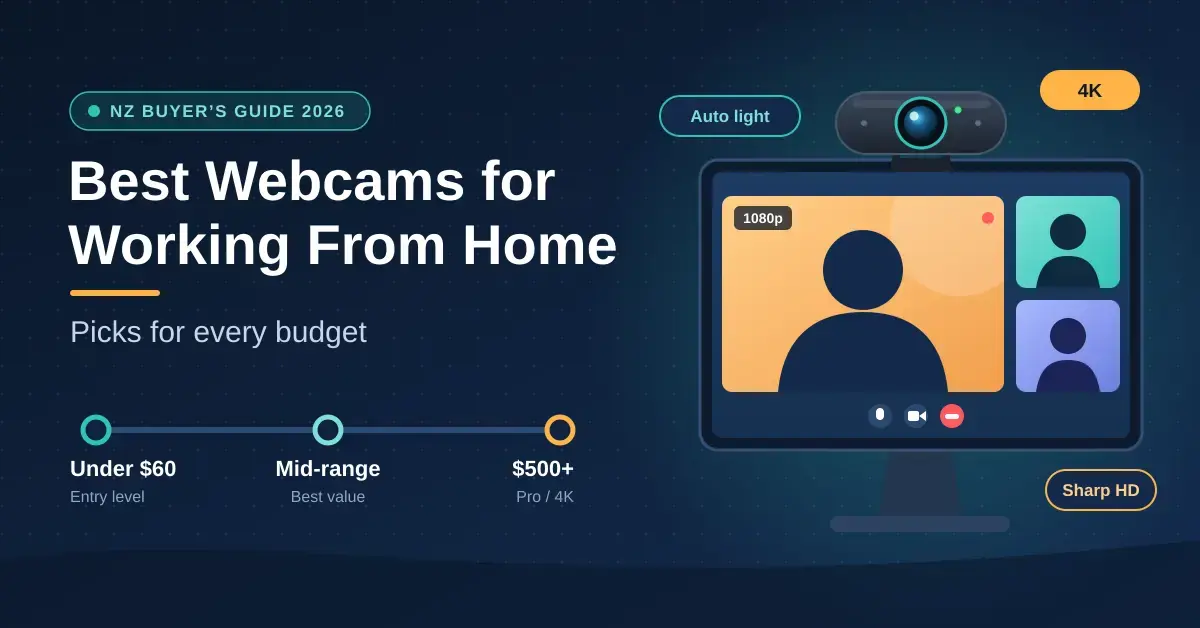
A webcam is one of the cheapest upgrades you can make to how you come across on a video call — and also one of the easiest to get wrong, either by overspending on 4K you will never use or by sticking with a grainy built-in laptop camera that undersells you in every meeting. This guide walks New Zealand home workers through what actually matters when choosing a camera in 2026: the resolution that suits your connection, the sensor and lighting features that separate a crisp image from a muddy one, and honest picks at every price from under $60 to over $500. The figures and specifications below have been checked against current manufacturer pages and New Zealand retail listings, so you can match the right camera to your desk, your role and your broadband — whether you are on urban fibre or working remotely from a rural property.
Do you even need a standalone webcam?
Not everyone does — but most people who spend hours a day on camera will see a clear improvement. The honest answer depends on the laptop you already own and how often your face is the product. Modern business laptops from the last two or three years often ship with decent 1080p cameras, while older and budget machines usually have small, noisy sensors that look washed out in anything but perfect light.
When your laptop camera is actually fine
If your laptop is recent, your room gets good natural light, and you only join the occasional internal catch-up, a standalone webcam is a nice-to-have rather than a need. A better fix is often free: face a window, raise the laptop on a stand so the lens sits at eye level, and tidy the background. Those three changes do more for most people than any hardware upgrade.
When an upgrade is worth it
Buy a dedicated webcam when you are client-facing, present or teach regularly, record or stream content, or simply have a dim room and an old machine. A separate camera gives you a larger sensor, proper autofocus, better low-light handling and a privacy shutter — and it frees you to use a desktop PC or a docked laptop with the lid closed. If you are weighing up the machine itself, our guide to choosing a mini PC or a laptop for a home office pairs well with this one.
Key Points
- 1080p is the right target for most people — it looks sharp on a colleague’s screen and will not strain your internet.
- Sensor size and lighting beat megapixels. A bigger sensor and HDR matter more than a 4K label for how good you look.
- Match the camera to the job: budget (under $100) for occasional calls, mid-range ($100–$230) for daily work, premium ($250–$550) for heavy on-camera or creative roles.
- Audio is the weak link. Pair any webcam with a headset or desk mic for meetings that count.
- Good light and a stable connection improve your calls more than almost any hardware upgrade.
What resolution do you need — 720p, 1080p, 2K or 4K?
For almost everyone, 1080p (Full HD) is the right target in 2026. It is the professional baseline, it looks sharp on a colleague’s screen, and it does not strain your computer or your internet. Higher resolutions help in specific cases but are wasted on a standard meeting.
- 720p (HD): The bare minimum, found in budget cameras like the Logitech C270. Fine for a quick call, soft on a big display.
- 1080p (Full HD): The sweet spot for New Zealand home offices — the best balance of detail, reliability and cost.
- 2K / QHD: A useful middle ground that lets you crop or digitally zoom while staying sharp.
- 4K (Ultra HD): Best for recording, content creation and high-end collaboration. Overkill for everyday video calls.
- Frame rate: 30fps is standard and smooth for meetings; 60fps helps active presenters and streamers look fluid.
Resolution and your NZ internet connection
Most video-calling platforms cap what they actually send, so a 4K camera rarely delivers a 4K call. Microsoft Teams optimises regular meetings up to 1080p at 30fps where bandwidth allows, and Zoom defaults to 720p with 1080p reserved for paid plans. In practice, a reliable 1080p feed beats a stuttering 4K one every time. If you are on a congested Wi-Fi link, older VDSL or satellite, 1080p at 30fps is the safe choice — and it is worth checking your router settings and, if your home is large, a mesh Wi-Fi system before blaming the camera. Rural users on Starlink satellite internet generally have ample headroom for 1080p, though upload speed and brief obstructions matter more than raw download figures.
The specs that matter more than megapixels
Sensor size and lighting features decide image quality far more than the resolution printed on the box. A large sensor gathers more light, which is exactly what cuts the grain that makes cheap cameras look amateurish in a typical Kiwi study or spare bedroom.
Sensor size and low-light performance
Bigger sensors capture more light and produce cleaner images in dim rooms. The Razer Kiyo Pro Ultra, for example, uses a large 1/1.2″ Sony Starvis 2 sensor with a bright f/1.7 lens — unusually big for a webcam — which is why it holds up in low light where smaller cameras resort to electronic brightening and introduce visible noise. If you work in a north-facing room in winter or often sit with a window behind you, sensor size and High Dynamic Range (HDR) will matter more to you than any other number.
Autofocus, HDR and field of view
Autofocus keeps you sharp if you lean in or move; cheaper fixed-focus cameras only look clear at one set distance. HDR (High Dynamic Range) balances a bright window against a darker room so your face is not blown out or lost in shadow. Field of view (FoV) sets how much of the room is visible — a narrow 65° hides clutter and suits one person, while a wide 90° is better for a whiteboard or two people sharing a desk. Many good cameras let you switch between 65°, 78° and 90° in software.
| Feature | Why it matters | What to look for |
|---|---|---|
| Sensor size | Low-light clarity and less grain | 1/2.8″ CMOS or larger |
| Autofocus | Staying sharp as you move | Fast, continuous autofocus |
| HDR | Balancing bright windows | Essential for backlit rooms |
| Field of view | Framing and privacy | Adjustable 65°/78°/90° |
| Privacy shutter | Peace of mind off-camera | Physical sliding cover |
Best premium webcams for NZ (4K and AI)
Premium cameras suit leaders, educators and creators who are on camera for hours and want the sharpest, best-lit image. Expect to pay roughly $250 to $550 depending on the model and retailer. These units earn their price through larger sensors, better software and features like AI tracking and desk-view modes.
The Logitech MX Brio is the standout for enterprise and hybrid work: an 8.5MP Sony Starvis sensor, 4K at 30fps or 1080p at 60fps, RightLight 5 auto-correction, a dual beamforming mic and a Show Mode that tilts the camera down to share documents or sketches on your desk. The Obsbot Tiny 3 takes a different route, using a motorised 2-axis gimbal with AI Tracking 2.0 to physically pan and tilt as you move — ideal for anyone who stands to present — plus gesture and voice control and a whiteboard mode.
| Model | Resolution | Standout feature | Approx. NZ price |
|---|---|---|---|
| Logitech MX Brio | 4K/30 or 1080p/60 | Show Mode, large Starvis sensor | $249 – $360 |
| Obsbot Tiny 3 | 4K/30, 1080p/120 | 2-axis gimbal AI tracking | $500 + |
| Razer Kiyo Pro Ultra | 4K/30, 1080p/60 | Largest sensor, DSLR-like blur | $450 – $550 |
| Elgato Facecam Pro | 4K/60 | True 4K60, deep manual control | $450 – $520 |
| Insta360 Link 2 | 4K/30 | Gimbal tracking, DeskView | $350 – $450 |
One caveat worth knowing: the Elgato Facecam Pro has no built-in microphone at all, so you must pair it with a separate mic or headset. It is a creator’s camera first and a meeting camera second.
Best mid-range webcams for everyday work
Most New Zealand office workers land happily in the $100 to $230 bracket, which buys a genuine step up from a laptop camera without 4K complexity. The Logitech Brio 500 is the easiest all-round recommendation: 1080p at 30fps, RightLight 4 auto light correction, dual noise-reduction mics, an adjustable field of view and Show Mode, all essentially plug-and-play. The Dell Pro Webcam (WB5023) offers 2K QHD (2560×1440) on a Sony Starvis sensor with HDR and a magnetic privacy cap, giving you a little extra sharpness to crop into.
The enduring popularity of the C920
Even in 2026, the Logitech C920 and C920s remain default picks in New Zealand on reliability and price alone, typically around $130 to $150. They deliver dependable 1080p that comfortably beats almost every built-in laptop camera, which is why they have stayed in Kiwi home offices for over a decade. The C922 Pro is a close sibling aimed at streamers, adding a 720p/60fps mode.
| Model | Resolution | Best for | Approx. NZ price |
|---|---|---|---|
| Logitech Brio 500 | 1080p/30 | General office work | $175 – $221 |
| Dell Pro Webcam WB5023 | 2K/30 | Extra sharpness | $180 – $230 |
| Anker PowerConf C200 | 2K/30 | Best value | $100 – $130 |
| Logitech C920 / C920s | 1080p/30 | Reliable all-rounder | $130 – $150 |
Best budget webcams under $100
If you only attend the odd weekly check-in and do not need cinema-grade video, several solid cameras sell for under $100 at New Zealand retailers. They prioritise function over frills: expect weaker low-light performance and few AI features, but a clear, dependable image. The Logitech Brio 100 (1080p, with an integrated privacy shutter) and the HP 320 FHD are sensible choices, while the long-serving Logitech C270 remains a durable 720p option for the tightest budgets.
Managing expectations with entry-level gear
Budget cameras usually use fixed-focus lenses, so you need to sit at roughly arm’s length to stay sharp, and most have a single mono microphone rather than a stereo array. If audio matters, plan to pair one with a headset. Within this band, look for at least 1080p and a privacy shutter — both are now common even at low prices.
- Logitech Brio 100: Dependable 1080p, colour options, built-in privacy shutter.
- HP 320 FHD: An affordable 1080p option often discounted.
- Logitech C270: The legacy budget king; only 720p but very durable.
- Anker PowerConf C200: Stretches the budget to 2K with autofocus and a privacy cover.
Best webcams for streaming and content creation
Streamers and video creators need higher frame rates and finer control than a standard office camera provides. The Logitech StreamCam is a long-time favourite for its 1080p/60fps, USB-C connection and the ability to rotate into portrait mode for vertical content like Reels and TikTok. If you already own a Stream Deck or Elgato lighting, the Elgato Facecam MK.2 slots neatly into that ecosystem: 1080p/60fps, a fixed-focus prime lens that is always sharp for a seated streamer, and Camera Hub software with manual ISO, shutter and white-balance controls.
When to step up to a gimbal or ring-light camera
If you move around while filming, a gimbal camera like the Insta360 Link 2 or Obsbot Tiny 3 keeps you centred automatically. If your desk has no room for separate lighting, the Razer Kiyo’s built-in ring light is a neat one-box answer. For anyone recording polished video rather than just taking calls, a true 4K/60fps camera such as the Elgato Facecam Pro gives the most editing headroom.
- Logitech StreamCam: 1080p/60fps, vertical mounting, USB-C.
- Elgato Facecam MK.2: 1080p/60fps, fixed focus, excellent software.
- Insta360 Link 2: 4K, gimbal tracking, overhead DeskView mode.
- Razer Kiyo: Built-in ring light for desks with no space for extra lighting.
Audio: why the webcam mic is rarely enough
Clear audio matters more to colleagues than a sharp picture, and built-in webcam mics are the weakest link. Even premium cameras with beamforming mics still pick up room echo, a nearby heat pump or traffic outside. For meetings that count, pair any webcam with a dedicated microphone or a good noise-cancelling headset.
Solving the hollow-room problem
Homes with high ceilings, timber floors or sparse furniture suffer from audio bounce — if people say you sound like you are in a cave, the room is the cause, not the camera. A rug under the desk, curtains, or a little acoustic foam will improve how any microphone sounds. Getting the rest of your setup right, from software to peripherals, is covered in our home-office software stack guide.
| Audio option | Pros | Cons |
|---|---|---|
| Webcam mic | Convenient, no extra gear | Picks up room noise and echo |
| Headset mic | Consistent, cancels echo | Can be uncomfortable all day |
| USB desk mic | Studio-quality sound | Takes up desk space |
| Earbuds / AirPods | Minimalist on camera | Battery life limits long calls |
Setting up your webcam the right way
Placement and lighting decide how your chosen camera actually looks. The lens should sit at or just above eye level — a camera below eye level gives the unflattering ‘up the nose’ angle common in amateur setups.
Placement and lighting
Clip the camera to the top of your monitor, or use a small desktop tripod to position it slightly to one side for a more natural three-quarter view. For lighting, face a window or a soft lamp and never sit with a bright light directly behind you, which turns your face into a silhouette. A simple ring light or desk lamp with a diffuser lifts image quality more than spending another $100 on hardware.
Connection and software
Check your ports: many current cameras use USB-C, so an older laptop with only USB-A may need an adapter or a powered hub to supply enough bandwidth and power. Most webcams are plug-and-play (UVC compliant) and work the moment they are connected, but installing the maker’s software — Logi Tune, Razer Synapse, Elgato Camera Hub or Obsbot’s app — unlocks field-of-view adjustment, auto-framing and manual controls. If you mainly live in one platform, our Zoom overview covers the in-app video settings that affect how you appear.
What to Check Before You Buy
- Resolution: 1080p for calls; only pay for 4K if you record or stream.
- Autofocus: choose it over fixed focus unless you only ever sit at one distance.
- Low light: look for a larger sensor and HDR if your room is dim or backlit.
- Privacy shutter and in-use LED: both now common and worth having.
- Connection: confirm USB-C vs USB-A and whether you need an adapter.
- Mic: check whether there is a built-in microphone at all — some creator cameras have none.
- Field of view: adjustable 65°/78°/90° lets you hide clutter or show a whiteboard.
Privacy and security
A physical privacy shutter is the single most reliable privacy feature, and most good webcams now include one. It is a sliding cover or twist ring that physically blocks the lens when the camera is idle, so nothing can be seen even if software is compromised. If your camera lacks one, a stick-on cover costs a few dollars. Look also for a clear in-use LED that lights whenever the camera is active — it helps you avoid the classic ‘I thought the meeting had ended’ moment. Some premium models add a hardware mic mute, and many support Windows Hello face login for a quick, password-free sign-in.
Common mistakes people make
Most webcam disappointment comes down to a handful of avoidable errors rather than the hardware itself.
- Buying 4K for standard meetings. Platforms cap most calls at 1080p, so the extra resolution goes unused while costing more and loading your PC harder.
- Ignoring lighting. The best sensor still looks poor in a dark, backlit room. Fix the light first.
- Relying on the built-in mic. Great video with echoey audio still reads as unprofessional.
- Mounting the camera too low. Eye level is flattering; desk level is not.
- Forgetting the USB-C to USB-A gap. A newer camera on an older laptop may need an adapter to get enough power and bandwidth.
- Blaming the camera for a network problem. Freezing and stutter are usually Wi-Fi or upload bandwidth, not the webcam.
Sources
- Logitech MX Brio — official product page and specifications (NZ)
- Logitech Brio 500 — official specifications
- Razer Kiyo Pro Ultra — official product page
- Elgato Facecam Pro — official product page
- Obsbot Tiny 3 — official product page and specifications
- Insta360 Link 2 — official product page
- PB Tech — New Zealand retail pricing reference
Frequently Asked Questions (FAQ)
Is a 4K webcam worth it for standard video calls?
For most people, no. Microsoft Teams and Zoom cap regular meetings at around 1080p, so a 4K camera sends a downscaled image on calls. The benefit of 4K shows up in recording, content creation and the ability to crop tightly, so buy it only if you do those things.
Can I use my smartphone as a webcam instead?
Yes. Apps such as Camo or your phone maker’s Continuity Camera (Apple) and equivalents let a modern phone act as a high-quality webcam, often beating a cheap dedicated camera. The trade-offs are mounting your phone at eye level, keeping it charged, and tying up a device you may need for other things.
What is the best webcam for a dark or backlit room?
Look for a large sensor and HDR. The Razer Kiyo Pro Ultra and Logitech MX Brio handle poor light well thanks to big sensors and strong light correction. On a budget, the simplest fix is to add a soft front light rather than spend more on the camera.
Why is my video grainy even with a good webcam?
Graininess almost always means too little light. The camera electronically brightens a dim scene, and that amplification introduces digital noise. Add a lamp or face a window before changing any camera settings, and avoid sitting with a bright light behind you.
How do I stop my webcam picture from flickering in New Zealand?
Set the camera’s anti-flicker or power-line frequency to 50Hz in its software to match New Zealand’s mains supply. A 60Hz setting, common as a default, can cause visible flicker or banding under some indoor lighting here.