
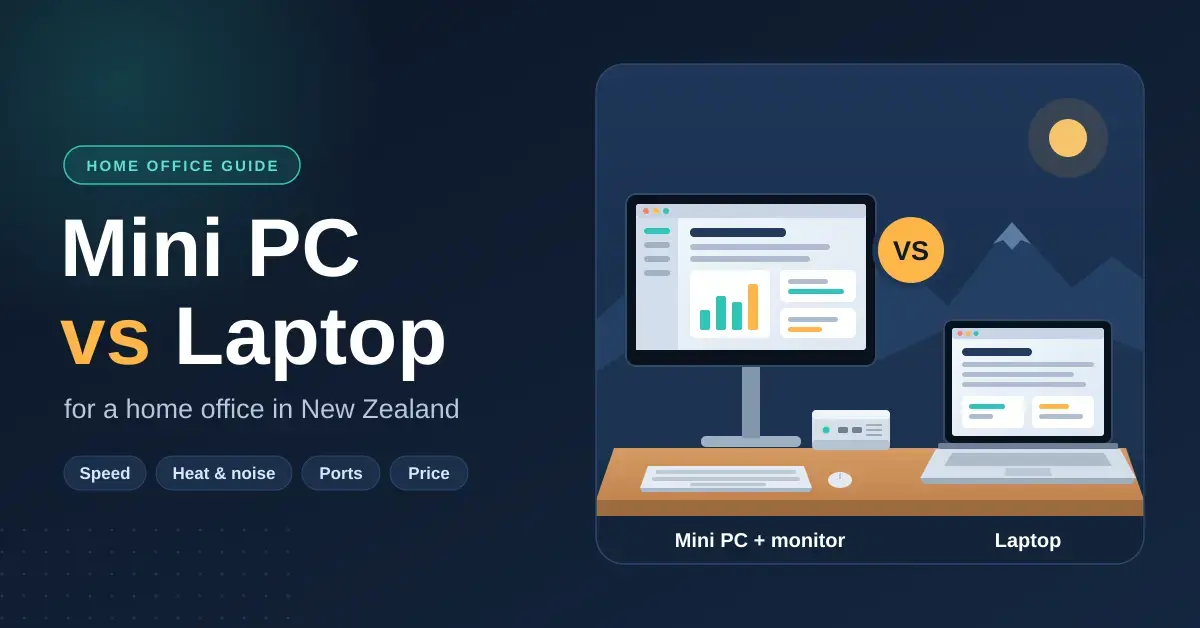
Choosing between a mini PC and a laptop for a home office in New Zealand comes down to how you actually work, not to which device is “better” on paper. A laptop bundles a screen, keyboard and battery into one portable package. A mini PC is a palm-sized desktop that needs its own monitor and keyboard but tends to run cooler, cost less for the same performance, and stay useful for longer. This guide compares the two on the things that matter day to day — sustained speed, heat and noise, upgrades, ports, ergonomics, power use and price in the NZ market — and then sets out which setup suits which kind of worker, so you can match the hardware to your job rather than to the marketing.
What is the real difference between a mini PC and a laptop?
The core difference is integration. A laptop is a complete, self-contained computer you can pick up and carry anywhere; a mini PC is a small desktop computer that relies on peripherals you supply. Both use the same family of low-power mobile processors, so at a glance their raw specifications can look almost identical. Where they diverge is in the physical space around those chips: a mini PC has room for a larger heatsink and slower fans, while a laptop has to fit everything — including a battery and a display — inside a chassis often thinner than a finger.
That single design constraint ripples through almost every practical decision below. It affects how long each device holds its top speed, how much noise it makes, what you can upgrade later, and how you sit at your desk. Neither approach is universally superior; they simply make different trade-offs.
Key Points
- Same chips, different bodies: a mini PC has more room to cool, so it holds higher speeds for longer during heavy work; for everyday tasks the two are equally fast.
- Portability is the real dividing line: a laptop works anywhere on battery; a mini PC only moves between desks where a monitor and keyboard already wait.
- Upgrades favour the mini PC: most open with one screwdriver for RAM and storage, while many (not all) laptops solder memory — though LPCAMM2 laptops are changing that.
- Both sip power: efficient mini PCs run at roughly 5–18W in office use, so running cost is not a deciding factor — a few dollars a month, around NZ$35 a year if left on 24/7.
- Budget the whole setup: a mini PC’s price excludes screen and peripherals; a laptop bundles them but is replaced as a whole unit.
Performance and heat: which one holds its speed?
For short bursts of work, a modern laptop and a mini PC with the same processor perform almost identically. The gap opens up during long, heavy tasks — think exporting a video, crunching a large spreadsheet, or running several browser-heavy web apps alongside a video call. In those situations a mini PC can usually sustain higher clock speeds because it can shed heat more effectively, whereas a laptop dials its processor back to stay cool. The advantage is real but modest and workload-dependent, not the blanket “25% faster” figure often quoted: on genuinely sustained loads it can reach a double-digit percentage, while on everyday office tasks the difference is negligible.
Why laptops throttle sooner
Thermal throttling is when a computer deliberately slows its processor to keep temperatures safe. A thin laptop has little internal volume and small, fast-spinning fans, so under load its temperature climbs quickly and it throttles to compensate — which is also why the fan can get loud during something as ordinary as a warm-day video meeting. A mini PC generally has a larger heatsink and more airflow, so it holds its speed for longer and stays quieter under the same load. Many mini PCs also use higher-wattage processor variants than the ultra-low-power chips common in slim laptops, which adds to the sustained-performance gap.
When the gap actually matters (and when it does not)
For email, word processing, browsing and standard video conferencing, either device is comfortably fast enough and you will not notice throttling at all. The difference becomes relevant only for sustained, demanding work: video editing, software compiling, large data sets, or long meetings with screen sharing and many participants. If your day is mostly documents and calls, do not pay a premium chasing sustained clocks you will never use. If you regularly push the machine hard for 30 minutes or more at a time, the mini PC’s cooling headroom is a genuine, measurable benefit. For lag-sensitive tasks such as calls and gaming, a stable wired link matters more than the last few percent of CPU speed — see our guide to lower ping and less lag in NZ.
Portability: two very different kinds of “mobile”
A laptop is portable in the everyday sense: you can open it on the couch, at a cafe, on an Air New Zealand flight, or at a client’s office, and keep working on battery for hours. That freedom is the whole point of a laptop, and nothing about a mini PC replaces it.
A mini PC is “portable” only in the narrower sense that it is easy to move between fixed desks. Because a capable mini PC often weighs under a kilogram and fits in a bag, someone who splits the week between a home office and a shared city desk can leave a monitor, keyboard and mouse at each location and simply carry the little box. It is a workable hybrid pattern, but it depends on having peripherals waiting at the other end — it will not help you work from a park bench.
Put plainly: if your “mobility” means genuinely working away from a desk, the laptop is the clear choice. If it means moving between two or three set-up locations, a mini PC can do the job without giving up screen size or ports.
Upgrades, repairs and how long each one lasts
Mini PCs are generally easier to upgrade and repair, which is one of their strongest arguments for a long-lived home office. Most open with a single screwdriver, exposing standard laptop-style (SO-DIMM) memory slots and one or two storage bays, so you can add RAM or fit a larger SSD years later for a fraction of the price of a new machine. Swapping a failed fan or wireless card is often straightforward too.
What you can and cannot change in a laptop now
Laptop upgradeability is more mixed than it used to be, so check the specific model before you assume anything. Many thin and premium laptops solder both memory and, occasionally, storage directly to the mainboard, meaning you are stuck with whatever you bought. However, that is no longer a universal rule: a growing number of 2025–2026 laptops from Dell, Lenovo, HP, ASUS and Framework use LPCAMM2, a modular memory format that keeps the efficiency of soldered memory while remaining removable and upgradeable. Storage is more commonly replaceable in both device types. The safest approach is to read the model’s service manual or teardown before buying if future upgrades matter to you.
The practical upshot for total cost: peripherals outlive computers. A good 27-inch monitor, keyboard and mouse bought once can carry across several PC generations, so a mini PC that you refresh internally can work out cheaper over four or five years than replacing a whole laptop. That said, a laptop you never plan to upgrade and keep for its full life is a perfectly sound choice too — the mini PC’s edge here is optional value, not a rule.
Ergonomics and your desk setup
A laptop makes good posture harder, because the screen and keyboard are fixed together. If the screen is at a healthy eye level, the keyboard is too high; if the keyboard is comfortable, you are looking down and straining your neck. Working eight hours a day this way is a well-known cause of neck and back discomfort. You can fix it with a laptop stand plus an external keyboard and mouse — effectively turning the laptop into a desktop — but that adds cost, cable clutter and a bag of accessories.
A mini PC sidesteps the problem by design, because it always uses an external monitor and keyboard. You place the screen at eye level and the keyboard at elbow height from the start. The small box can also be mounted out of sight on the back of a monitor using a VESA bracket (the standard mounting-hole pattern on most displays), keeping the desk tidy. If you value a clean, ergonomic fixed workstation, that is a real advantage — but a laptop with a decent stand achieves much the same result once it is set up.
Ports, monitors and connectivity
Mini PCs usually offer more built-in ports than slim laptops, which increasingly rely on a couple of USB-C ports and a dongle. A typical mini PC includes several USB-A sockets for existing keyboards, printers and drives, two or more video outputs (HDMI and/or DisplayPort), a wired Ethernet port, and a headphone jack. That matters for a home office: a wired Ethernet connection gives you the full, stable speed of your fibre plan without Wi-Fi variability, and if you want that reliability, the right cable helps — here is our plain-English look at which Ethernet cable to buy.
Multiple video outputs also make dual- or triple-monitor setups easy without a Thunderbolt dock, which is useful for coding, data work and design. Laptops can drive extra screens too, but often only through adapters or a dock, adding cost. Note that a laptop’s all-in-one nature includes its own webcam and microphone; with a mini PC you supply those separately — if you are buying, our roundup of webcams for working from home in NZ covers the options.
Power use and running costs in New Zealand
Both device types are far more efficient than an old tower desktop, so neither will noticeably swell your power bill. An efficient mini PC (for example one built on Intel’s low-power N100-class chips) draws roughly 5–12 watts at idle and often stays under about 18 watts during light office work; more powerful Ryzen or Core-based units sit higher, in the 15–35 watt range under load. Laptops are similar or slightly lower because they are engineered around battery life. By comparison, a traditional desktop tower can pull 150–300 watts.
To put that in local terms, New Zealand’s average residential electricity price is around 40 cents per kWh in 2026. A mini PC left on 24/7 at about 10 watts costs on the order of NZ$35 a year to run; used only during a normal work week, the electricity cost is just a few dollars a month. Power draw, in short, should not be the deciding factor between a mini PC and a laptop — both are frugal. It is only worth weighing if you plan to leave the machine on continuously as a background server, in which case the mini PC’s low idle draw is a plus. Many Kiwis do exactly that, running a mini PC as a quiet home server or media box alongside their work — our home server deployment guide covers that path.
What a mini PC or laptop costs in New Zealand
Prices move quickly, so treat these as 2026 reference points rather than fixed figures, and always compare at NZ retailers such as PB Tech or Computer Lounge. Budget Windows mini PCs (N100-class) start well under NZ$500. Apple’s Mac mini with the M4 chip starts at about NZ$1,095 for the 16GB/256GB model and rises past NZ$2,288 for higher-memory configurations, with M4 Pro versions around NZ$2,999. Capable Windows mini PCs with AMD Ryzen or Intel Core Ultra chips typically land between roughly NZ$700 and NZ$1,500. Comparable performance laptops span a wide range, but a well-specified professional model commonly costs more than an equivalent mini PC once you account for the built-in screen and battery.
The honest comparison includes peripherals. A mini PC’s sticker price excludes a monitor, keyboard and mouse, which you either already own or buy once and keep for years. A laptop’s price includes all of that but bundles it into a device you replace as a whole. Which is cheaper over four years depends entirely on whether you reuse peripherals and how often you upgrade.
Comparison
| Option | Best for | Approx. NZ price (2026, incl. GST) | Official page |
|---|---|---|---|
| Budget Windows mini PC (Intel N100 class) | Documents, browsing, light office work; always-on home server | Under NZ$500 | — |
| Apple Mac mini (M4) | Mac users; quiet, efficient creative and office work | From ~NZ$1,095 (16GB/256GB); M4 Pro ~NZ$2,999 | apple.com/nz |
| ASUS NUC (Intel Core Ultra) | Reliable Windows workstation; business use | ~NZ$900–$1,900 by configuration | asus.com |
| Minisforum (AMD Ryzen) | High performance per dollar for demanding work | ~NZ$700–$1,500 | minisforum.com |
| Geekom / Beelink mini PC | Value all-rounders for home offices | ~NZ$500–$1,200 | geekom.com / bee-link.com |
| Ex-lease business mini PC (Dell / HP) | Basic office work on a tight budget | ~NZ$200–$500 | — |
Buying in New Zealand: brands, stock and warranty
New Zealand shoppers have good local access to mini PCs. Apple’s Mac mini is a strong, near-silent option for people in the Mac ecosystem and offers excellent performance per watt. For Windows, the ASUS-run NUC line (ASUS took over Intel’s NUC business and launched the NUC 16 Pro at CES 2026) is a reliable, compact standard, while brands such as Minisforum, Geekom and Beelink often deliver strong value, particularly with AMD Ryzen chips. Ex-lease business mini PCs from Dell or HP are a sensible budget choice for basic office work.
A few buying checks save trouble later. Buy from an NZ retailer so your Consumer Guarantees Act rights and local warranty support apply, and confirm the unit ships with an NZ power cord. Watch for “barebones” kits sold without RAM or an SSD — they are cheaper but need parts and assembly, so decide whether you want a ready-to-run system or a project. If you lean toward open-source software, note that most mini PCs happily run Linux; our overview of a Linux laptop setup in NZ applies equally to a Linux mini PC.
Common mistakes people make
The biggest mistake is buying on raw specifications alone. A mini PC and a laptop with the same processor number can behave very differently under load, and neither wins if the choice ignores how you actually work. Other frequent missteps:
- Forgetting the peripherals in the budget. A cheap mini PC is not cheap once you add a monitor, keyboard, mouse and webcam if you own none of them.
- Buying a mini PC when you need real portability. If you regularly work away from a desk, no amount of desktop power makes up for having no screen or battery with you.
- Assuming every laptop can be upgraded — or that none can. Check the specific model: many solder memory, but LPCAMM2 machines are changing that.
- Blocking the vents. A mini PC tucked behind a stack of paper or in a sealed drawer will overheat and throttle, erasing its main advantage.
- Skipping backups. A mini PC’s small SSD is easy to swap but also easy to lose to failure; keep an external or cloud backup regardless of device.
- Overspending on sustained performance you never use. If your work is documents and calls, an efficient mid-range machine is plenty.
Which one suits you?
Match the device to your working pattern rather than to a verdict. Neither is the “right” answer for everyone.
- Choose a laptop if you travel, work in cafes or client sites, attend lectures, or simply want one device that goes everywhere. Portability and the built-in screen, keyboard and battery are irreplaceable.
- Choose a mini PC if you have a fixed home-office desk, want the best sustained performance and ergonomics for your money, plan to keep and upgrade the machine for years, or want a quiet always-on box that can double as a home server.
- Consider both if budget allows: a modest laptop for mobility plus a mini PC as the main workstation is a common and effective setup, letting each device do what it does best.
Whichever way you lean, the fundamentals of a productive setup — a stable connection, sensible security and good software — matter more than the form factor. If you want free tools to run the business side without extra cost, start with our list of free business software for NZ small businesses, and if you handle sensitive work from home, our companion guide over at VPN Guide NZ covers staying private online.
Sources
- ASUS — NUC 16 Pro Mini PC announcement (CES 2026)
- StarryHope — What a mini PC actually costs to run 24/7 in 2026
- iFixit — LPCAMM2 upgradeable laptop memory explained
- PB Tech — Apple Mac mini range and NZ pricing
- Apple New Zealand — Mac mini specifications and pricing
- MoneyHub — New Zealand electricity prices by region (2026)
Frequently Asked Questions
Is a mini PC as fast as a laptop with the same chip?
For short tasks they are effectively identical. During long, heavy workloads a mini PC can hold higher sustained speeds because it cools better, so it may finish faster and stay quieter. For everyday documents, browsing and video calls, you will not notice a difference either way.
Do I need to buy a monitor, keyboard and mouse for a mini PC?
Yes. A mini PC does not include a screen or input devices, so budget for a monitor, keyboard, mouse and a webcam if you make video calls. Many people reuse peripherals they already own, which keeps the real cost down and lets those parts outlast several PCs.
Can a mini PC run more than one monitor?
Almost all modern mini PCs drive at least two displays through their built-in HDMI and DisplayPort outputs, and many mid-range and higher models support three or four without an external dock. Check the specific model’s video outputs before buying if a multi-monitor setup is important to you.
Is it worth buying a mini PC in New Zealand rather than importing one?
Buying from an NZ retailer is usually the safer choice, because your Consumer Guarantees Act rights and local warranty support apply and the unit ships with an NZ power cord. Imported units can be cheaper up front but leave you handling returns and repairs offshore.
Which is better for working away from home?
A laptop, without question. Its built-in screen, keyboard and battery let you work anywhere. A mini PC only suits fixed locations where a monitor and keyboard are already set up, so it is best kept as a stationary home-office workstation.