
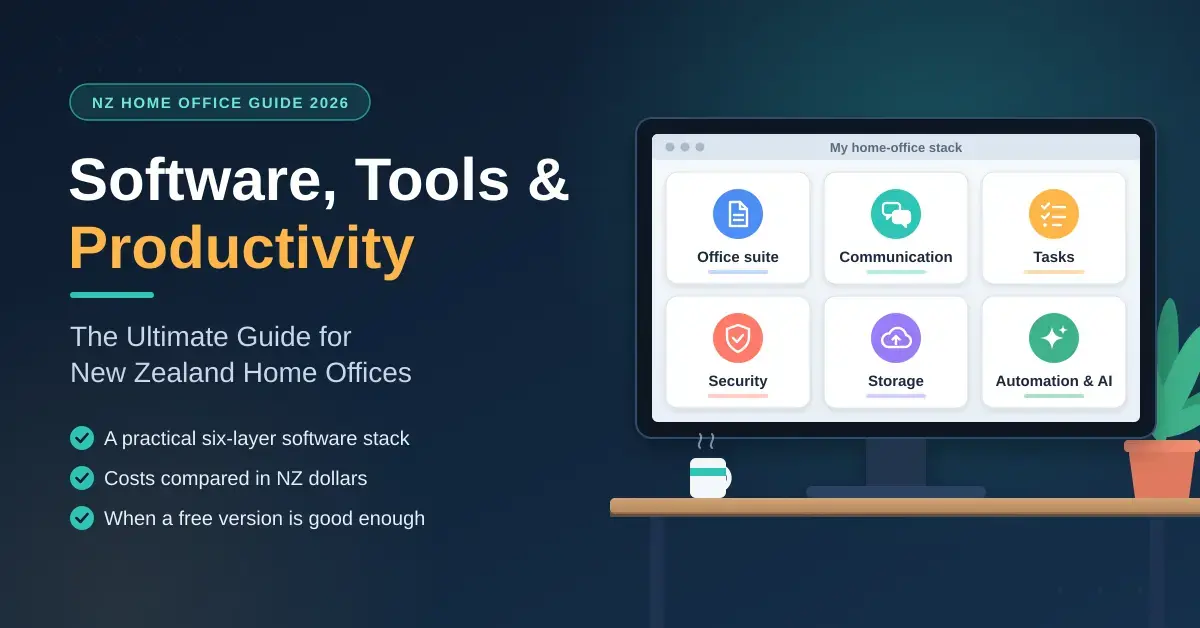
Setting up a home office in New Zealand is now as much a software decision as a furniture one. Once you have a chair, a desk and a fast internet connection, the tools that actually get work done live on your screen: the office suite you write and calculate in, the apps you meet and message through, the systems that keep files safe, and the automations that quietly handle the busywork. This guide walks through each layer of a practical Kiwi home-office stack for 2026 — what each tool does, what the paid options cost in New Zealand dollars, where a free version is genuinely good enough, and the common mistakes that cost people time and money. The aim is a setup that fits how you actually work, rather than the most expensive one.
Key Points
- A home-office stack has six layers: office suite, communication, task management, security, storage, and automation or AI.
- The biggest decision is your office suite — Microsoft 365, Google Workspace, or a free open-source route — because it shapes everything else.
- Microsoft 365 business plans start around NZ$11.30 per user per month; Google Workspace starts around NZ$10.50 (annual, excluding GST, September 2026).
- A free stack built on open-source tools can genuinely run a small business; you trade polish and support, not core capability.
- Security basics — a password manager and two-factor authentication — are mostly free and stop the majority of account takeovers.
- Don’t pay twice: check what your existing suite already includes before adding separate video, chat or storage subscriptions.
What a New Zealand home-office software stack needs
A home-office stack is simply the set of apps that let you produce work, communicate and stay organised without an IT department behind you. Most people can group their needs into six layers: an office suite for documents and email, a way to meet and message, a system for tracking tasks and projects, security tools, file storage, and — increasingly — automation and AI helpers. You do not need a separate product for every layer; the point of a good stack is that the pieces talk to each other so you spend less time copying information between apps.
The two decisions that shape everything else are which office suite you build around and how much you are willing to pay. For many Kiwis working from home, one integrated subscription covers email, documents, video calls and storage in a single bill, while others assemble a capable setup from free tools and only pay for the one or two things they truly need. Both approaches are valid. What matters is matching the tools to the size of your operation: a solo freelancer, a two-person partnership and a ten-person remote team have very different requirements.
The core office suite: Microsoft 365 vs Google Workspace vs free
The office suite is the foundation, because email, documents, spreadsheets and calendars underpin almost every other task. In New Zealand the mainstream paid choices are Microsoft 365 and Google Workspace, and there is a strong free path built on open-source software for those who prefer to avoid a subscription. The right pick depends on whether you live in desktop applications or in the browser, and whether you already rely on Windows and Excel or work mostly online.
Microsoft 365 in New Zealand
Microsoft 365 remains the default in NZ finance, law, government and larger companies, largely because of Excel’s depth and the way Teams, Outlook and the desktop Office apps fit together. As of September 2026, Microsoft’s New Zealand business list prices (excluding GST) start at NZ$11.30 per user per month for Business Basic on an annual plan, which covers the web and mobile apps plus Teams and hosted email. Business Standard, now bundled with the Copilot AI assistant, sits around NZ$38.00 per user per month, and Business Premium — which adds advanced security and device management — is roughly NZ$51.80. Because Microsoft revises its tiers and Copilot bundling regularly, treat these as a snapshot and confirm the current plans on Microsoft’s own site before you commit. For a sense of how broad the ecosystem is, Microsoft’s software catalogue on Wikipedia runs to hundreds of products, though a home office needs only a handful of them.
Google Workspace in New Zealand
Google Workspace suits people who prefer to work entirely in a browser and value real-time collaboration over desktop power. New Zealand pricing (excluding GST) begins at about NZ$10.50 per user per month for Business Starter on an annual plan, NZ$21 for Business Standard, and NZ$33 for Business Plus, with the flexible month-to-month rates running a little higher. Workspace’s strengths are simultaneous editing in Docs and Sheets, generous search, and the Gemini AI features now folded into the suite. For freelancers and small creative teams who share documents constantly, the lower setup overhead is often the deciding factor.
The free route
You do not have to pay a monthly fee to have a capable office. Free, open-source suites such as LibreOffice and ONLYOFFICE open and save Word, Excel and PowerPoint files, and they run happily on an older laptop. If you are weighing this up, our guide to open-source alternatives to Microsoft Office covers what works cleanly and what occasionally breaks when swapping files with subscription users. More broadly, it is entirely possible to run a small New Zealand business on free tools — accounting, meetings, marketing and security included — and our rundown of the free software that can run a small business shows how far a zero-budget stack now stretches. The trade-off is usually support and polish rather than raw capability.
Cost Comparison
| Option | Entry price (per user/month, excl. GST) | Best for | AI assistant |
|---|---|---|---|
| Microsoft 365 Business Basic | NZ$11.30 (annual) | Windows and Excel users, Teams-based teams | Copilot on higher tiers |
| Microsoft 365 Business Standard | ~NZ$38.00 (annual, with Copilot) | Desktop Office apps plus AI | Copilot included |
| Google Workspace Business Starter | NZ$10.50 (annual) | Browser-first, collaborative teams | Gemini features |
| Google Workspace Business Standard | NZ$21 (annual) | More storage and meeting features | Gemini features |
| Free open-source (LibreOffice etc.) | NZ$0 | Solo workers and tight budgets | Optional add-ons only |
Prices are list prices from the vendors’ New Zealand pages as of September 2026 and exclude GST; tiers and Copilot bundling change often, so confirm before subscribing.
Communication: video calls and team messaging
Communication tools replace the corridor chat and the meeting room when your colleagues are scattered from Kaitaia to Invercargill. They fall into two groups: real-time video calling and ongoing text-based messaging. Most home workers end up using one of each, and the smart move is to pick tools that already come with your office suite rather than paying twice.
Zoom is still the most widely recognised video platform in New Zealand because joining a call takes one click and no account. Microsoft Teams and Google Meet are strong alternatives that are effectively free if you already subscribe to Microsoft 365 or Google Workspace, and they keep calls, chat, calendars and files in one place. For day-to-day messaging, Slack remains popular for its speed and its large library of integrations, while Teams doubles as a chat hub for organisations already inside the Microsoft world.
- Zoom — the easiest platform to invite external guests to; a free tier covers one-to-one calls and short group meetings.
- Microsoft Teams — best when you need to edit a document while you talk about it; included with most Microsoft 365 plans.
- Google Meet — clean, browser-based calling that is built into Google Workspace and needs no download.
- Slack — the standard for informal, channel-based team chat and connecting third-party apps.
A common source of friction is running several messaging apps at once. If everyone in your team is already on Microsoft 365 or Google Workspace, standardising on the included chat and video tools usually beats adding a separate subscription that only some people check.
Project and task management for hybrid teams
Task and project tools turn a vague to-do list into work you can see and track. They matter most when several people depend on each other’s progress, or when you juggle many small jobs at once. The core distinction is between simple visual boards and heavier systems that handle dependencies, timelines and reporting. Pick the lightest tool that still shows you what needs doing next.
Trello is the classic entry point: its Kanban boards — columns of cards you drag from “to do” to “done” — are ideal for editorial calendars and straightforward planning. Asana and monday.com add multiple views, automation and reporting for projects with many moving parts. Software teams in New Zealand lean heavily on Jira for sprint planning and bug tracking, while Notion and ClickUp appeal to people who want notes, tasks and documents in one flexible workspace.
| Tool | Style | Best suited to | Free tier |
|---|---|---|---|
| Trello | Kanban boards | Individuals and small teams, visual planning | Yes, generous |
| Asana | Lists, boards, timelines | Cross-functional projects with deadlines | Yes, up to a small team |
| monday.com | Customisable “Work OS” | Teams wanting automation and dashboards | Limited free plan |
| Jira | Agile boards and sprints | Software development and bug tracking | Yes, up to 10 users |
| Notion | Docs plus databases | Notes, wikis and light task tracking | Yes, personal use |
Keeping your work secure
Security is the layer people skip until something goes wrong, and home workers are exactly the people who sit outside a company firewall. Three basics cover most of the risk: strong unique passwords, two-factor authentication, and an encrypted connection when you are on untrusted networks. None of these require deep technical knowledge, and the first two are effectively free.
A password manager creates and stores a different strong password for every account so you only remember one master passphrase. If the idea is new to you, our beginner’s guide to how password managers work explains the types and how to move your logins across safely. Reputable options include Bitwarden and 1Password; note that many New Zealanders moved away from LastPass after its 2022 breach, so if you still use it, review your setup. Two-factor authentication — a second code from an app such as Microsoft Authenticator or Google Authenticator — blocks the majority of account takeovers even if a password leaks.
A VPN, or virtual private network, encrypts your traffic so it cannot be read on shared Wi-Fi in a café or co-working space. It is not a cure-all, and it does not replace the other two measures, but it is worth having if you handle client data on the move. Our overview of choosing a VPN for New Zealand sets out what a VPN actually hides and the features that matter. For regulated sectors such as health, finance and justice, data sovereignty is a genuine consideration: some organisations deliberately choose services that keep data in New Zealand-hosted regions to meet confidentiality obligations.
- Password manager — one strong master passphrase protects every other login; free tiers are widely available.
- Two-factor authentication — a free second layer that stops most account takeovers.
- VPN — encrypts traffic on untrusted networks; useful for mobile work, not a substitute for the basics.
- Regular updates — the least glamorous and most effective habit; keep your operating system and apps current.
Cloud storage and file organisation
Cloud storage is where your files live so they are safe from a lost laptop and reachable from any device. The household names in New Zealand are Google Drive, Microsoft OneDrive and Dropbox, and the choice usually comes down to which office suite you already use plus how much space you need. Google gives every account up to 15 GB free, shared across Gmail, Drive and Photos, though new accounts now start at 5 GB until you verify a phone number — enough for casual use but tight once you add photos and video.
Beyond the free tiers, paid plans move you into hundreds of gigabytes or terabytes for a monthly fee. A different route, popular with people who want to stop paying subscriptions and keep data at home, is a network-attached storage device — essentially your own private cloud on a box in the cupboard. Our guide to using a home NAS as a private cloud compares the up-front cost against ongoing cloud fees. Whichever you choose, a tidy folder structure and consistent file names save more time than any single app: a messy cloud drive is as distracting as a cluttered desk.
Automation and AI: a realistic view
Automation and AI tools handle the repetitive parts of a job so you can spend time on the work only you can do. The honest picture in 2026 is that these tools are genuinely useful for narrow, well-defined tasks, and still need a human checking the output. Treat them as capable assistants rather than replacements, and you will get real time back without the disappointment of over-promising.
Automation platforms such as Zapier and Microsoft Power Automate connect apps that do not natively talk to each other. Zapier now links more than 8,000 apps, so a single automated “recipe” can, for example, save an email attachment to OneDrive, post a note in Slack and create a card in Trello — all without you touching it. The AI assistants built into the big suites (Microsoft Copilot and Google Gemini) draft emails, summarise long documents and pull answers out of your files. They are strong at first drafts and summaries, and weaker at anything requiring current, verified facts, so read what they produce before you send it.
- Zapier — connects thousands of web apps with simple trigger-and-action rules; good for solo operators.
- Power Automate — best if you already live in Microsoft 365 and want deeper internal workflows.
- Microsoft Copilot / Google Gemini — built-in assistants for drafting, summarising and searching your own content.
- Standalone AI writers — tools such as Grammarly help polish tone and grammar, but always keep a human editor in the loop.
HR and payroll for New Zealand employers
Once you employ even one other person, you need software that understands New Zealand employment rules rather than a generic overseas product. The Holidays Act, KiwiSaver contributions and Inland Revenue’s payday filing all have to be handled correctly, and getting them wrong is expensive. Purpose-built NZ and trans-Tasman platforms automate these calculations and file the right returns for you.
Employment Hero is widely used across New Zealand as an all-in-one platform covering recruitment, onboarding, HR records and payroll, and it integrates directly with Xero and MYOB so pay runs flow into your accounts. BrightHR targets smaller businesses with straightforward leave, rostering and health-and-safety tools. MyHR is New Zealand-owned and pairs its software with on-call HR advice, which suits owners who want a person to ask as well as a system to use. For many micro-businesses, the payroll modules inside Xero or MYOB — the accounting tools most Kiwi firms already run — are enough on their own.
- Employment Hero — broad, all-in-one HR and payroll with Xero and MYOB integration; strong for growing teams.
- BrightHR — simple leave, attendance and health-and-safety tools aimed at small businesses.
- MyHR — New Zealand-owned software combined with expert HR advisory support.
- Xero / MYOB payroll — the accounting-led option many small Kiwi firms already have access to.
The hardware behind the software
Software is only as reliable as the machine it runs on, and the demands are creeping up as AI features do more work locally. For a comfortable 2026 home office, aim for a device with at least 16 GB of memory (32 GB if you keep many apps and browser tabs open or run AI tools on the device), a solid-state drive, and a fast, stable internet connection to keep video calls and cloud files responsive. Whether that device should be a mini PC or a laptop depends on whether you value portability or a fixed, upgradeable desk setup — our comparison of a mini PC versus a laptop for a home office weighs the real power use, upgrade paths and four-year costs.
The rest of the environment matters too. An ergonomic chair and the option to stand reduce the strain of long days, a decent webcam and headset make you easier to work with on calls, and a wired Ethernet link to the router removes the dropouts that plague video meetings over Wi-Fi. None of this is glamorous, but a stable foundation prevents the small daily frustrations that quietly erode productivity.
Common mistakes when choosing home-office software
The most frequent mistake is paying for more than you use. It is easy to subscribe to a premium project tool, a separate video platform and a standalone storage plan when your office suite already includes versions of all three. Before adding a subscription, check what your existing plan covers. A related error is choosing tools that do not integrate, forcing you to copy information by hand between apps — the very “toggle tax” a good stack is meant to remove.
Other pitfalls are just as avoidable:
- Skipping security “until later” — the password manager and two-factor authentication you set up in ten minutes prevent the breach that costs days.
- No backup plan — relying on a single cloud account with no second copy; the 3-2-1 rule (three copies, two media, one off-site) still applies.
- Chasing every new AI tool — trialling a dozen apps you never embed wastes more time than it saves; adopt one, learn it, then move on.
- Ignoring file organisation — a consistent folder and naming system is worth more than any single app.
- Buying software before hardware — the smartest tools still stutter on a machine short of memory or a flaky connection.
Start small, add tools only when a real problem appears, and review your subscriptions every few months. A home-office stack should grow with your work, not ahead of it.
Sources
- Microsoft 365 for business — plans and pricing (New Zealand)
- Google Workspace pricing (New Zealand)
- Employment Hero New Zealand — HR & payroll
- MyHR — New Zealand HR software and advisory
- Zapier — app integrations directory
- Google One — storage plans and free allowance
- Inland Revenue — payday filing for employers
Frequently Asked Questions (FAQ)
What is the most important software for a new NZ home office?
An integrated office suite is the foundation, because it covers email, documents, calendars and usually video calls in one place. In New Zealand that typically means Microsoft 365, Google Workspace or a free open-source suite such as LibreOffice, paired with a reliable, fast internet connection.
How much does Microsoft 365 or Google Workspace cost in New Zealand?
As of September 2026, Microsoft 365 business plans start at about NZ$11.30 per user per month (Business Basic, annual, excluding GST), while Google Workspace starts around NZ$10.50 per user per month (Business Starter, annual). Higher tiers add AI assistants, more storage and advanced security. Always confirm current pricing on the vendor’s New Zealand site, as tiers change.
Can I run a home office on free software?
Yes. Free, open-source office suites, free tiers of video and messaging tools, and no-cost password managers can cover most needs for a solo worker or very small team. You mainly trade away polish, priority support and some advanced features, not core capability.
Do I need a VPN to work from home in New Zealand?
Not for every task on your own secured home network, but a VPN is worth having if you handle sensitive client data on public or shared Wi-Fi, because it encrypts your traffic. It complements, rather than replaces, a password manager and two-factor authentication, which do more to protect your accounts.
Which HR and payroll software handles New Zealand rules?
Platforms built for the local market — such as Employment Hero, BrightHR and the New Zealand-owned MyHR — handle the Holidays Act, KiwiSaver and Inland Revenue payday filing, and integrate with Xero and MYOB. For very small teams, the payroll module inside Xero or MYOB is often enough on its own.