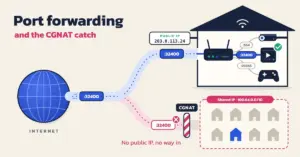
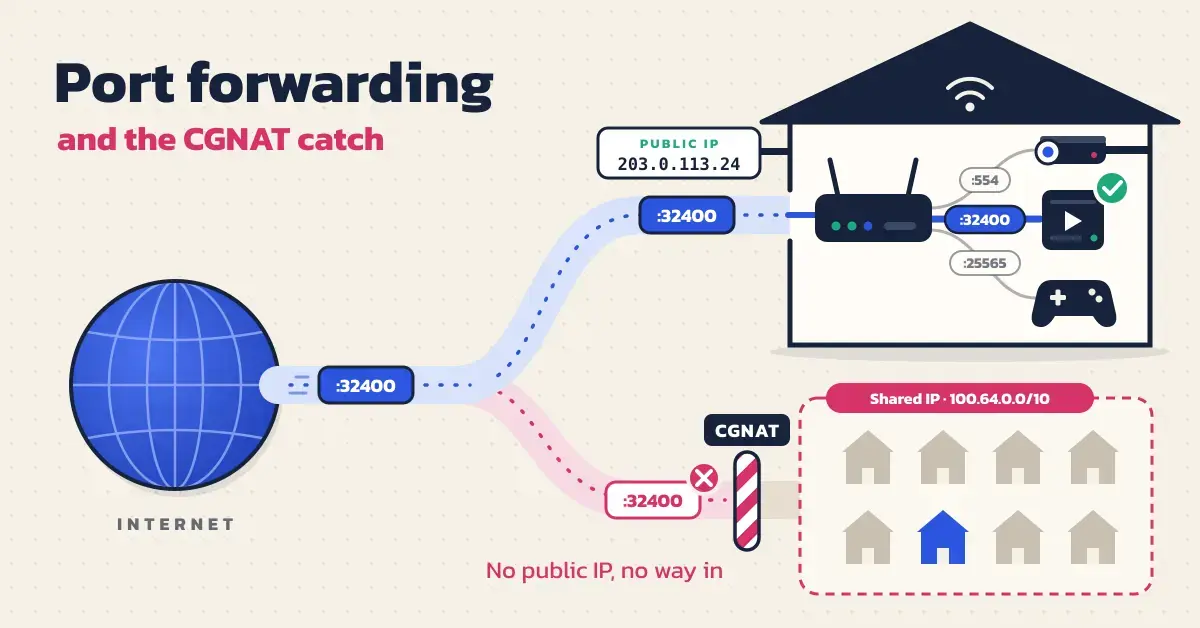
Port forwarding tells your router to send incoming internet traffic on a specific port to one device on your home network — so you can reach a security camera, a game server or a Plex or Jellyfin media server from outside the house. In New Zealand there is one catch that stops this working for a lot of people: CGNAT. Many Starlink, mobile and fixed-wireless plans never give you your own public IP address, and without one no port-forwarding rule will ever connect.
Key points
- Port forwarding sends incoming traffic on a chosen port to one device on your home network — useful for cameras, game servers and remote access.
- Check for CGNAT first. If your router’s WAN IP starts with 100.64–100.127, or does not match the address an IP-checker site shows, you are behind CGNAT and port forwarding cannot work.
- Starlink’s standard plans and wireless broadband such as Spark’s commonly use CGNAT; many fibre plans give a public IP, but check with your provider.
- The fix is a public (or static) IP from your ISP, or a no-public-IP workaround such as a mesh VPN (Tailscale/WireGuard), Cloudflare Tunnel or IPv6.
- Spark filters ports 25, 53, 135–139 and 445 by default (123 and 1900 added in 2026); you can request unblocking.
- Only forward the ports you need, to devices you keep patched — an open port is reachable by the entire internet.
What port forwarding actually does
Port forwarding opens a doorway from the public internet to one device inside your home. Your router hands out private addresses (usually 192.168.x.x) to everything on your network, and it hides them all behind a single public IP address your internet provider gives you. That is called NAT (Network Address Translation). Outgoing connections work fine, but when a request arrives from the internet, the router has no idea which internal device it is for — so by default it drops it.
A port is simply a numbered channel on that public address. Web pages use port 80 and 443, remote desktop uses 3389, a Minecraft server uses 25565, and so on. A port-forwarding rule says: “any traffic that arrives on port X, send it to this one device at this internal address.” That lets people (or you, when you are away) reach a service running at home.
Common reasons Kiwi households set it up include running a game server, reaching a home CCTV or Tapo camera feed while travelling, connecting to a NAS storage box or home server remotely, hosting a website or a self-hosted app, or using remote desktop into a home PC.
First, check whether CGNAT is blocking you
Before you touch a single router setting, confirm you actually have a public IP address. If you are behind CGNAT, no amount of fiddling with port-forwarding rules will work, and you will waste an afternoon finding that out the hard way.
What is CGNAT?
CGNAT (Carrier-Grade NAT) is a second layer of NAT run by your internet provider. Instead of giving every customer their own public IPv4 address — which are in short supply worldwide — the provider shares one public address among many households. You get a private address on the provider’s side (often in the 100.64.0.0 to 100.127.255.255 range), and incoming connections from the internet are dropped before they ever reach your router. Port forwarding on your own router still “works”, but the traffic never arrives, because the provider’s equipment has already turned it away.
Which NZ connections use CGNAT
CGNAT is common on New Zealand plans that were never designed for hosting. As a rough guide:
- Starlink: standard residential and Roam plans run on CGNAT, and the Starlink Wi-Fi router does not support inbound port forwarding at all. A public IP is only offered on Starlink’s Priority (business) plans. See our overview of Starlink satellite internet for how the plans compare.
- Mobile and fixed-wireless broadband: Spark’s 4G/5G Wireless Broadband sits behind CGNAT by default — Spark states plainly that on its Wireless Broadband “you can’t port-forward” without adding a static IP. Other wireless providers often work the same way, so check with yours before assuming a port forward will reach you.
- Fibre and VDSL: many fibre and VDSL plans give you a routable public IP, but this is not guaranteed — some providers use CGNAT on fixed-line plans too, so it is always worth checking with your provider.
Providers do this to conserve IPv4 addresses. Now, for example, says it “uses CGNat for most customers’ broadband connection” to preserve its pool of IPv4 addresses.
How to tell if you are behind CGNAT
Compare two numbers. First, log in to your router and find its WAN or internet IP address (the one facing your provider). Second, open an IP-checker website on a device on the same network and note the public address it reports.
- If the two addresses match, you have a public IP and port forwarding can work.
- If they are different — especially if your router’s WAN address starts with 100.64 through 100.127 — you are behind CGNAT, and port forwarding will not reach you.
A private WAN address (10.x.x.x or 192.168.x.x) that does not match the public address you see online is the same signal. When in doubt, phone your provider and ask directly whether your plan uses CGNAT and whether a public IP is available.
How to set up port forwarding, step by step
Once you have confirmed a public IP, the process is the same on almost every router. The labels differ between brands, but the five steps below cover it.
Step 1 — Give the device a fixed local IP
Pin the device to one internal address so the rule does not break. Your router hands out local addresses by DHCP, and they can change when a device reconnects — if that happens, your port forward is suddenly pointing at the wrong machine. Fix it by setting a DHCP reservation (sometimes called “address reservation” or “static lease”) in the router, tied to the device’s MAC address, or by setting a static IP on the device itself. Whichever you choose, write the address down; you will need it in Step 3. If you are still planning your layout, our guide on how to set up a home network walks through addressing in more detail.
Step 2 — Log in to your router
Open the router’s admin page in a web browser. Type its gateway address into the address bar — commonly 192.168.1.1 or 192.168.0.1 — and sign in with the admin username and password, which are often printed on a sticker on the router. If you have never changed that password, do it now: an exposed service plus default router credentials is a bad combination. Our notes on the best router settings for fast internet cover where these options usually live.
Step 3 — Create the port-forwarding rule
Find the port-forwarding section and add a rule. Depending on the brand it may be called Port Forwarding, Virtual Server, NAT, or sit under an Advanced or Firewall menu. A rule needs:
- A name — e.g. “Camera” or “Minecraft”, so you remember what it is for.
- External (WAN) port — the port the internet connects to.
- Internal (LAN) port — the port on your device; usually the same number.
- Protocol — TCP, UDP, or both. Use what the service requires; forwarding TCP when the service actually needs UDP (or the reverse) is a common mistake that fails silently.
- Internal IP address — the fixed address from Step 1.
Save and apply. Some routers need a reboot before the rule takes effect.
Step 4 — Allow the port through the device firewall
Open the same port in the device’s own firewall, or the connection still fails. Windows Defender Firewall, a macOS firewall or a Linux firewall will block unexpected inbound traffic even after the router forwards it. Add an inbound rule for the port and protocol you forwarded. If the service is an app (a game server, Plex, a web server), make sure the app is actually running and listening on that port.
Step 5 — Test the port from outside
Test from a connection that is not your home Wi-Fi, because testing from inside usually gives a false result. The easiest way is a free online “port checker” tool: enter your public IP and the port number, with the service running, and it will report open or closed. Alternatively, use your phone on mobile data. If the port shows closed, work back through the list: CGNAT, a wrong internal IP, the device firewall, the service not running, or ISP port blocking (next section).
The ports NZ providers block by default
Even with a public IP, some ports are filtered by your provider, so a forward on those ports will not work until you opt out. Spark, for example, blocks a set of ports it considers unused, insecure or commonly abused in attacks. As of 2026 its default broadband blocks are:
| Port | Protocol | Direction | Commonly used for |
|---|---|---|---|
| 25 | TCP | In and out | Unencrypted email (SMTP) |
| 53 | TCP / UDP | Incoming | DNS servers |
| 135–139 | TCP | Incoming | NetBIOS (Windows networking) |
| 445 | TCP | Incoming | SMB file sharing |
| 123* | UDP | Incoming | NTP time servers |
| 1900* | UDP | Incoming | SSDP / UPnP discovery |
*Ports 123 and 1900 were added to Spark’s blocked list in a regional rollout during June and July 2026. If you have a genuine need for one of these ports, Spark lets you opt out through its online port-unblocking request form, and the change can take a couple of working days. Other providers filter a similar short list; if a forward on a low-numbered or well-known port refuses to open, check your provider’s “service restrictions” page before assuming the rule is wrong.
Stuck behind CGNAT? Your options
If CGNAT is blocking you, you have two broad choices: get a real public IP, or use a method that does not need one. Here is how each path works in New Zealand.
Ask your ISP for a public or static IP
The most direct fix is to move your plan off CGNAT. What that costs and whether it is even offered depends on the provider:
- Spark: add a static IP to a Wireless Broadband plan through Spark’s static-IP request form. That gives you a routable address so port forwarding works.
- Starlink: a public IPv4 address is only available on Priority (business) plans, switched on from the account dashboard. Note it is not a true static IP — Starlink does not offer static addresses on any plan, and although it reserves the public IP across reboots, relocating the dish or a software update can change it.
- Now: one static IP address is included at no cost with a Now Business Broadband plan, on request.
Use a mesh VPN (Tailscale or WireGuard)
A mesh VPN reaches your devices without opening any ports, which makes it the simplest CGNAT workaround for personal use. Tools like Tailscale or a self-hosted WireGuard network place your devices on a private, encrypted overlay: your laptop or phone connects to your home NAS or server as if they were on the same network, with nothing exposed to the public internet. The trade-off is that every device you want to reach needs the client installed — this is ideal for reaching your own gear, less so for sharing a service with the public.
Use an outbound tunnel (Cloudflare Tunnel)
An outbound tunnel publishes a service from behind CGNAT by making the connection in reverse. A small program on your home server dials out to a relay provider such as Cloudflare, which then accepts public visitors and passes them down the tunnel. Because the connection starts from inside your network, CGNAT is irrelevant. It is a good fit for exposing a website or web app publicly; setup is more technical and ties you to that provider.
Use IPv6
IPv6 sidesteps the whole address shortage, because there are enough addresses for every device to have its own public one. Many NZ connections (including Starlink) hand out native IPv6, so if both your device and the far end support it, you can often reach a service over IPv6 even when IPv4 is stuck behind CGNAT. You still need to allow the traffic in your router’s IPv6 firewall, and the person connecting also needs IPv6, which is not yet universal.
Comparison
| Method | How it works | Needs a public IP? | Best for | Watch out for |
|---|---|---|---|---|
| Router port forwarding | Opens a port to one device on your network | Yes | One-off access when you already have a public IP | Exposes the device to the whole internet |
| ISP static / public IP | Provider gives you a routable address so forwarding works | Provides it | Hosting that must be reachable at a fixed address | Monthly cost; not offered on every plan |
| Mesh VPN (Tailscale / WireGuard) | Devices join a private encrypted overlay; no ports opened | No | Reaching your own devices from your phone or laptop | Each device needs the client installed |
| Cloudflare Tunnel | An outbound tunnel publishes a service via a relay | No | Sharing a website or app publicly from behind CGNAT | More technical; ties you to the provider |
| IPv6 | Each device gets its own public IPv6 address | No (uses IPv6) | Modern apps when both ends support IPv6 | The far end must also have IPv6 |
Common ports you might forward
These are the ports behind the most common home port-forwarding jobs. Always check the documentation for your specific app or game, as some let you change the port.
| Service | Port | Protocol |
|---|---|---|
| Web server (HTTP) | 80 | TCP |
| Web server (HTTPS) | 443 | TCP |
| SSH (remote shell) | 22 | TCP |
| Remote Desktop (RDP) | 3389 | TCP |
| Minecraft (Java) | 25565 | TCP |
| Plex Media Server | 32400 | TCP |
| IP camera (RTSP) | 554 | TCP |
| WireGuard VPN | 51820 | UDP |
Is port forwarding safe?
Port forwarding is as safe as the service you expose, so treat every open port as a door the whole internet can knock on. The risk is not port forwarding itself but what sits behind it: an unpatched camera, a weak password or an old remote-desktop service becomes a target the moment it is reachable. Keep it safe by forwarding only the ports you genuinely need, pointing them at devices you keep updated, and using strong, unique passwords. Avoid exposing remote desktop (3389) directly; put it behind a VPN instead. Turn off UPnP and open ports manually — leaving UPnP on lets apps open ports for themselves automatically, which is convenient but a well-known security hole — and close any rule you no longer use. For reaching your own devices, a mesh VPN is almost always safer than a raw open port, because nothing is left listening on the public internet.
Sources
- Spark — Broadband service restrictions (blocked ports and CG-NAT)
- NAT Checker — Starlink static IP, CGNAT, public IPv4 and IPv6 explained
- Now — Business Broadband technical help (CGNAT and static IP)
- IANA — Service Name and Transport Protocol Port Number Registry
- Minecraft Wiki — server.properties (server-port default 25565)
- WireGuard — Quick Start (listen-port 51820)