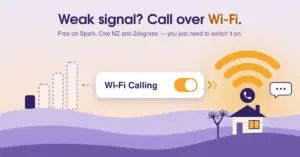
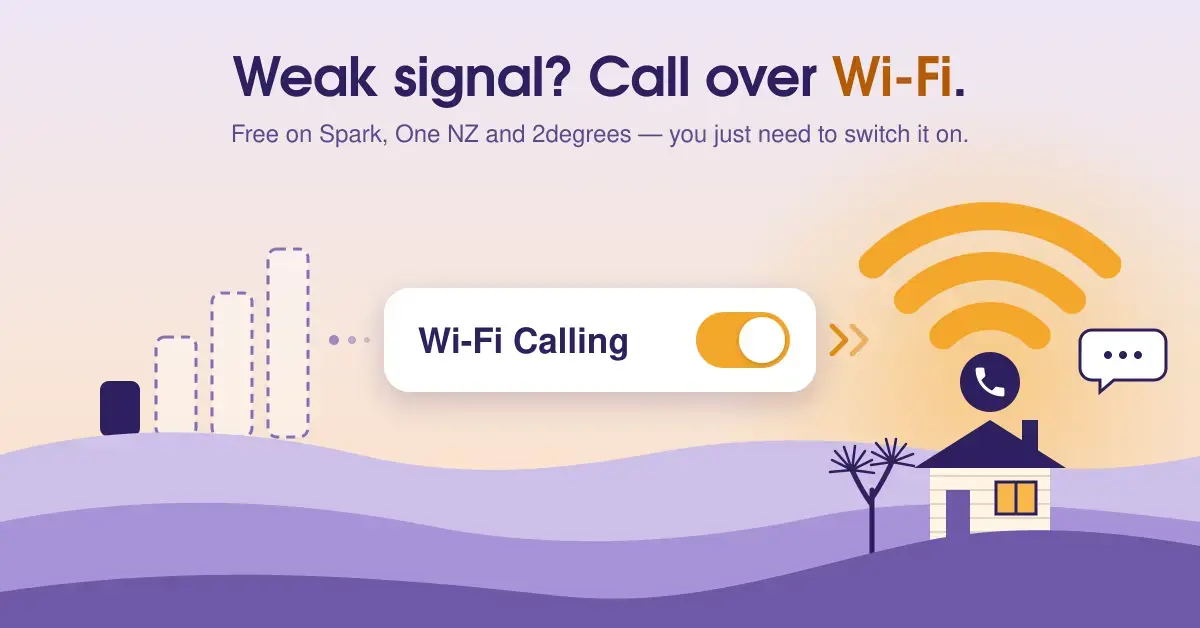
Wi-Fi Calling lets your phone make and receive ordinary calls and texts over a Wi-Fi network instead of the mobile tower, so you can still ring someone from a basement, a back bedroom or a rural property where the cellular signal drops out. In New Zealand all three major networks — Spark, One NZ and 2degrees — support it at no extra charge, and this guide explains what it is, what you need, and exactly how to switch it on for each carrier. It also covers the one safety limitation that catches people out: how 111 emergency calls behave over Wi-Fi.
Key Points
- What it is: Wi-Fi Calling (VoWiFi) routes your normal calls and texts over Wi-Fi when the mobile signal is weak — same number, same plan, no app.
- Cost: Free on Spark, One NZ and 2degrees; calls use your existing plan allowance, not extra charges.
- What you need: a compatible phone, VoLTE switched on, up-to-date software, and a Wi-Fi connection.
- Off by default: you must turn it on yourself in your phone’s settings.
- Safety note: 111 calls try the mobile network first; Civil Defence Emergency Mobile Alerts are NOT delivered over Wi-Fi Calling, and it stops working in a power cut.
- Not for overseas: NZ Wi-Fi Calling only works inside New Zealand and won’t connect through a VPN.
What is Wi-Fi Calling?
Wi-Fi Calling is a built-in phone feature that routes your normal phone number’s calls and texts over a Wi-Fi connection when the mobile signal is weak or absent. The technical name is VoWiFi (Voice over Wi-Fi), and it is the close cousin of VoLTE (Voice over LTE), which carries calls over the 4G data network. Both are run by your mobile carrier, so calls use your real mobile number and your normal plan minutes.
This is the key difference from a calling app. With Wi-Fi Calling there is nothing to download and no separate account: the dialler, your contacts and your number all stay the same, and the person you call sees your usual number. It is not a VoIP phone or an over-the-top app like WhatsApp or Viber — those need both people to use the same app. Wi-Fi Calling is invisible; it simply changes the pipe your call travels down.
When it is active, your phone quietly hands the call between Wi-Fi and the mobile network as you move. If you walk out of Wi-Fi range and back into mobile coverage, the call keeps going. If there is no mobile coverage to hand over to, the call will drop once the Wi-Fi gets too weak.
Why Wi-Fi Calling matters in New Zealand
Wi-Fi Calling solves a very Kiwi problem: patchy indoor and rural coverage. Thick walls, steel-framed buildings, hill-country black spots and remote properties all block cellular signal, yet most of those places have broadband and a router. If you can get on a Wi-Fi network, Wi-Fi Calling turns that broadband line into a usable phone connection.
It also matters as New Zealand retires the old copper phone network. As homes move off copper landlines, a mobile that works reliably indoors becomes the household phone, and Wi-Fi Calling is what makes that dependable in a weak-signal home. If you are weighing up your options there, our guide to landline alternatives in NZ covers the wider picture.
For rural users on fixed wireless or satellite, the same logic applies. A property with no bars of mobile signal but a working Starlink or fixed-wireless connection can still make and take standard calls through Wi-Fi Calling, provided the phone and carrier support it.
What you need before you start
Four things have to be in place before Wi-Fi Calling will work, and if any one is missing the setting either won’t appear or won’t connect.
- A compatible phone. The feature has to be supported by your specific handset model. Most iPhones from recent years and many Android phones qualify, but parallel-imported or very old models often don’t.
- VoLTE switched on. All three NZ carriers require VoLTE (4G calling) to be enabled before Wi-Fi Calling will function. On most phones VoLTE turns on automatically, but it is worth checking in your call settings if Wi-Fi Calling refuses to connect.
- The latest software. Carriers tie Wi-Fi Calling to current operating-system and carrier-settings versions, so update your phone before you troubleshoot anything else.
- A Wi-Fi connection. You need to be joined to a Wi-Fi network — home, work or another trusted hotspot — with enough bandwidth. Carriers quote roughly 100–120 kbps as the minimum for a decent voice call, which any home broadband line comfortably exceeds.
Wi-Fi Calling is off by default on every network, so even a fully compatible phone won’t use it until you turn the setting on yourself.
Does Wi-Fi Calling cost anything?
No — there is no additional charge to use Wi-Fi Calling on Spark, One NZ or 2degrees. Calls and texts simply draw from your existing plan allowance exactly as they would over the mobile network, so a call included in your plan stays included. Standard rates still apply to anything outside your allowance, such as international calls or premium numbers.
The one thing to understand is data. Wi-Fi Calling uses your broadband data, not your mobile data. If you are on that carrier’s own home broadband, the data it uses is free and doesn’t count against any cap. If you use someone else’s broadband — a different provider, a hotel, a café — any data charges are between you and that network. A voice call is tiny, around 1–5 MB per minute, so this rarely matters in practice.
How to set up Wi-Fi Calling on Spark
Spark offers Wi-Fi Calling at no extra monthly cost, and it works on both Spark plans and Spark’s prepaid brand once you have a compatible, up-to-date device. Make sure VoLTE is on first, then follow the steps for your phone. Spark publishes a device compatibility list if you are unsure whether your exact model is supported.
iPhone
- Open Settings.
- Tap Mobile (on some phones this is under Mobile Data or Phone settings). On a dual-SIM phone, select the number you want first.
- Turn Wi-Fi Calling to On.
- If you are asked “Enable Wi-Fi Calling?”, choose Enable.
Android
The exact path depends on the brand, because Android menus vary:
- Samsung: Settings > Connections > Wi-Fi Calling, then turn it on. You can choose “Mobile Network preferred” or “Wi-Fi preferred”.
- OPPO: Settings > Mobile Network > select your SIM > Wi-Fi Calling.
- Nokia: Settings > Network & Internet > Mobile Network > Advanced > Wi-Fi Calling.
- Other brands: open Settings and search “Wi-Fi Calling” — many phones list it under Call Settings.
A couple of Spark-specific limits are worth knowing: Spark Wi-Fi Calling does not work when you are overseas, it may not work if you are running a VPN inside New Zealand, and Wi-Fi MMS (picture messaging over Wi-Fi) is not available. Video calling over Wi-Fi is also not offered on Apple devices.
How to set up Wi-Fi Calling on One NZ
One NZ — the network formerly known as Vodafone NZ, rebranded in March 2023 — provides Wi-Fi Calling free to its mobile customers. The feature works best on a phone bought from One NZ, because those models are tested against the list; phones bought elsewhere or through another telco “might not be compatible”. Apple devices need iOS 15 or later.
iPhone
- Connect to a Wi-Fi network.
- Open Settings > Phone > Wi-Fi Calling.
- Turn on Wi-Fi Calling on This iPhone.
Android
- Connect to a Wi-Fi network and make sure your software is up to date.
- Open Settings and search for Wi-Fi Calling — many Android phones list it under Call Settings.
- Switch it on. On OPPO phones the path is Settings > SIM card & mobile data > select SIM1 or SIM2 > Wi-Fi Calling.
One NZ notes a few exceptions: very old VoLTE phones such as the iPhone 6 can’t connect, and the Samsung Galaxy A01 Core doesn’t support Wi-Fi Calling due to hardware limits. If you bring your own non-One NZ iPhone, a 6s or newer on iOS 15 should work with a One NZ SIM, but the carrier can’t guarantee it.
How to set up Wi-Fi Calling on 2degrees
2degrees includes Wi-Fi Calling with its mobile plans at no extra cost and with no add-on pack to buy. The terms are simple: you must be a 2degrees mobile customer, on a Wi-Fi Calling-capable handset, with the feature switched on. As with the other networks, update your software, confirm VoLTE is on, and connect to Wi-Fi before you expect it to work.
iPhone
- Open Settings > Mobile Data (older guidance lists this as Cellular, or Phone > Wi-Fi Calling).
- Turn on Wi-Fi Calling on This iPhone.
Android
- Open Settings > Connections or Network & Internet.
- Find and turn on Wi-Fi Calling. On some phones it sits under Mobile network > Advanced.
On devices, 2degrees lists iPhone 5s and above plus selected Samsung Galaxy and Huawei models as compatible; Samsung handsets on software older than Android 10 may need carrier-specific settings. Because a few corporate and public Wi-Fi networks use firewalls that block the feature, Wi-Fi Calling may not connect on some work or hotel networks even when everything on your phone is set correctly.
What about Skinny and other MVNOs?
Skinny — Spark’s prepaid brand, which runs on Spark’s 4G and 5G network — also supports Wi-Fi Calling (VoWiFi). The requirements mirror Spark’s: a VoLTE-capable phone with VoLTE provisioned, an eligible model on the latest software, and a fixed or wireless broadband connection, with the setting switched on in your phone. The same limits apply too: you must be in New Zealand, it won’t work over a VPN, and Emergency Mobile Alerts don’t come through on Wi-Fi Calling.
Other mobile virtual network operators (MVNOs) that piggyback on the three host networks vary in whether they pass Wi-Fi Calling through, so check the specific brand’s help page. If you are choosing a provider partly for coverage, our Wireless Nation review and overview of who owns New Zealand’s telecommunications networks put the carrier landscape in context.
Wi-Fi Calling vs VoIP and calling apps
Wi-Fi Calling, VoIP and calling apps all carry voice over the internet, but they are not the same thing and suit different jobs. The table below compares the three major NZ carriers’ Wi-Fi Calling on the points that matter, and the distinctions after it explain where a VoIP service or an app fits instead.
Carrier Comparison
| Feature | Spark (& Skinny) | One NZ | 2degrees |
|---|---|---|---|
| Extra cost | None | None | None (no add-on needed) |
| Uses plan allowance | Yes | Yes | Yes |
| VoLTE required | Yes | Yes | Yes |
| iPhone setting path | Settings > Mobile > Wi-Fi Calling | Settings > Phone > Wi-Fi Calling | Settings > Mobile Data > Wi-Fi Calling |
| Free data on own broadband | Yes | Yes | Yes |
| Works overseas | No | No | No |
| Works over a VPN in NZ | No | Not supported | Not supported |
| 111 behaviour | Mobile first, Wi-Fi fallback | Mobile first, Wi-Fi fallback | Mobile first, Wi-Fi fallback |
| Emergency Mobile Alerts over Wi-Fi | No | No | No |
Wi-Fi Calling uses your existing mobile number and plan, needs no app, and is the right choice for fixing poor coverage at home. VoIP services — the kind covered in our guide to VoIP providers in New Zealand — give you a separate internet phone line, often with a landline-style number and business features, and are a better fit for a home office or small business. Calling apps such as WhatsApp or Viber are free person-to-person but require both people to use the same app and don’t use your phone number to reach any landline or mobile. For most people wanting reliable calls in a weak-signal house, Wi-Fi Calling is the simplest answer because it changes nothing else about how you use your phone.
Emergency calls (111) over Wi-Fi Calling
You can reach 111 over Wi-Fi Calling, but your phone will always try the mobile network first and only fall back to Wi-Fi if there is no coverage at all. This is deliberate, because mobile networks can locate you far more accurately than a Wi-Fi connection can. In New Zealand an emergency call will also use any available carrier’s mobile network, not just your own, before it resorts to Wi-Fi.
The limitation to remember is Emergency Mobile Alerts. If you are using Wi-Fi Calling somewhere with no mobile coverage from your carrier, you will not receive Civil Defence Emergency Mobile Alerts — those are broadcast over the cellular network, and Wi-Fi Calling does not carry them. On a rural property or in a deep black spot where Wi-Fi Calling is your only link, treat alerts from other channels (radio, apps, official websites) as your warning system.
One more practical point: Wi-Fi Calling depends on power. If a power cut takes out your router or ONT, Wi-Fi Calling stops working, including for 111. A phone with mobile coverage, or a battery backup on your broadband equipment, is the fallback.
Common mistakes and troubleshooting
Most Wi-Fi Calling problems come down to a handful of avoidable issues. Work through these before assuming your phone or plan is at fault.
- Assuming it’s on by default. It isn’t — on every NZ network you have to switch it on manually in settings.
- VoLTE is off. Wi-Fi Calling will not connect without VoLTE enabled. Check your call settings if the Wi-Fi Calling toggle is missing or greyed out.
- Out-of-date software. Carrier support hinges on current OS and carrier-settings versions. Update the phone, then restart it.
- A blocking network. Workplace, hotel and public hotspots often run firewalls that stop Wi-Fi Calling. Try your home Wi-Fi to confirm the feature itself works.
- A VPN is running. Spark and Skinny state Wi-Fi Calling may not work through a VPN in NZ; turn the VPN off to test.
- Expecting it overseas. NZ carriers’ Wi-Fi Calling is for use inside New Zealand; it is not an international roaming workaround.
- Weak or congested Wi-Fi. Voice is sensitive to a flaky connection. If calls are choppy, improving the Wi-Fi where you make them helps — see our guides to mesh Wi-Fi and the best router settings for faster internet.
If calls still fail after all that, confirm your model is on the carrier’s compatibility list — some handsets simply aren’t supported, and no setting will change that.
Who should turn on Wi-Fi Calling?
Turn Wi-Fi Calling on if your mobile signal is poor where you spend the most time — at home, at work, or on a rural or lifestyle block. It costs nothing, uses your normal number and plan, and generally makes calls clearer and more reliable indoors. There is little downside to leaving it enabled, since your phone still prefers the mobile network whenever coverage is good.
It is less essential if you already have strong cellular coverage everywhere you go, though even then it is a useful safety net during a tower outage. The households that benefit most are those replacing a copper landline, anyone in a known black spot, and rural properties relying on fixed wireless or satellite broadband for connectivity.
Sources
Frequently Asked Questions (FAQ)
Is Wi-Fi Calling free on Spark, One NZ and 2degrees?
Yes. None of the three networks charges extra for Wi-Fi Calling. Calls and texts come out of your normal plan allowance exactly as they would over the mobile network, and if you use that carrier’s own broadband the data is free. Standard rates still apply to anything outside your plan, such as international or premium calls.
Do I need a special phone or SIM for Wi-Fi Calling?
You need a compatible handset with VoLTE enabled and up-to-date software, but no special SIM or plan. Most recent iPhones and many Android phones support it; parallel-imported or very old models often don’t. Each carrier publishes a compatibility list, so check your exact model if the setting doesn’t appear.
Can I call 111 using Wi-Fi Calling?
Yes, but your phone always tries the mobile network first and only uses Wi-Fi if there is no coverage at all. The important catch is that Emergency Mobile Alerts from Civil Defence are not delivered over Wi-Fi Calling, so in a no-coverage area you won’t receive them. Wi-Fi Calling also stops in a power cut if your router loses power.
Does Wi-Fi Calling work when I’m overseas?
No. New Zealand carriers’ Wi-Fi Calling is designed for use inside New Zealand and is not available overseas. It is not a way to avoid international roaming charges. You can, however, make calls from NZ to overseas numbers over Wi-Fi Calling at your usual international rates.
Why won’t my Wi-Fi Calling connect even though I’ve turned it on?
The usual causes are VoLTE being switched off, out-of-date phone software, or a Wi-Fi network (common at workplaces, hotels and public hotspots) whose firewall blocks the feature. A VPN running on the phone can also stop it. Test on your home Wi-Fi with VoLTE on and the latest software, and confirm your model is on the carrier’s supported list.