
A NAS (network-attached storage) is an always-on box of hard drives on your home network that keeps photos, files, backups and films in one place you control. For NAS storage in NZ, budget about NZ$1,350–$1,900 for a 2-bay unit with two mirrored drives; with 6 TB or more to keep, it undercuts cloud plans in about three and a half years.
This guide is for households with a growing pile of phone photos, families squeezed into one shared cloud plan, and anyone who wants a Plex or Jellyfin library at home. If you would rather build a box that also runs apps and virtual machines, start with our home server guide.
Key takeaways
- A 2-bay NAS with two mirrored drives suits most NZ homes. Go 4-bay only if you already have more than about 8 TB.
- Drive prices rose sharply in 2025–26: 8 TB NAS drives cost about NZ$570–$920 each in September 2026.
- RAID keeps the NAS running when a drive dies, but it is not a backup. Keep an off-site copy of anything irreplaceable.
- A NAS beats the cloud on cost once you store several terabytes: iCloud+ 6 TB is NZ$59.99 a month, while a 2-bay NAS uses about NZ$4–$5 of power.
- For Plex or Jellyfin, choose an Intel model such as the Synology DS225+ or DS425+ so it can hardware-transcode.
In this guide
- The Rise of Private Cloud Storage in New Zealand
- Technical Foundations: How NAS Storage Works
- RAID 1 vs RAID 5 vs SHR: Which Should You Use?
- NAS vs Cloud Storage: A Cost-Benefit Analysis
- Hard Drive Selection: Why NAS Drives Matter
- Comparing Leading NAS Brands in the NZ Market
- Setting Up Your NAS for the New Zealand Home
- Using NAS for a Home Media Server
- What to Check Before You Buy a Home NAS
- Final Thoughts on Home NAS in NZ
The Rise of Private Cloud Storage in New Zealand
Three things have pushed NZ households towards their own storage. Subscriptions add up: Apple lists iCloud+ 2 TB at NZ$19.99 a month in New Zealand and 6 TB at NZ$59.99. Phones shoot 4K video by habit, so shared plans fill quickly. And fibre upload speeds of 100 Mbps or more make it practical to reach home files from anywhere.
A private cloud keeps those files on hardware in your house, with phone apps that work much like iCloud Photos or Google Drive. You decide who has access, and no provider can change the price or terms on you. The trade-off is that you become the IT department. A NAS replaces paid cloud storage, backup USB drives and a shared family folder, but not an off-site backup: a burglary or fire can take the NAS and your computers together.
Technical Foundations: How NAS Storage Works
A NAS is a low-power computer built around storage: a small processor, 1–8 GB of RAM, two to eight drive bays and an Ethernet port. It runs its own operating system, such as Synology DSM or QNAP QTS, managed from a web browser, and shares folders over SMB so Windows and macOS see it as a network drive. Its apps add phone photo backup, Dropbox-style sync, a Time Machine target, a media server and, on mid-range models, Docker containers.
How fast will a home NAS be?
Your network sets the limit more than the drives. Gigabit Ethernet manages about 110 MB/s in real file copies and 2.5GbE about 280 MB/s; a modern NAS hard drive reads at roughly 200–280 MB/s. Wi-Fi is usually the bottleneck, so connect the NAS to the router with an Ethernet cable and add a 2.5GbE network switch if several PCs will share it. Our guide to setting up a home network covers the layout.
RAID 1 vs RAID 5 vs SHR: Which Should You Use?
RAID spreads data across drives so the NAS keeps working when one fails. The type you pick sets how much space you get and how many failures you survive.
- RAID 1 (mirror): two identical copies; half the space; survives one failure.
- RAID 5: parity across three or more drives; lose one drive’s worth of space; survives one failure.
- RAID 6: double parity across four or more drives; survives two failures.
- RAID 10: striped mirrors; fast, but half the space.
- SHR (Synology Hybrid RAID): SHR-1 and SHR-2 protect against one or two failures and let you mix drive sizes.
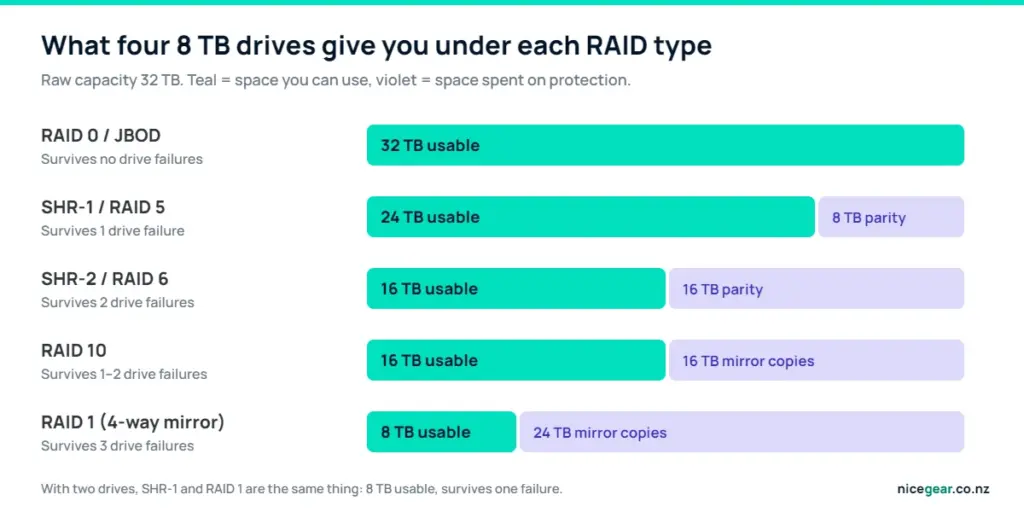
With two drives you mirror; with three or more, RAID 5 or SHR-1 gives far more usable space for the same protection. Past about 12 TB per drive, consider SHR-2 or RAID 6, because a rebuild can take a day or more and a second failure in that window loses the volume.
RAID is not a backup
RAID protects against a dead drive, not against a deleted folder, ransomware, a power surge or fire. Turn on snapshots and keep a separate copy somewhere else.
NAS vs Cloud Storage: A Cost-Benefit Analysis
Whether a NAS saves money depends on how much you store: cloud plans charge by the terabyte every month, while a NAS costs a lot up front and little after that.
| Service | Storage | Price | Per TB per month |
|---|---|---|---|
| iCloud+ | 2 TB | NZ$19.99/month | NZ$10.00 |
| iCloud+ | 6 TB | NZ$59.99/month | NZ$10.00 |
| iCloud+ | 12 TB | NZ$119.99/month | NZ$10.00 |
| Microsoft 365 Family | 1 TB each, up to 6 people | NZ$229/year | NZ$3.18 if all 6 TB used |
| Backblaze B2 (NAS backup) | Pay as you go | US$6.95 per TB/month | US$6.95 |
Microsoft 365 Family is cheapest per terabyte, but each person’s 1 TB is a separate bucket, so it cannot hold one shared library. Backblaze B2 is a common off-site target for NAS backup tools. Plug your own numbers into the calculator to see usable space, costs and break-even.
NAS vs cloud storage calculator
Pick your drives and RAID type to see the real usable space, what the NAS costs to buy and run, and how long it takes to beat a cloud subscription.
Assumes identical drives, 730 hours a month and a flat cloud price per TB (real plans come in steps, e.g. iCloud+ 2 TB for NZ$19.99 or 6 TB for NZ$59.99 a month). Typical NZ prices in September 2026: 2-bay NAS NZ$420–$740, 4-bay NZ$1,190–$1,810, 8 TB NAS drive NZ$570–$920. Excludes a replacement drive over five years and any growth in your data.
A worked example: 6 TB of photos and films
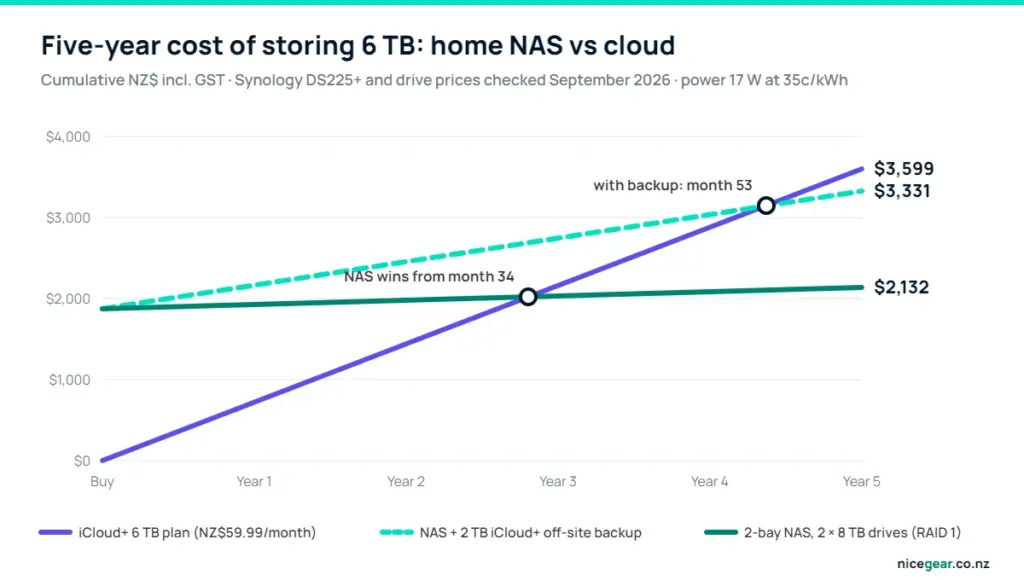
A Synology DS225+ (NZ$739 at PB Tech) with two 8 TB NAS drives (from about NZ$566 each on PriceSpy NZ) comes to roughly NZ$1,871 for 8 TB of mirrored storage. At Synology’s rated 17 W, power costs about NZ$4.34 a month at 35c/kWh. Against iCloud+ 6 TB at NZ$59.99 a month, the NAS is ahead after about 34 months. Add a 2 TB iCloud+ plan as an off-site backup and break-even moves to month 53, still inside five years.
The Hidden Costs of Cloud (and of a NAS)
Cloud prices and terms change at the provider’s discretion, and leaving is slow: pulling 5 TB down a 100 Mbps connection takes about four and a half days. A NAS costs you a replacement drive every few years, a UPS if your power is flaky, and your time.
Hard Drive Selection: Why NAS Drives Matter
NAS drives such as the WD Red Plus, Seagate IronWolf, Toshiba N300 and Synology HAT range are built to run 24/7 alongside other drives. They use conventional (CMR) recording, handle vibration better and limit how long they retry a bad sector so the RAID does not drop them. Warranties run three years, or five for Pro models. Cheap desktop drives often use shingled (SMR) recording, which makes RAID rebuilds crawl; WD’s plain Red drives in smaller sizes are SMR, which is why the “Plus” matters.
NAS hard drives: NZ prices in September 2026
| Capacity | Typical NZ price | Cost per TB |
|---|---|---|
| 4 TB | NZ$460–$530 | NZ$115–$132 |
| 6 TB | NZ$540–$675 | NZ$90–$113 |
| 8 TB | NZ$570–$920 | NZ$71–$115 |
| 12 TB | NZ$1,140–$1,500 | NZ$95–$125 |
| 16 TB | NZ$1,390–$1,545 | NZ$87–$97 |
Lowest listed prices for WD Red Plus, IronWolf, IronWolf Pro and Synology HAT drives on PriceSpy NZ, roughly double what they cost a couple of years earlier.
Buy for the next three years, not the next ten
With prices this volatile, buy for two or three years. SHR and most RAID types let you swap in bigger drives later.
HDD vs SSD in a Home NAS
SSD prices climbed in 2026 too, so hard drives remain the sensible choice for bulk storage. SSDs earn their place as an M.2 cache or a small, fast volume for Docker apps; on Synology’s 2025 Plus models, M.2 storage pools still need listed compatible drives.
Comparing Leading NAS Brands in the NZ Market
Synology dominates NZ shelves and has the most polished photo, backup and sync apps. QNAP gives more hardware for the money but has a patchier security record. Asustor covers the budget end, Ubiquiti’s UNAS suits UniFi homes, and UGREEN’s NASync range had no active NZ listings on PriceSpy when we checked.
| Model | Bays | Processor and RAM | Hardware transcoding | NZ price (Sep 2026) |
|---|---|---|---|---|
| Asustor AS1202T | 2 | Quad-core ARM, 1 GB | No | NZ$419 |
| Synology DS223j | 2 | Realtek RTD1619B, 1 GB | No | NZ$434 |
| Synology DS225+ | 2 | Intel Celeron J4125, 2 GB | Yes (Quick Sync) | NZ$729–$739 |
| Synology DS425+ | 4 | Intel Celeron J4125, 2 GB | Yes (Quick Sync) | NZ$1,191 |
| QNAP TS-464-8G | 4 | Intel Celeron N5095, 8 GB | Yes (Quick Sync) | NZ$1,505 |
| Synology DS925+ | 4 | AMD Ryzen V1500B, 4 GB | No | NZ$1,813 |
Synology NZ and the drive-compatibility row
In 2025 Synology limited its new Plus models to Synology-branded drives for full functionality. After a backlash, DSM 7.3 (October 2025) restored support for third-party hard drives and SATA SSDs, so WD Red Plus or IronWolf drives in a DS225+ are fine again.
Best NAS for Home: Which One Fits Your Household?
- Backups for one or two people: DS223j or AS1202T with two 4 TB drives, about NZ$1,350 all-up.
- Family photos, Time Machine and some Plex or Jellyfin: DS225+ with two 8 TB drives. Most households should start here.
- Big media library or four-plus users: DS425+ or TS-464 with three or four drives in SHR-1 or RAID 5.
- Phone photos only: Synology BeeStation (about NZ$497 with 4 TB inside) is simpler, but has one drive and no RAID.
- Lots of apps and virtual machines: a mini PC running Proxmox VE does more for the money.
Setting Up Your NAS for the New Zealand Home
- Pick a cool, dry spot. A ventilated cupboard beats an unlined garage in a Canterbury winter.
- Cable it to the router and reserve its IP address.
- Add a small UPS if you get power cuts, so the NAS can shut down cleanly during an outage.
- Create the storage pool: SHR-1 or RAID 1 for two drives, Btrfs where offered, and a data scrub every few months.
- Lock down accounts. Disable the default admin, use a password manager and turn on two-factor sign-in.
- Turn on snapshots, hourly for a week and daily for a month, to undo accidents and many ransomware attacks.
- Set up the off-site copy with Hyper Backup (or your brand’s equivalent) to Backblaze B2, Synology C2 or a USB drive kept at a relative’s house.
Integrating with Your Existing Devices
Windows maps a NAS share as a network drive, Macs use it for Time Machine, and phone apps back up your camera roll. Plex and Jellyfin have apps for most smart TVs, and an Apple TV 4K or a laptop running VLC media player plays most files straight off the share.
Remote access without opening ports
The worst NAS mistake is port-forwarding the admin page to the internet; the DeadBolt ransomware campaign of 2022 encrypted thousands of exposed QNAP and Asustor units that way. Use the maker’s relay (Synology QuickConnect, myQNAPcloud) or a private VPN such as Tailscale, which also works on Starlink and other connections behind carrier-grade NAT. Our VPN explainer covers the basics. For backups, follow the 3-2-1 rule: three copies, two types of storage, one off-site.
Using NAS for a Home Media Server
A NAS makes a tidy media server: it is on 24/7, it holds the files, and Plex and Jellyfin install as packages or Docker containers. The processor matters when a device cannot play a file and the server must convert it on the fly.
Why the processor matters for transcoding
Intel chips with integrated graphics, such as the Celeron J4125 in the DS225+ and DS425+ or the N5095 in the TS-464, can hardware-transcode with Intel Quick Sync; the DS925+ and budget ARM models cannot, so they rely on direct play. Jellyfin’s hardware guide now favours newer chips such as the Intel N100, so for heavy 4K use, a small N150 mini PC reading files from the NAS is the stronger option.
Plex vs Jellyfin on a NAS
Since 29 April 2025, streaming your own Plex media away from home needs a Plex Pass (US$6.99 a month or US$69.99 a year) on the server, or a Remote Watch Pass (US$2.99 a month since June 2026) for each viewer. Plex’s hardware transcoding also needs Plex Pass, while Jellyfin does all of it free. Our Jellyfin vs Plex comparison weighs the trade-offs, and the Jellyfin setup guide covers a NAS install.
What to Check Before You Buy a Home NAS
- A single-drive NAS as the only backup. One failure loses everything.
- The wrong processor for media. Check for Intel Quick Sync if Plex or Jellyfin is on your list.
- SMR or desktop drives. They work until a rebuild takes days or fails.
- Running it nearly full. Keep 15–20% free for snapshots.
- Forgetting consumer law. A drive that dies early may be covered by the Consumer Guarantees Act even after the maker’s warranty ends.
If you run a business from it, see our guide to self-hosted software for small businesses.
Final Thoughts on Home NAS in NZ
Even at 2026 drive prices, a home NAS is the cheapest way to keep several terabytes under your own roof, provided you set it up properly. For a few hundred gigabytes, the cloud still wins.
Our take
- Best for most homes: a Synology DS225+ with two 8 TB NAS drives in SHR-1, about NZ$1,870 for 8 TB of mirrored space plus hardware transcoding.
- Under 2 TB of data: stay with iCloud+, Google One or OneDrive. A NAS will not pay for itself.
- Big libraries: a DS425+ with three drives, adding the fourth when you need it.
- Non-negotiable: snapshots and an off-site backup from day one, and remote access through a relay or VPN, never open ports.
Prices and plans change often, and drive prices have been especially volatile in 2026. Prices were checked in September 2026 and include GST unless noted. Nicegear is independent, sells nothing and has no paid placements.
Sources and further reading
- DS225+ specifications – Synology
- What is Synology Hybrid RAID (SHR)? – Synology Knowledge Center
- iCloud+ plans and pricing – Apple Support
- Compare Microsoft 365 plans – Microsoft New Zealand
- B2 Cloud Storage pricing – Backblaze
- Plex Pass and Remote Watch Pass plans – Plex
- Back up your data and devices – Own Your Online
- Consumer Guarantees Act – Consumer Protection
Frequently Asked Questions About NAS Storage
Is a NAS worth it for home users in NZ?
Yes, if you have more than about 5–6 TB to store or want a media server; at that size a 2-bay NAS usually beats cloud subscriptions within three to four years. If your data fits in a 2 TB cloud plan, the cloud is cheaper.
What is the best NAS for home use in NZ?
For most households the Synology DS225+ is the best balance of price, software and Intel Quick Sync for Plex or Jellyfin, at about NZ$730–$740 without drives in September 2026. The DS425+ suits bigger libraries.
Is RAID 1 or RAID 5 better for a home NAS?
With two drives, RAID 1 (or SHR-1, which works the same way) is the only protected option. With three or more drives, RAID 5 or SHR-1 gives more usable space for the same one-drive protection.
Can I use normal desktop hard drives in a NAS?
They usually work, but desktop drives are not built for 24/7 multi-drive use and many use SMR recording that makes RAID rebuilds very slow. CMR NAS drives such as WD Red Plus or Seagate IronWolf are safer.
How much power does a home NAS use?
Synology rates the 2-bay DS225+ at about 17 W in use and about 6 W with its drives spun down. At 35c/kWh that is roughly NZ$4–$5 a month even if it is busy around the clock.
Can I access my NAS when I’m away from home?
Yes. A relay service such as Synology QuickConnect or a private VPN such as Tailscale reaches your files from anywhere, including Starlink and other connections behind carrier-grade NAT, without opening router ports.
How long do NAS hard drives last?
NAS drives carry three- to five-year warranties and many run well beyond that, but plan to replace at least one drive over five years, and swap any drive the NAS reports as failing.


